
Warning!
To integrate data in the Niagara Framework, user must use standard Niagara networks. nano EDGE ENGINE components must not be linked to Niagara components.
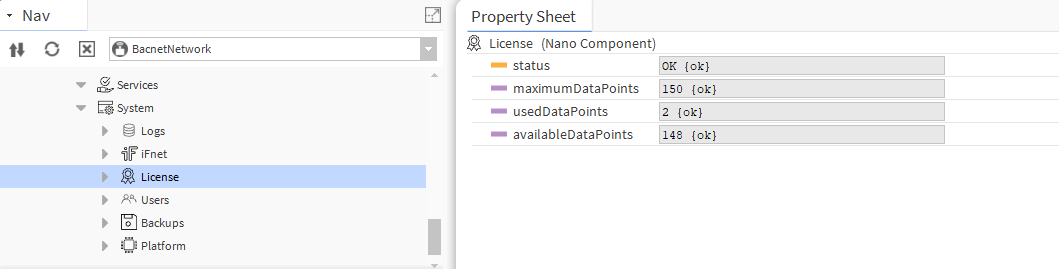
To integrate with Niagara, it is important to note that only Data Points can be exposed over networks. Each nano EDGE ENGINE device has a limit on the number of Data Points that can be exposed. The available number of Data Points can be found in the License component in the System container.
Exposing Data Points
To integrate Data Points with Niagara, the points must be exposed over networks. By default, nano EDGE ENGINE exposes points over BACnet and Modbus.
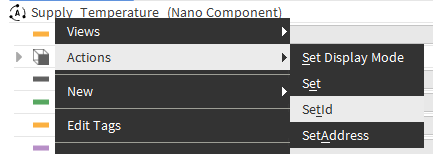
In BACnet, all Data Points are exposed as BACnet objects by default. Individual Data Points can be hidden by manually changing the Expose slot value in their BACnet extension (e.g., BACnetAnalogPoint, BACnetBinaryPoint, BACnetMultistatePoint). The BACnet object type and object Id is visible in the Data Point BACnet extension. To change the Data Point’s BACnetID, right-click on the Data Point and select the SetId action.
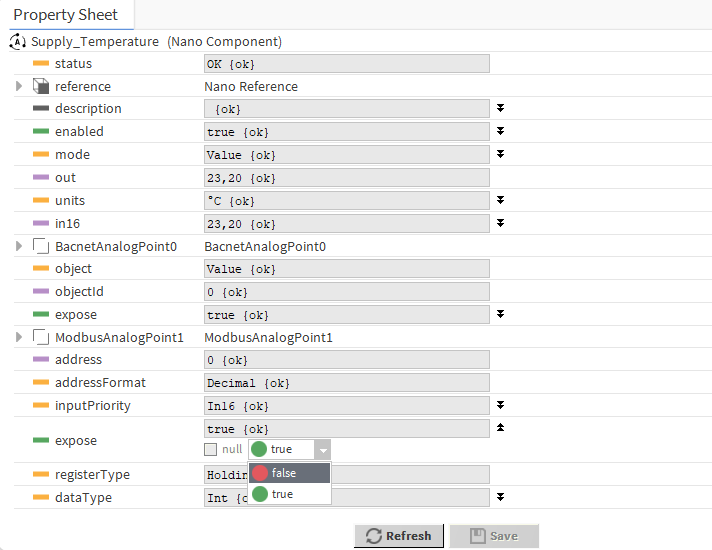
In Modbus, all Data Points in the device are automatically exposed as the Modbus server device. In order to disable the Data Point in the Modbus server network, either set the Autoexposition slot in the Modbus component to false (all Data Points hidden) or go to each Data Point individually and set the Expose slot to false.
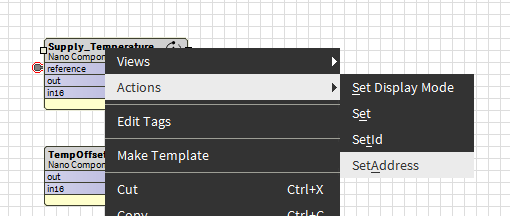
Modbus address is set automatically. In order to set Modbus address manually, right-click the Data Point and select the SetAddress action.
BACnetNetwork Niagara Integration
To integrate the nano EDGE ENGINE device and Data Points exposed over BACnet, make sure the LocalDevice component is properly configured. To change the BACnet Device settings, go to Networks → BACnet → LocalDevice, e.g., RAC18-IP.
To learn more about the LocalDevice, please refer to the nano EDGE ENGINE Programming user manual.
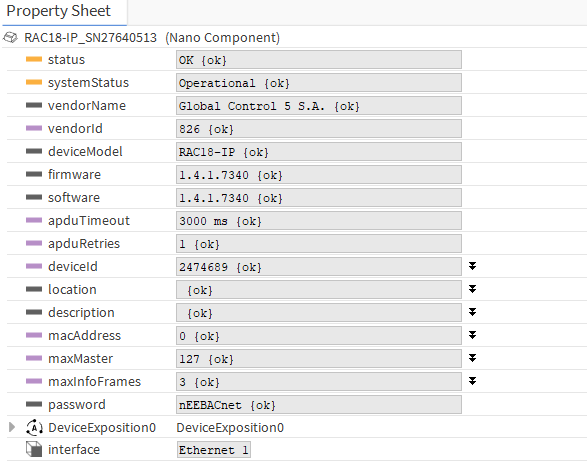
Once the deviceID and other parameters are properly configured, go to the BACnetNetwork device in the Niagara station and make sure the configuration of the device is correct.

To integrate points, go to the device → Points and click Discover. Add required points to Niagara database.
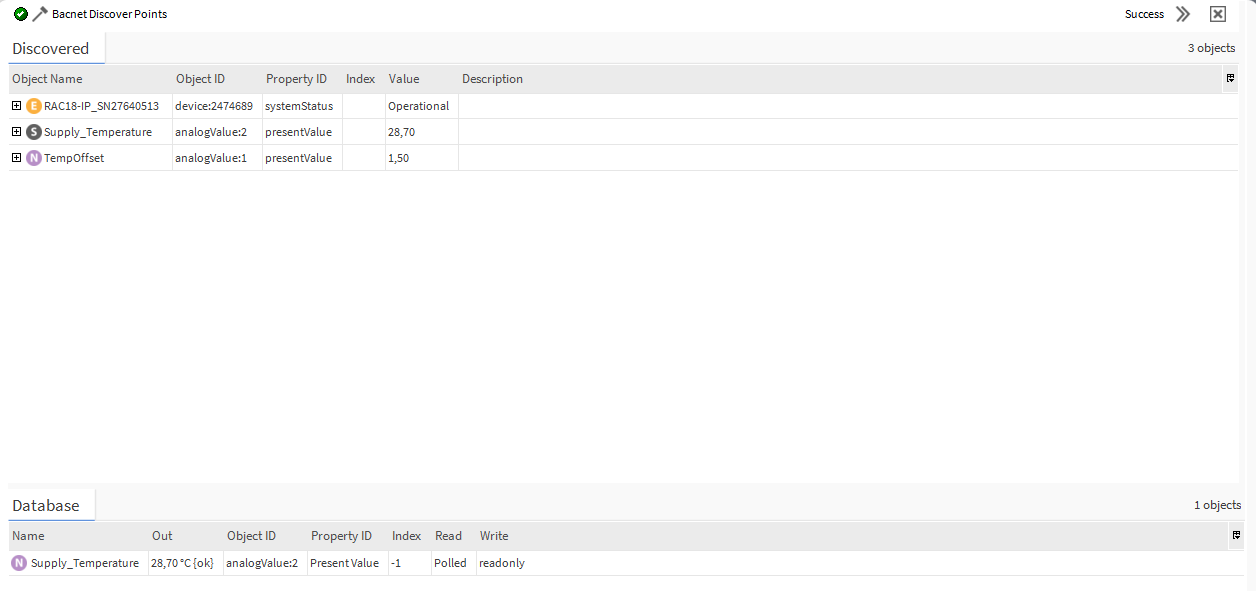
The points have been successfully integrated into the Niagara BACnet network.
Trend Logs
With the nE2 Link V1.8 release, the Trends service functionality has been added to the nano EDGE ENGINE operating system.
Using trends for the nEE devices has been described in the Trends Service section.
Niagara Workbench offers a tool to automatically discover trends which are exposed to the BACnet network on the nano EDGE ENGINE device. To do this, go to Trend Logs under the BACnetDevice in the Niagara station:
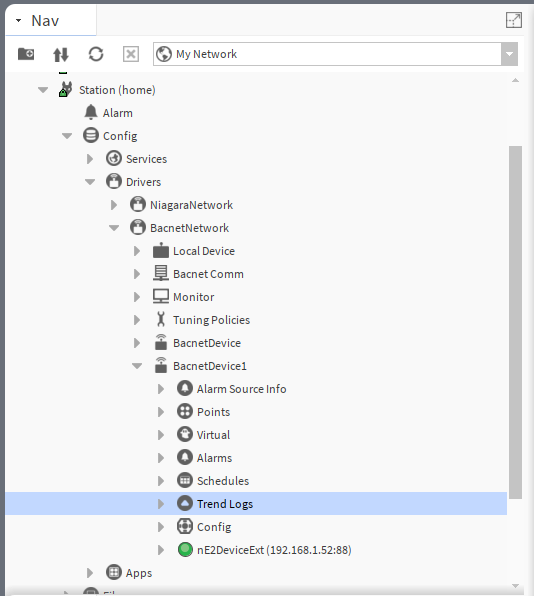
Double-click Trend Logs or use the context menu and choose AX Bacnet History Import Manager/Bacnet History Import Manager view.
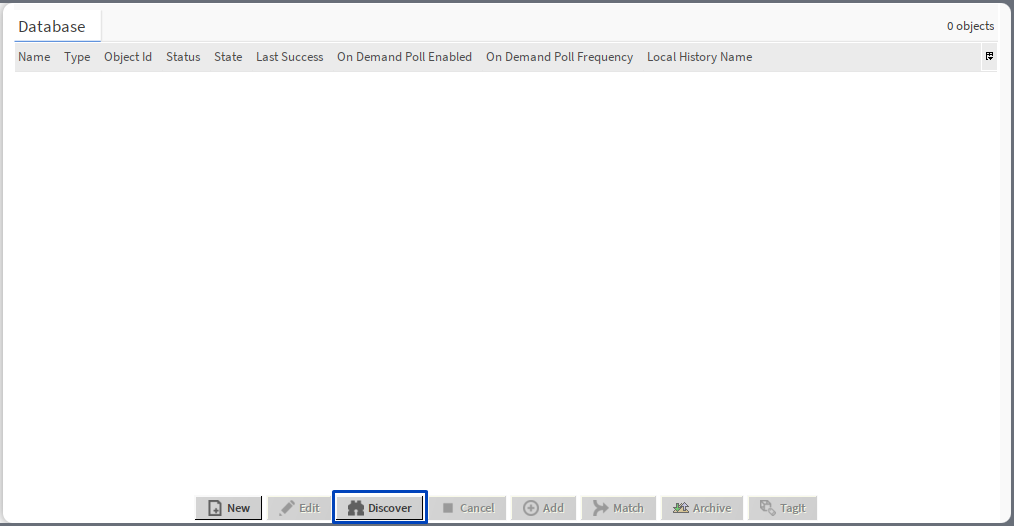
To automatically discover trends available on the nano EDGE ENGINE device, make sure that the device is properly connected to the BACnet network and communicating and use the Discover button.
The view will be split into to parts, Discovered and Database.
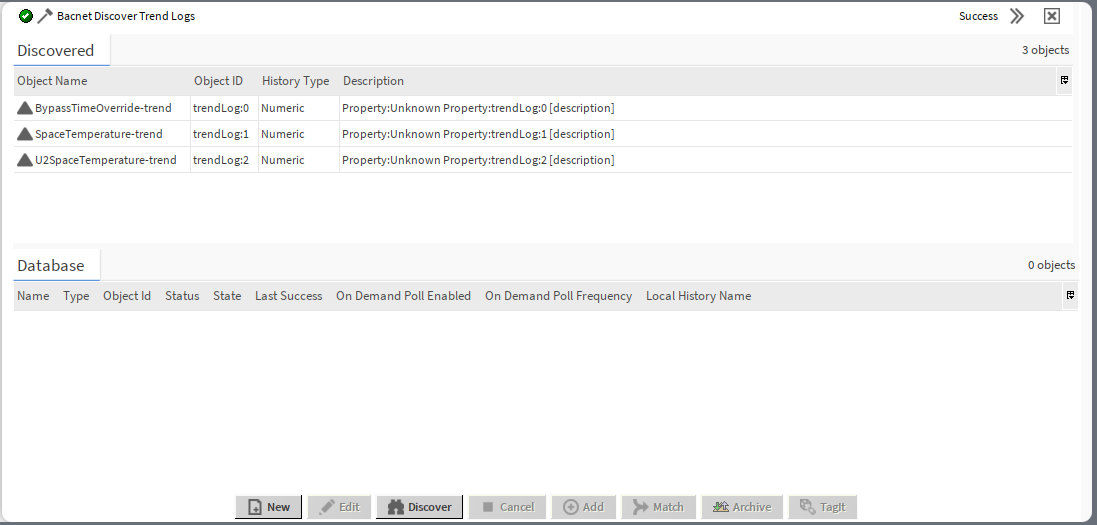
To add trends to the Database, double-click on a trend, which automatically opens the Add pop-up, or mark trends in the Discovered section (click a single trend or use a Shift or Ctrl keys to mark more than one trend) and use the Add button or drag and drop marked trends in the Database section.
The Add pop-up allows to configure trends added to the Database:
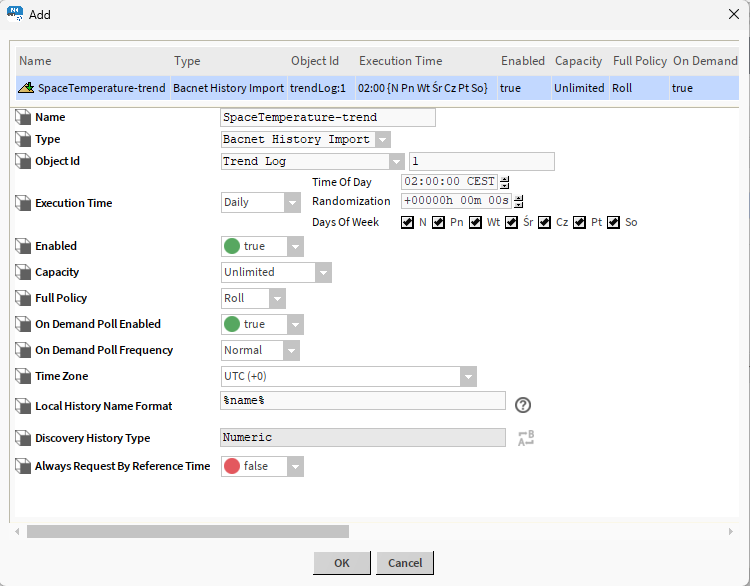
The Add dialog window has the following columns:
-
Name of the trend;
-
Type;
-
Object Id;
-
Execution Time: allows to choose a synchronization method:
-
daily: requires additional specification of time, randomization, and days of week,
-
manual: can be linked to an action in logic,
-
interval: requires additional specification of interval, time, and days of week;
-
-
Enabled status of the trend,
-
Capacity: allows to set a number of records to be saved;
-
Full Policy: allows to select an action when records limit (if set) is achieved);
-
On Demand poll status.
it also allows to define additional parameters:
-
On Demand Poll Enabled: allows to enable/disable an on-demand polling function;
-
On Demand Poll Frequency: allows to set the on-demand polling frequency;
-
Time Zone: allows to set a time zone, which will be automatically applied to records;
-
Local History Name Format: allows to set a naming pattern for the history records;
-
Discovery History Type: shows the format of history records;
-
Always Request By Reference Time: allows to set if the trend records should always request against the reference time.
History Charts
Once the trends are correctly added to the Database, it is possible to further use them in the Niagara history tools, for example, AX History Chart Builder.