
The Trend extension allows to save values of the Data Point for the historical analysis purposes. When added and enabled, the extension records values in a selected sampling mode and saves them in a database. The data saved from the Trend extension can be managed in the Trends service (available in the Services container).
It is not possible to add more than one Trend extension to the Data Point.
The extension is added from the context menu of the Data Point.
Note
For the Trends extension to operate properly, please make sure that the Trends library is installed on the device.
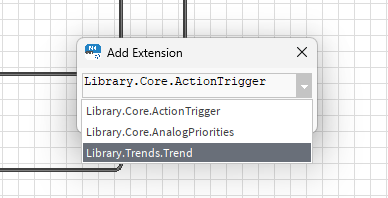
The Trends library is by default added in the nano EDGE ENGINE V1.8 OS (and is not compatible with earlier versions) and the Trends Service is then automatically displayed in the Services container once the library is correctly installed on the device.
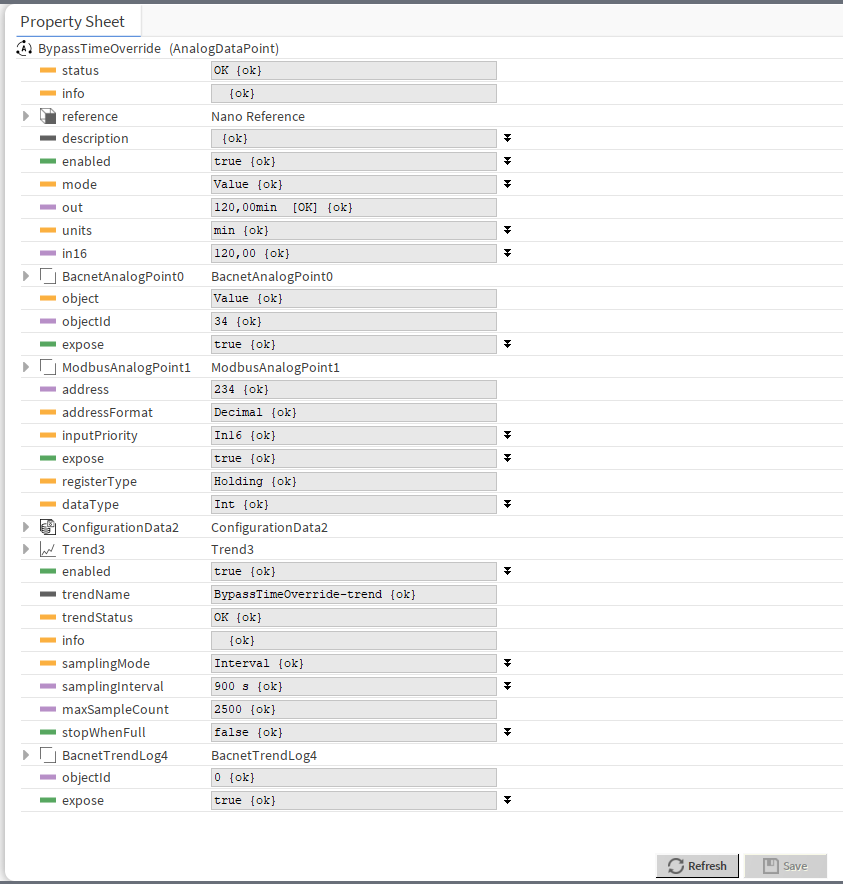
The Trend extension has the following slots:
-
Enabled: allows to enable or disable the trend;
-
Trend Name: shows the name of the trend;
-
Trend Status: informs of the extension’s status;
-
Available information:
-
Disabled (the Data Point, Trend extension, or Trends service is disabled),
-
Unlicensed (the Data Point is unlicensed),
-
Stopped (the number of saved samples is equal to or greater than Max Sample Count and the Stop When Full slot is set to true),
-
OK;
-
-
-
Info: provides a detailed information about the Disabled status of the component;
-
Available information:
-
Trend extension disabled: the Enabled slot in the Trend extension is set to false,
-
Parent (Data Point) disabled: the Enabled slot in the Data Point is set to false,
-
Parent (Data Point) unlicensed: the Data Point, which the Trend extension is added to, is unlicensed,
-
Trends Service disabled: the Enabled slot in the Trends service is set to false;
-
-
From OS V1.8, the Info is a numerical slot, which displays a correlated text information:
|
Numerical value |
Displayed information |
|---|---|
|
0 |
No information displayed in the Info slot |
|
1 |
Trend extension disabled |
|
2 |
Parent (Data Point) disabled |
|
3 |
Parent (Data Point) unlicensed |
|
4 |
Trends Service disabled |
-
Sampling Mode: allows to set a sampling mode for saving data;
-
Available settings:
-
COV (triggers saving the sample when the Data Point’s Out slot value changes and this change is bigger than the Deadband slot’s value),
-
Interval (triggers saving the sample when time reaches the value of Sampling Interval slot’s value),
-
COV Interval (triggers saving the sample in both the above cases);
-
-
-
Sampling Interval: (available only if interval or COV interval mode is selected) time value, which triggers saving trend data;
-
Deadband: (available only if COV or COV interval mode is selected, applicable only in the AnalogDataPoint) allows to set a value for a non-responsive zone; the trend data will only be saved if the COV exceeds the deadband value;
-
Max Sample Count: shows a number of maximum (2500) samples that can be saved in the database for the trend;
-
Stop When Full: allows to stop saving trend data if the Max Sample Count number is reached;
-
Available settings: false (trend overwrites the oldest samples), true (trend stops executing).
-
BACnet Trend Log
When the Trend extension is added to the Data Point, it automatically adds another extension in the Data Points view: the BACnet Trend Log extension. This extension allows to manage the trend’s BACnet exposition to the network and adds a BACnet ID if exposed.
The BACnet Trend Log extension has the following slots:
-
Object Id: shows an automatically assigned BACnet object ID number if the trend is exposed to the BACnet network;
-
Expose: allows to enable or disable the trend’s exposition to the BACnet network; by default, the trends is exposed to the network.
The BACnet Trend Log extension has the following action:
-
Set Trend Id: allows to set the object ID value for the trend exposed to the BACnet network.
Note: The trend’s exposition can also by enabled/disabled directly in the Trends service view, editing the Expose on Bacnet field.