
Applicable to OS V1.10
The InputDevice component is a device-class component, which represents a single remote DALI input device (such as a push button, light sensor, occupancy sensor, or absolute sensor) and provides its control and status data to the DALI controller.
The InputDevice component must be located under the Network component in the DALI protocol.
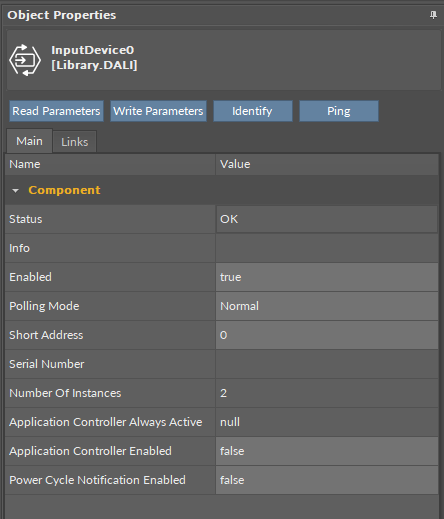
The InputDevice has the following slots:
-
Status: indicates the current status of the component; if the component works properly, its status is OK. The component becomes Disabled, once the Enabled slot is in false or null. The component's status is Fault, once the component is not placed under Network. If there is no response from the addressed device, the component goes into the Down status.
-
Available information: Disabled, Fault, Down, OK.
-
-
Info: provides a detailed information about the Disabled and Fault statuses of the component;
-
Available information:
-
Incorrect placement - must be placed under Network (status Fault): occurs, when the InputDevice component is placed in a different location than under the Network component;
-
Device disabled (status Disabled): the Enabled slot in the device is set to false;
-
Network disabled (status Disabled): the Enabled slot in the network is set to false;
-
-
The Info is a numerical slot, which displays a correlated text information:
|
Numerical value |
Displayed information |
|---|---|
|
0 |
No information displayed in the Info slot |
|
1 |
Incorrect placement - must be placed under Network |
|
3 |
Device disabled |
|
4 |
Network disabled |
-
Enabled: change of the slot's value enables or disables the component,
-
Available settings: true (enabled), false (disabled),
-
Note: If the Enabled slot is in false (meaning the component is disabled), the Status slot becomes Disabled.
-
Polling Mode: allows to set the frequency of sending polling requests for the point's value to remote devices—by default, the polling mode is set to normal,
-
Available settings: fast, normal, slow,
-
-
Short Address: allows to enter a DALI short address of the input device;
Note
Short address in this slot is not written to the device itself, only in the application controller’s logic. The communication with the remote device will be sustained if the DALI short address in the InputDevice component is identical to the remote device’s. If these values differ, the InputDevice component will go into the Down status.
-
Serial Number: shows a serial number of an input device upon the Read Parameters action,
-
Number of Instances: indicates how many input instances (e.g., sensors, buttons) are available on this DALI input device,
-
Application Controller Always Active: shows whether an application controller of a DALI input device is permanently active regardless of other settings,
-
Application Controller Enabled: allows enabling or disabling an application controller on a DALI input device.
Note
The Application Controller Enabled function in a DALI input device means the device can act as an application controller itself and directly send commands to the ControlGear devices. This function is derived from the DALI-2 protocol, however, in the nano EDGE ENGINE implementation, it is disabled by default and it is not recommended to be switched on due to a lack of possibility to define an events correlation with specific commands.
-
Power Cycle Notification Enabled: allows to switch off sending notifications from the input device to reduce the bus data transfer.
The InputDevice component has the following actions:
-
Read Parameters: reads all relevant parameters from the remote device and updates relevant slots,
-
Write Parameters: writes all current parameter values to the remote device,
-
Identify: sends the Identify DALI command to the remote device for identification,
-
Ping: sends a request to the remote device and waits for an answer (if there is no response from the requested device, the InputDevice component goes into the Down status).
ActionTrigger Extension
The ActionTrigger extension is designed to invoke any action that is available for the component. The extension triggers an action selected in the Action Name on the rising edge of the Action Trigger slot. If the action has parameters to set, the parameter is taken from a relevant slot automatically added to the extension (Analog Value/Binary Value/String Value).
It is possible to add more than one ActionTrigger extension to the component (for example, one for each action in the component).
The extension is added from the context menu of the component.
The ActionTrigger extension has the following slots:
-
Action Name: allows to select an action to invoke;
-
Action Trigger: triggers an action selected in the Action Name slot;
-
Action Analog Value/Action Binary Value/Action String Value: a slot added automatically to the extension if an action selected in the Action Name slot has any specific parameters to set (depending on the type of action and its parameters, the relevant type of value is matched).