
This article presents an alternative method for commissioning multiple MAC36PRO controllers at once. This method involves launching the commissioning process for multiple controllers in the runtime (rt) of the Supervisor station. This allows the commissioning of several controllers to run simultaneously in the background, while the Workbench tool remains available, for example, for creating an offline configuration for the station that will serve as a common component for each of the controllers being commissioned in the background.
Supervisor’s Station
Start any station for this purpose; for this purpose, it can be the Supervisor’s target station at the facility, but it can also be an empty station running in the Niagara Daemon on the engineer’s work computer. The second option will be the only option if no supervisor—in the form of a Niagara Supervisor instance—is designated for the facility (or a group of different facilities integrated via VPN), or if the BMS is provided by another manufacturer.
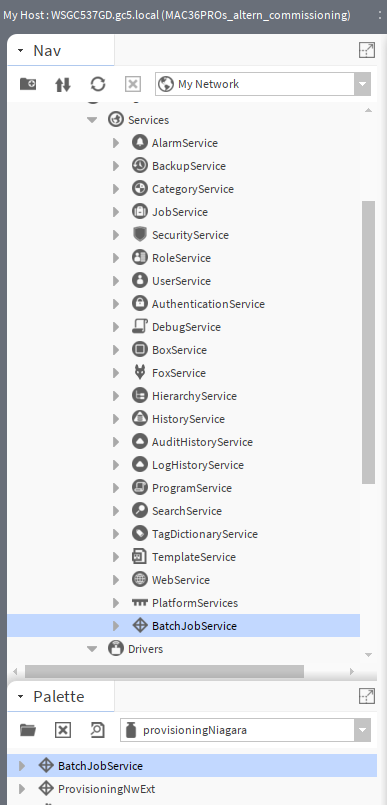
In the started station, under Services, add the BatchJobService component from the provisioningNiagara palette.
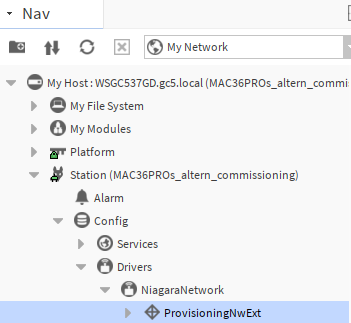
Under NiagaraNetwork, add the ProvisioningNwExt component from the provisioningNiagara palette.
Warning
If the components will be added in a different order than indicated, it is required to remove the ProvisioningNwExt and add it again, or restart the station.
Preparing the computer’s firewall to work with the FOXS protocol (platform and station) and discovering FOXS devices (NiagaraNetwork)
The default FOXS protocol ports for the platform (5011) or the station (4911) are not added to the compoter’s system firewall.
Therefore, the following inbound and outbound rules should be created to allow unrestricted connectivity:
-
FOX (discovering) -UDP type rule for ports:
1911,3011,4911,5011, -
FOX - TCP type rule for ports:
1911,3011,4911,5011.

Warning
Antivirus software can block all network traffic or take over the firewall’s function using its own dedicated module. In this case, it is recommended to add firewall rules within the antivirus software; alternatively (not recommended), the antivirus software’s blocking of all traffic can be disabled and the blocking policy left consistent with the system’s firewall.
Changing the default login credentials on the controllers and assigning unique IP addresses
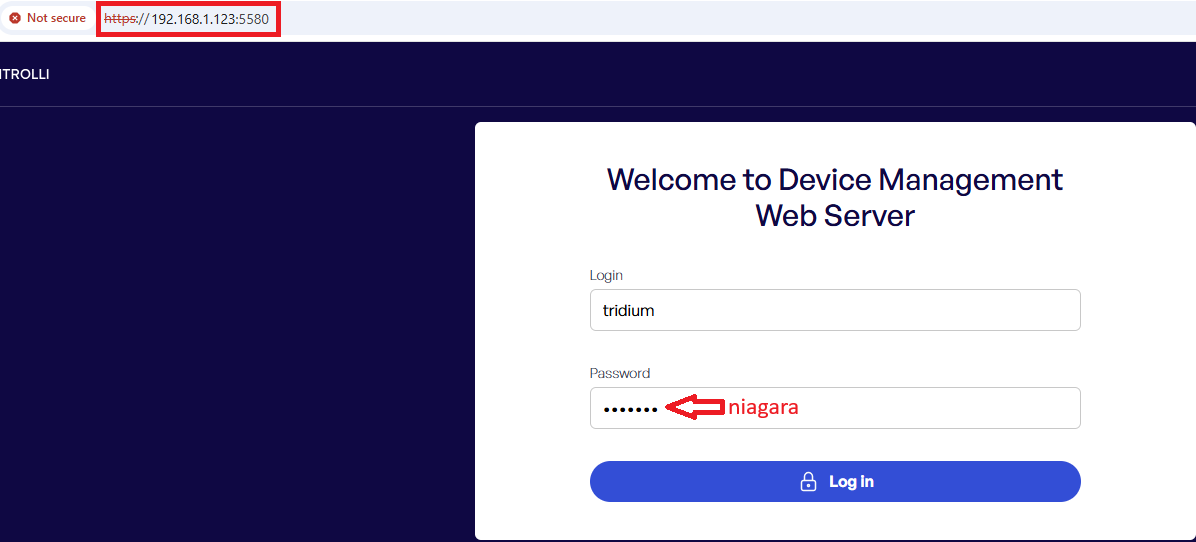
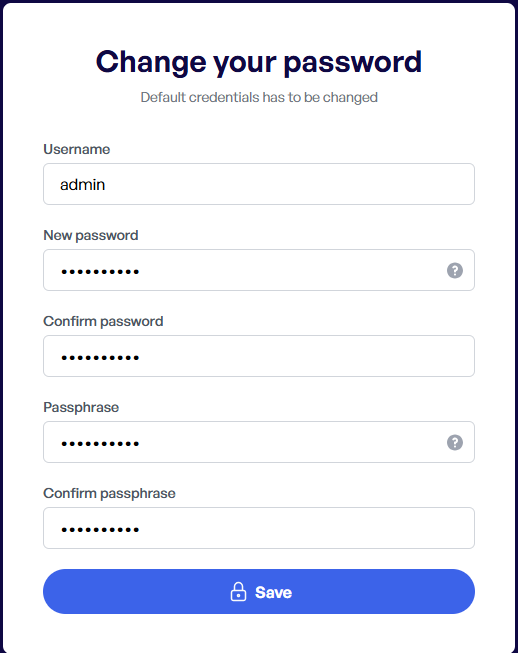
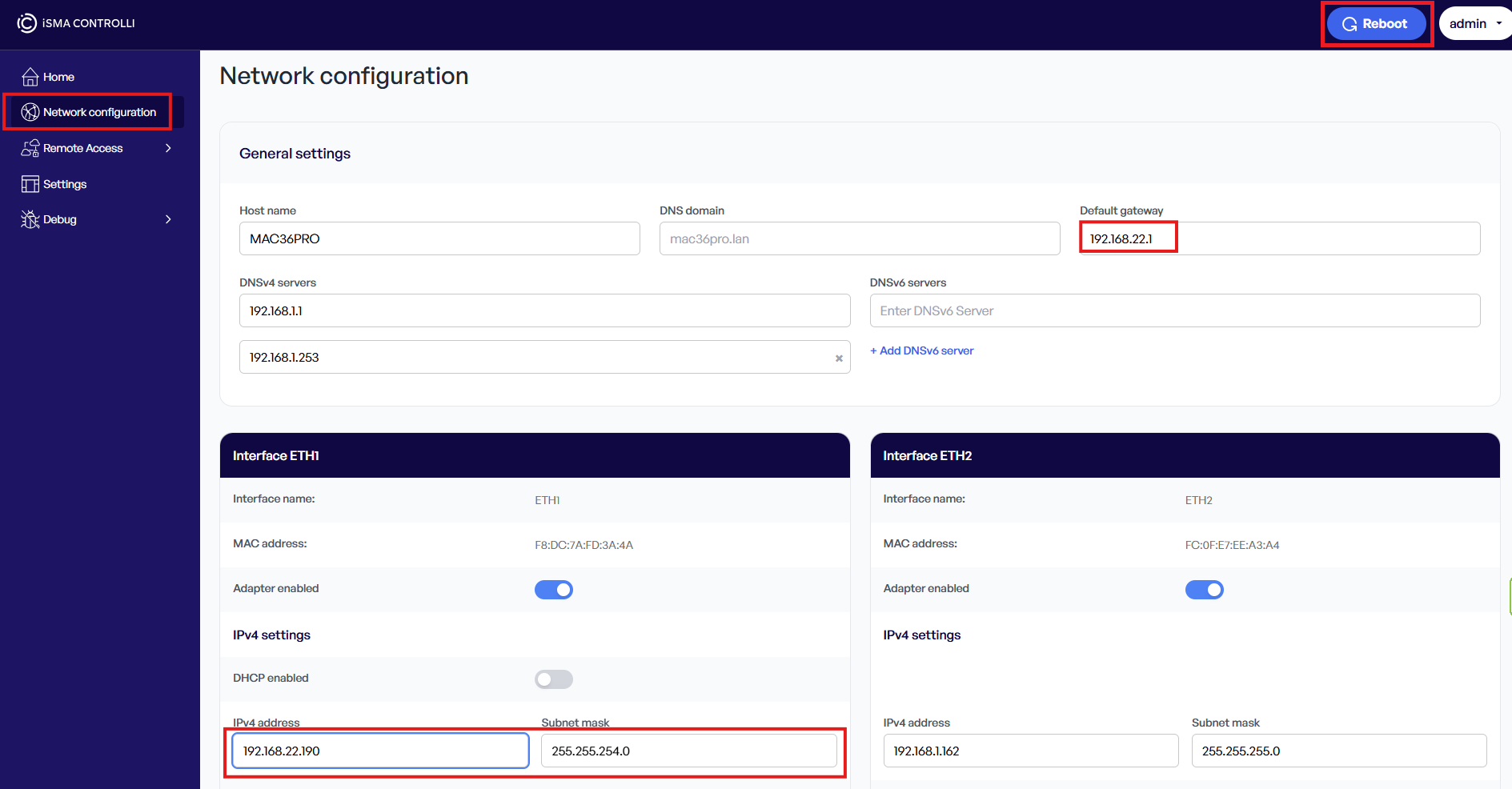
If the controllers have not been connected to yet, it is required to log to the Niagara platform or a built-in web server for each controller individually:
-
Change the default logging credentials and set a passphrase,
-
Change the default IP address to a unique one and reboot the controller.
Note
After powering the MAC36PRO controller, a built-in web server initiates more quickly than the controller’s Niagara platform.
Integrating MAC36PRO controllers' platforms to the Supervisior’s station
Adding devices to the station
Controllers with the stations (discovering)
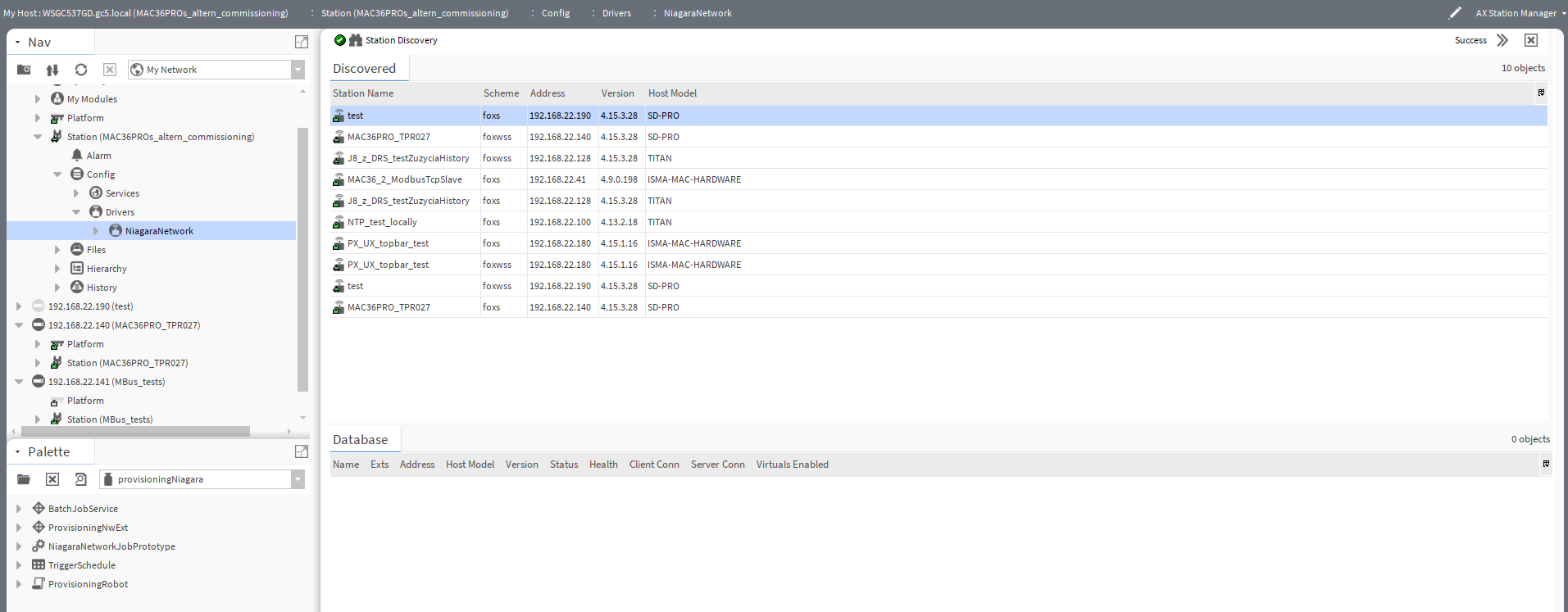
If the controllers have stations installed, first, it is required to carry out a discover process in the NiagaraNetwork component (in the Station Manager view). Then, add the discovered controllers which are to be commissioned to the Database.
Warning
Normally, the license for the niagaraDriver limits it to one device. If the controller is integrated into the Supervisor, the license has already been fully consumed. In this case, if the process is performed on a separate computer, adding a station will definitely result in an error indicating that the license limit has been exceeded, and it will not be possible to perform any actions on those specific devices. In this case, the process should be performed on the Supervisor, where the devices are already integrated. If the driver is integrated into another driver or if that driver integrates a station from another driver, the license will also be consumed, and standard manual commissioning will be the better and faster option.
While adding the discovered devices, fill in the Platform User and Platform Password slots.
Controllers without the stations (manual adding)
If the stations have not yet been set up on the controllers, the devices have to be added manually—in this case, any station name can be entered, but unique IP addresses are required as well as the Platform User and Platform Password slots.
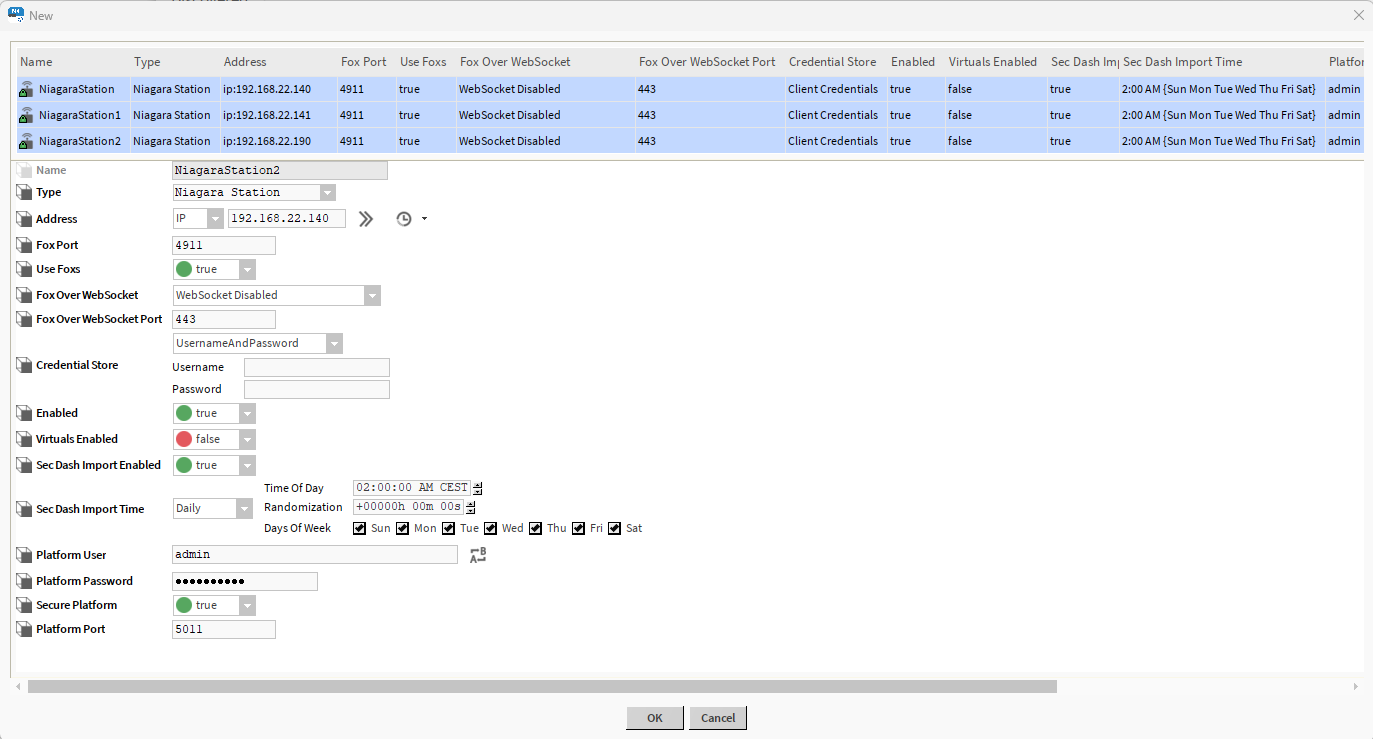
After being added to the station, the devices will enter the Down mode with the error: java.net.ConnectException: Connection refused: connect.

Confirming controllers' certificates
Next, in the Supervisor, go to platform → AX Certificate Management, the Allowed Hosts tab. Find certificates of added devices (port 5011) and then confirm with Approve.

This way, the certificates for connecting to controller platforms will be accepted, and it will be possible to force a ping action in device components once again. Although the devices will remain orange in Station Manager, the Platform Status will change to {unacknowledgedAlarm}, which means “OK,” but there are active errors in the alarm console that can be ignored.

Commissioning of multiple controllers
Setting the appropriate number of jobs
By default, BatchJobService allows a maximum of 2 independent jobs to run for provisioning—this should be changed to 1, because if provisioning starts running more than 1 job at a time, it may simultaneously attempt to perform mutually exclusive tasks, such as running 'Upgrade Out-of-date Software' in one job and a Reboot on the same controller in a parallel job—in such a case, the Reboot will complete much faster, and the parallel Upgrade Out-of-date Software will be interrupted.
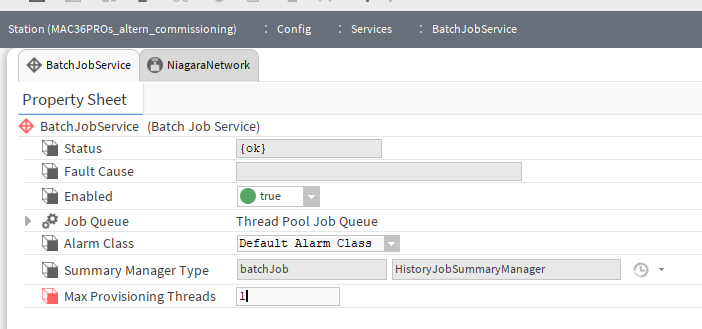
Unfortunately, this will force the Supervisor runtime to proceed step by step, controller by controller, which will make the commissioning process for several controllers take longer; however, this will ensure that all controllers complete commissioning in accordance with our guidelines. Nevertheless, Workbench and the engineer’s attention will remain unoccupied, just as they would be during a manual commissioning.
Preparing a job in provisioning
In the next step, navigate to the ProvisioningNwExt component located under NiagaraNetwork and open the default view (AX Niagara Network Job Builder).
Note: If preparing a list of jobs manually seems too time-consuming or tedious, a basic template for tasks to be performed as part of the commissioning of MAC36PRO controllers is available in the Streamlining section.
In the Provisioning steps to run section, add the following steps:
-
Set Time (Use supervisor time): synchronizes the controllers' time with the time on the Supervisor;
-
Upgrade Licenses: downloads the controller licenses;
-
Upgrade Out-of-date Software: updates the OS, the Niagara version, and the versions of the installed JAR modules;
-
Reboot: a reboot must be performed whenever the Niagara Daemon is updated, because the new distribution is installed before the Niagara Daemon is initialized;
-
(optional) Install Software: modules to be installed can be selected from the list;
-
(optional) Reboot: some modules (e.g., communication drivers) require a reboot after installation;
-
(optional) Rename Station Step: if new device names have been entered under the NiagaraNetwork component in the Supervisor station, they will be applied to the station names of the individual controllers.
In the Stations to include in the job section, add all MAC36PRO controllers on which to perform the selected tasks.
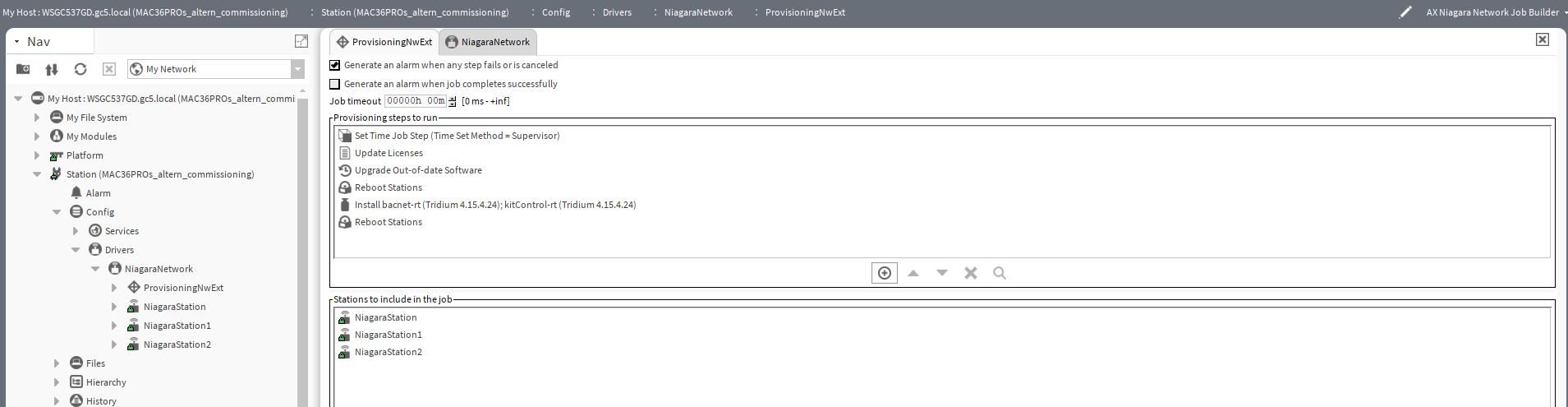
Next, click the Run Now button, and all the specified drivers will begin the commissioning process in the Supervisor runtime without blocking the Workbench window.
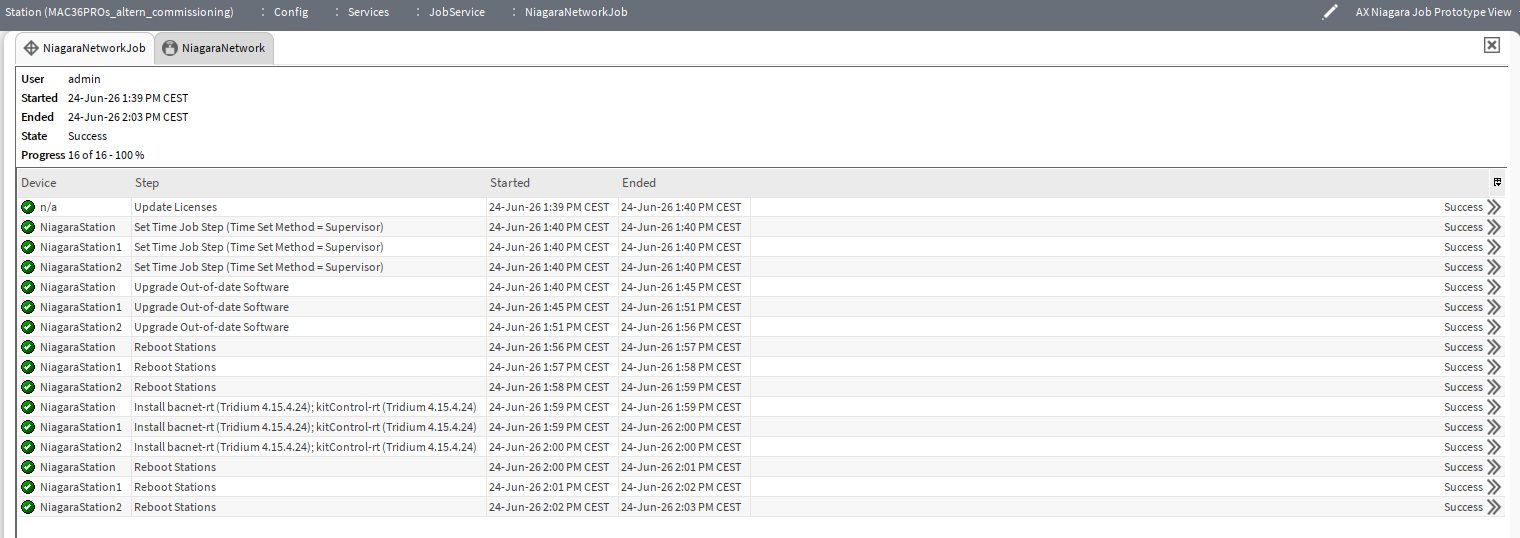
The active window will immediately navigate to Config → Services → JobService → NiagaraNetworkJob and display the AX Niagara Job Prototype View, where the execution of the job can be monitored along with its individual steps or perform other activities on the facility (e.g., preparing offline stations).
Once the job has completed successfully, a list of successfully completed jobs similar to the one below should be visible (the number of entries depends on the selected options and the number of MAC36PRO controllers).
Streamlining
Unfortunately, the list of jobs and drivers created in the Niagara Network Job Builder window of the ProvisioningNwExt component cannot be saved (e.g., as a custom template) and disappears from the window immediately after all scheduled tasks have been completed. Similarly, it is not possible to load a list from any template.
Therefore, there is an alternative method based on the NiagaraNetworkJobPrototype component from the provisioningNiagara palette.
First, it is important to note that this component is designed to perform the same jobs on a cyclical basis; therefore, immediately after adding it to the station, the default value of 00001h 00m 00s in the Retention Policy Check Frequency slot must be changed to 00000h 00m 00s (i.e., to disable the cyclic repetition of jobs).
Additionally, after commissioning is complete, the component must be removed from the Supervisor station, because the next time the station is started, NiagaraNetworkJobPrototype will run once again.
In the Niagara Network Prototype View, the component has a Save button that allows to permanently save the list of jobs to be performed. Thanks to the ability to create individual palettes, several common prototypes can be prepared and used across different facilities or for groups of controllers with different purposes. The component must be added to the Supervisor station under Config → Services → BatchJobService.
Adding jobs to be performed is the same as described in the “Preparing a job in provisioning” subsection in the “Commissioning of multiple controllers” chapter.
Below is a palette containing an example template of a list of jobs to be performed during the commissioning of the MAC36PRO controller. In addition to the basic scope of commissioning, the template also includes jobs for installing the most commonly used JAR modules, which—after adding the template to the station—can of course be removed from the list and the component saved if they are not needed.
MAC36PRO_Commissioning_NNJobProt.palette
Statistics
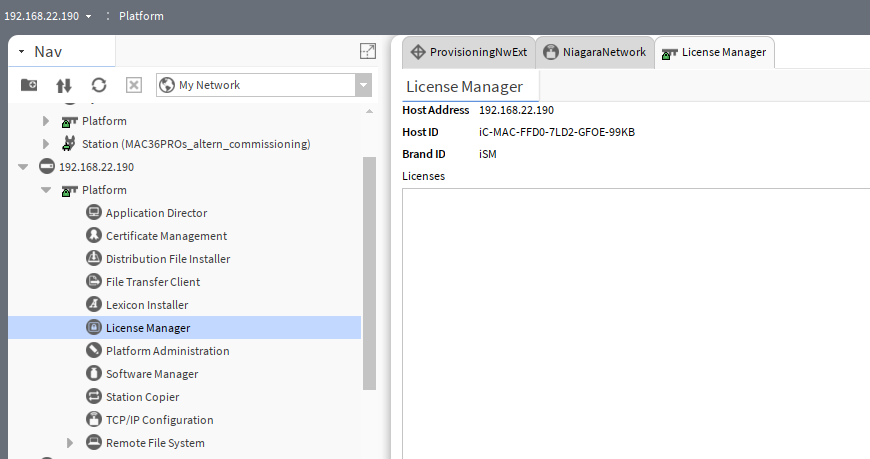
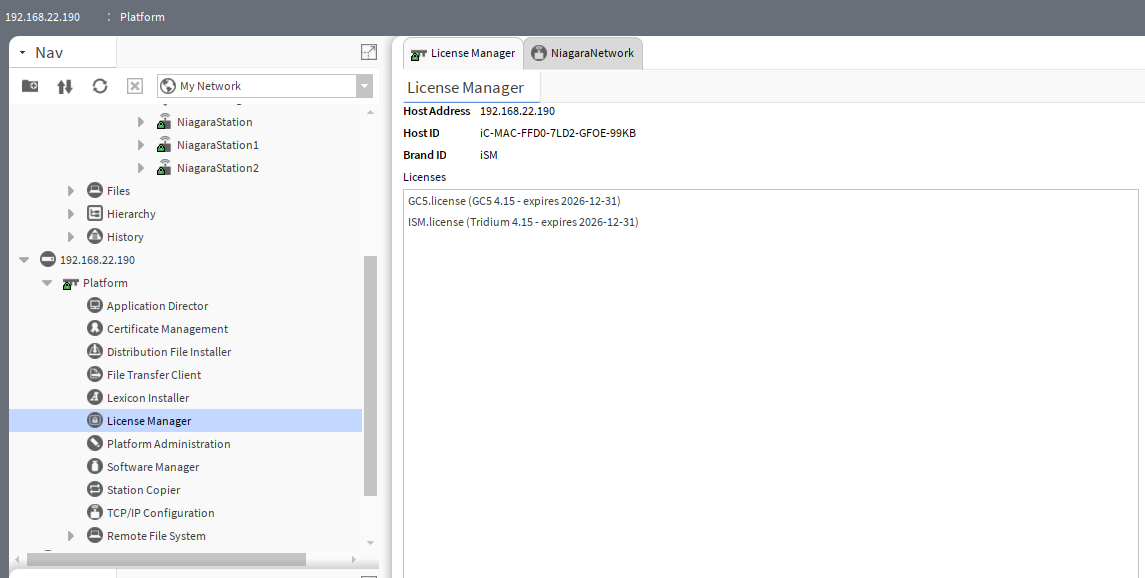
Commissioning of 3 MAC36PRO controllers run in a single thread, including:
-
time synchronization,
-
license installation,
-
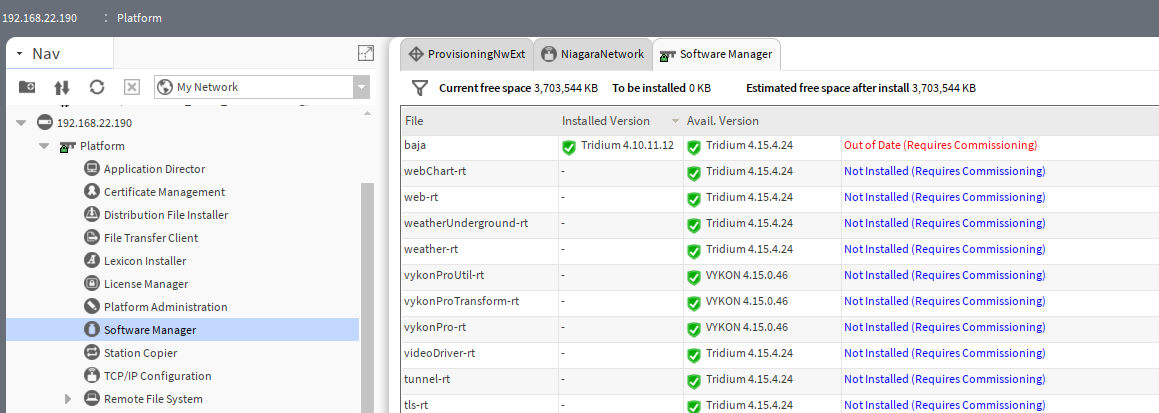
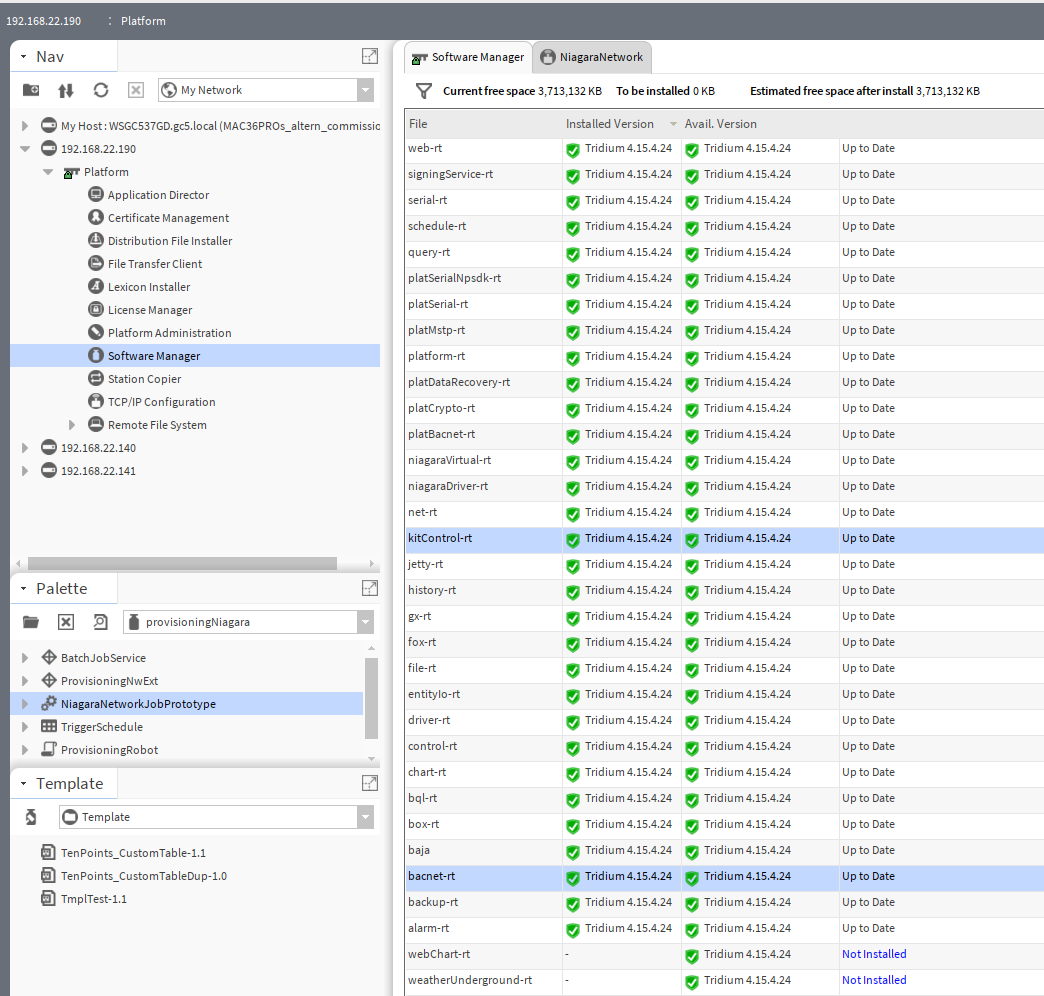
Niagara Daemon update (from 4.10u11 to 4.15u4),
-
installation of the bacnet-rt and kitControl-rt modules.
It took a total of 24 minutes and ran in the background without occupying the Workbench window during that time.
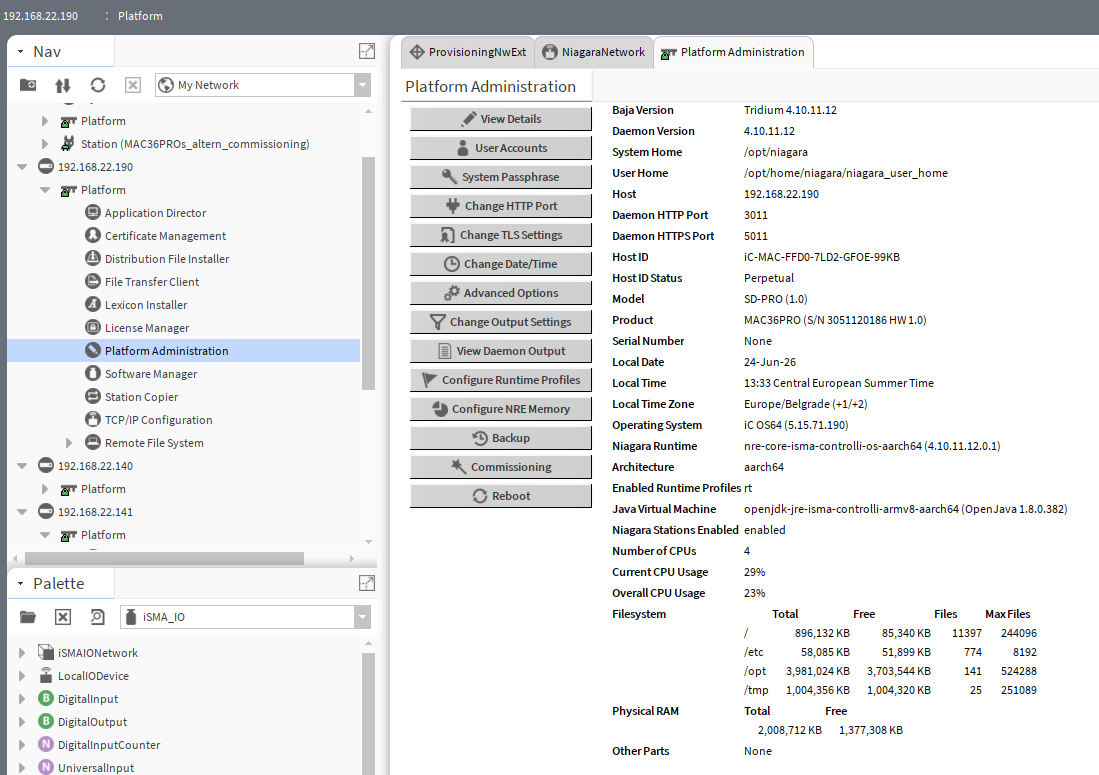
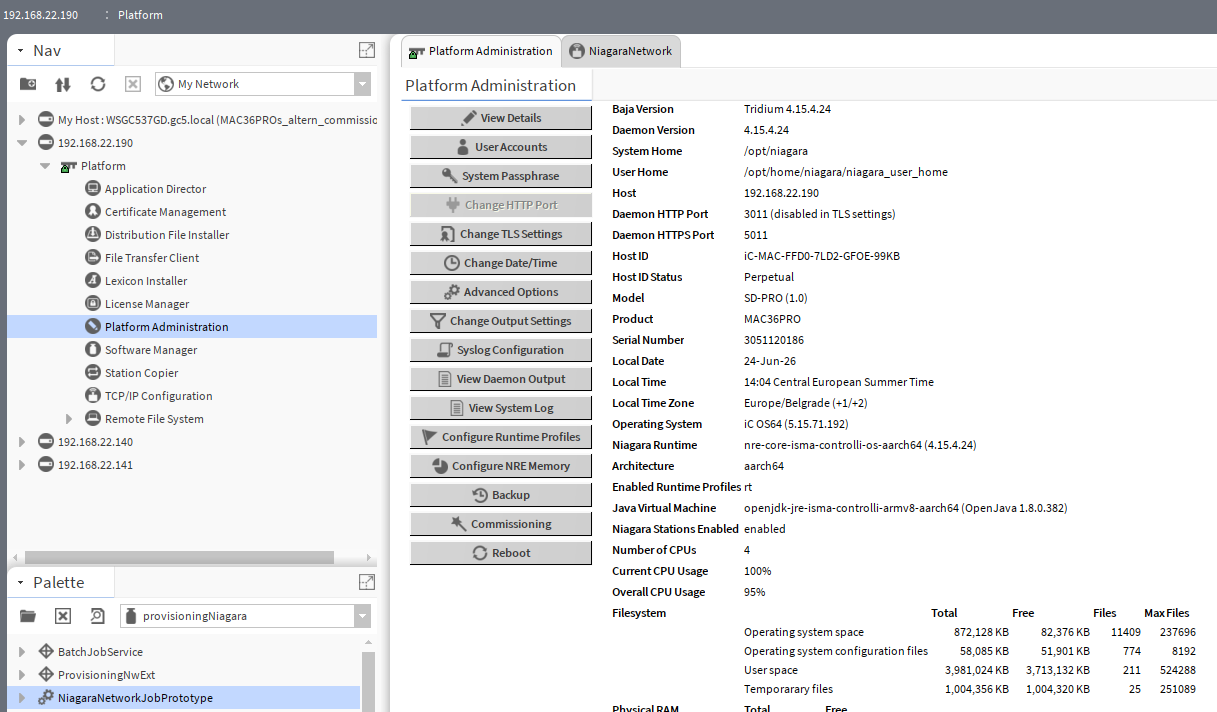
Comparison of the initial state to the state after commissioning, using one of the controllers as an example
|
Before |
After |
|---|---|
|
|
|
|
|
|