
Configuration of the LTE connection in the MAC36PRO controller is carried out in the Device Management Web Server.
Device Management Web Server
More details as to how to connect and log in to the web server are available here: Device Management Web Server.
SIM Card
An initial prerequisite for configuring the LTE connection on the MAC36PRO controller is inserting a SIM card.
A SIM card is not part of the LTE extension set. However, the LTE extension for MAC36PRO supports a wide range of SIM cards available worldwide with the only requirement of providing an LTE 4G coverage. The supported SIM card type is 4FF (Nano SIM).
The SIM card is very easily inserted into the LTE dongle. To open it, slide its cover to the side, remove it, insert the card, and replace the cover.
To start configuring the LTE connection, go to LTE Setting in the Device Management Web Server.
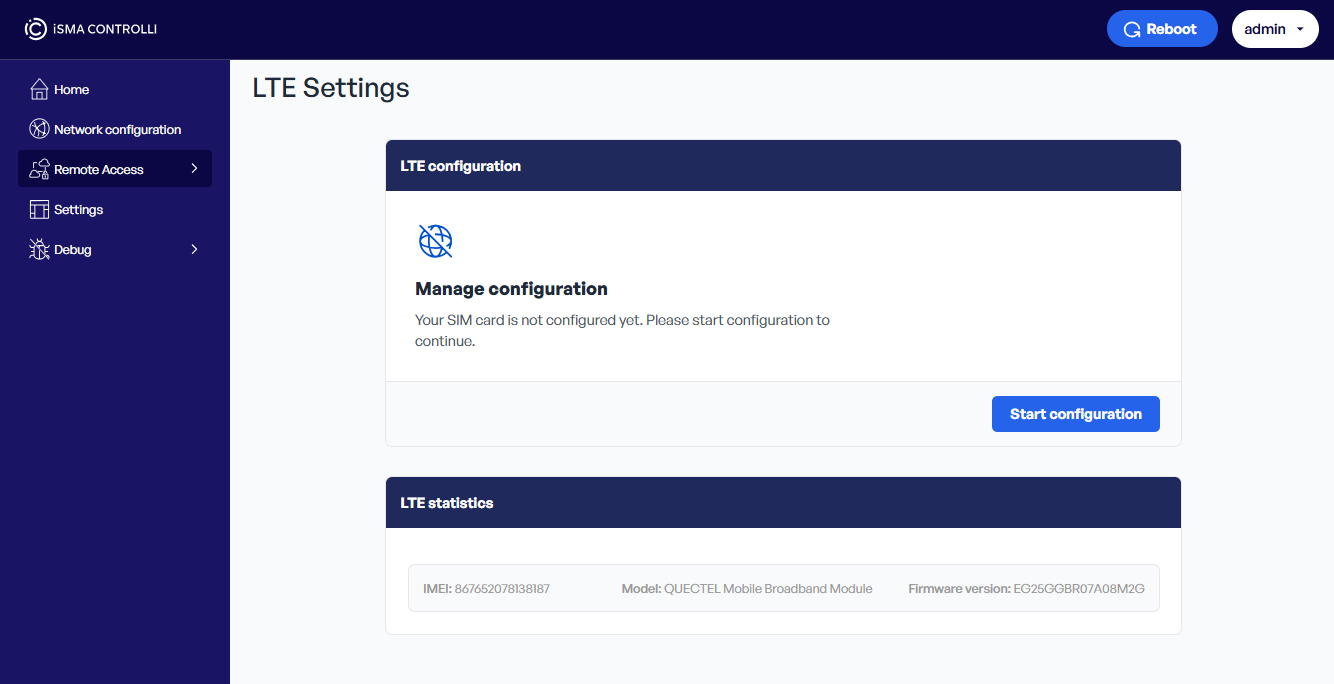
SIM Card Configuration
PIN
First - if required - enter the SIM card’s PIN. This step is dependent on the SIM card and if there is no PIN protection, it will be omitted.
APN
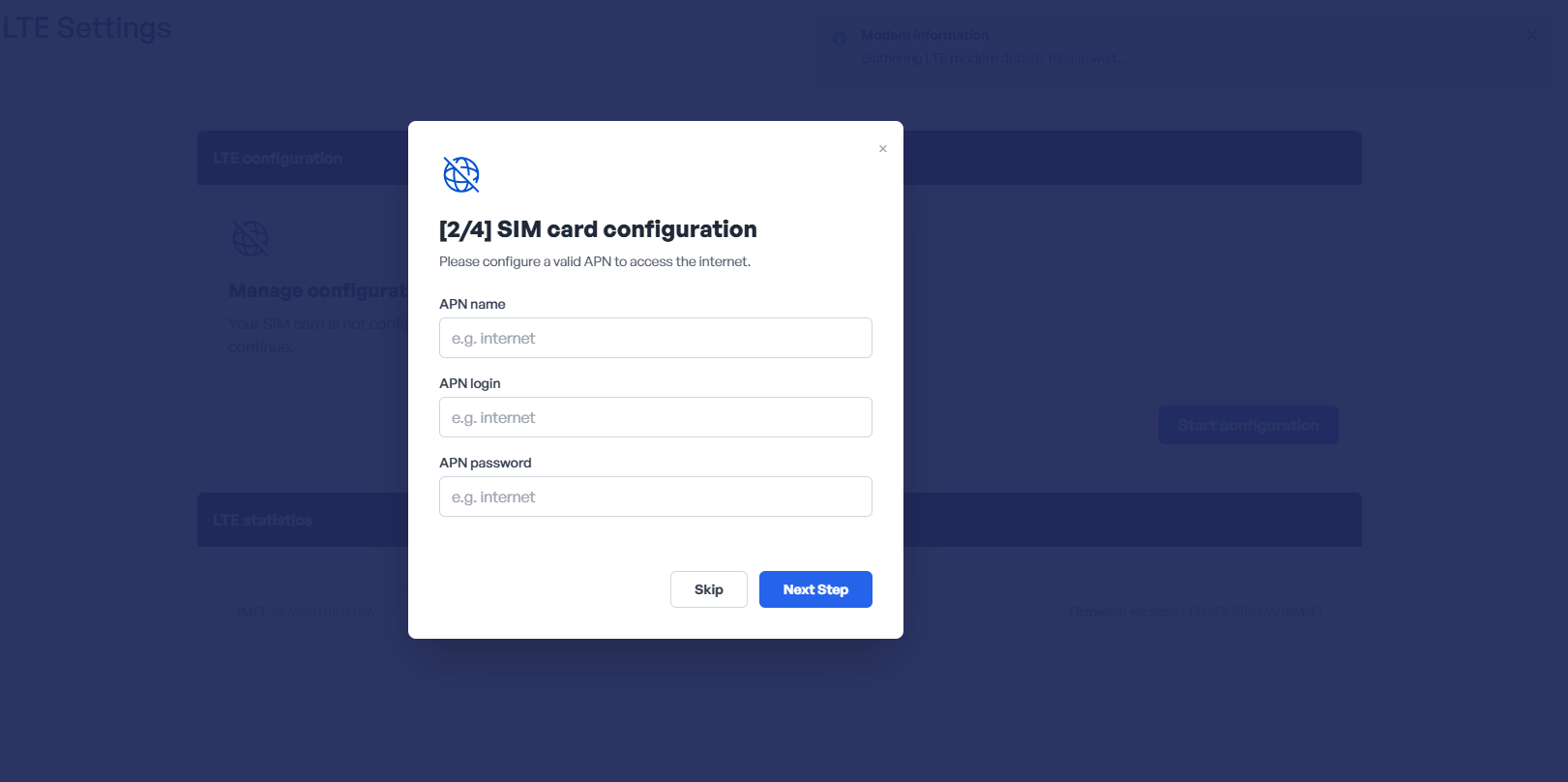
Enter the APN (access point name) data provided by the SIM card supplier.
Public Access Configuration
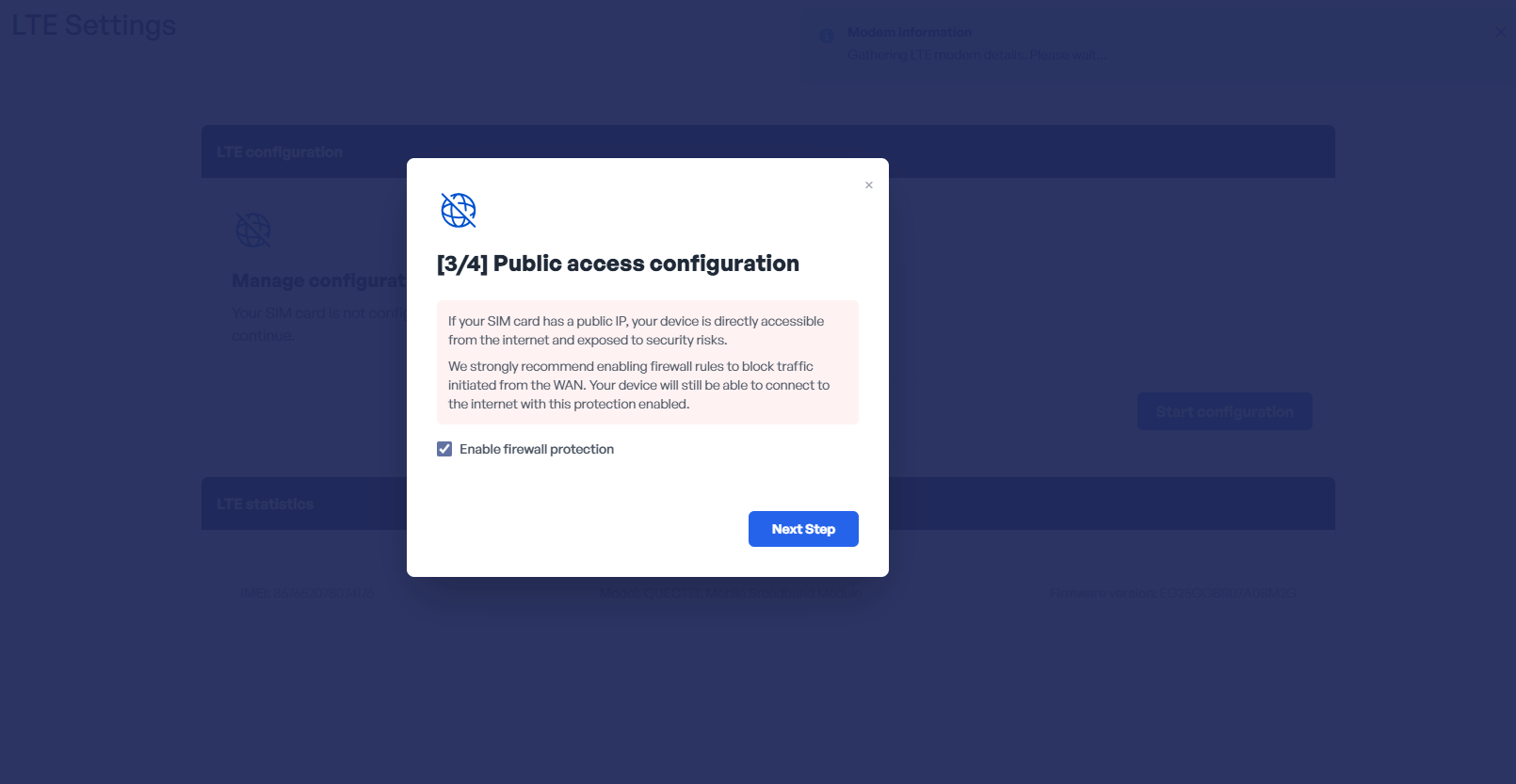
The next step is a public access protection notification. It is strongly recommended to enable the protection due to security reasons.
Firewall protection mechanism
The firewall protection feature is enabled by default to ensure the device remains protected even when the SIM card is assigned to a public IP address by the LTE network operator.
When this protection is enabled, the device rejects all unsolicited inbound connections originating from the LTE network. This prevents external hosts from directly initiating connections to the device using its LTE-assigned IP address.
The firewall operates according to the following principle:
-
If an external host initiates a connection to the device via the LTE interface, the connection is automatically rejected.
-
If the device initiates the communication first, the corresponding return traffic is permitted as part of the established session.
This mechanism ensures that the device cannot be directly accessed from the public internet through the LTE interface while still allowing normal outbound communication.
This protection applies only to traffic entering through the LTE interface. Network traffic arriving through other interfaces, such as Ethernet (ETH) ports, or through secure Wireguard VPN tunnels, is not restricted by this feature and is processed according to the normal network configuration.
The feature provides an additional security layer for LTE deployments. For secure remote access, it is recommended to use a VPN connection together with the LTE connection rather than exposing services directly to the public internet.
The firewall setting must be configured during the LTE configuration process. If the firewall configuration needs to be changed or disabled later, the LTE connection must be recommissioned for the new setting to take effect.
Success
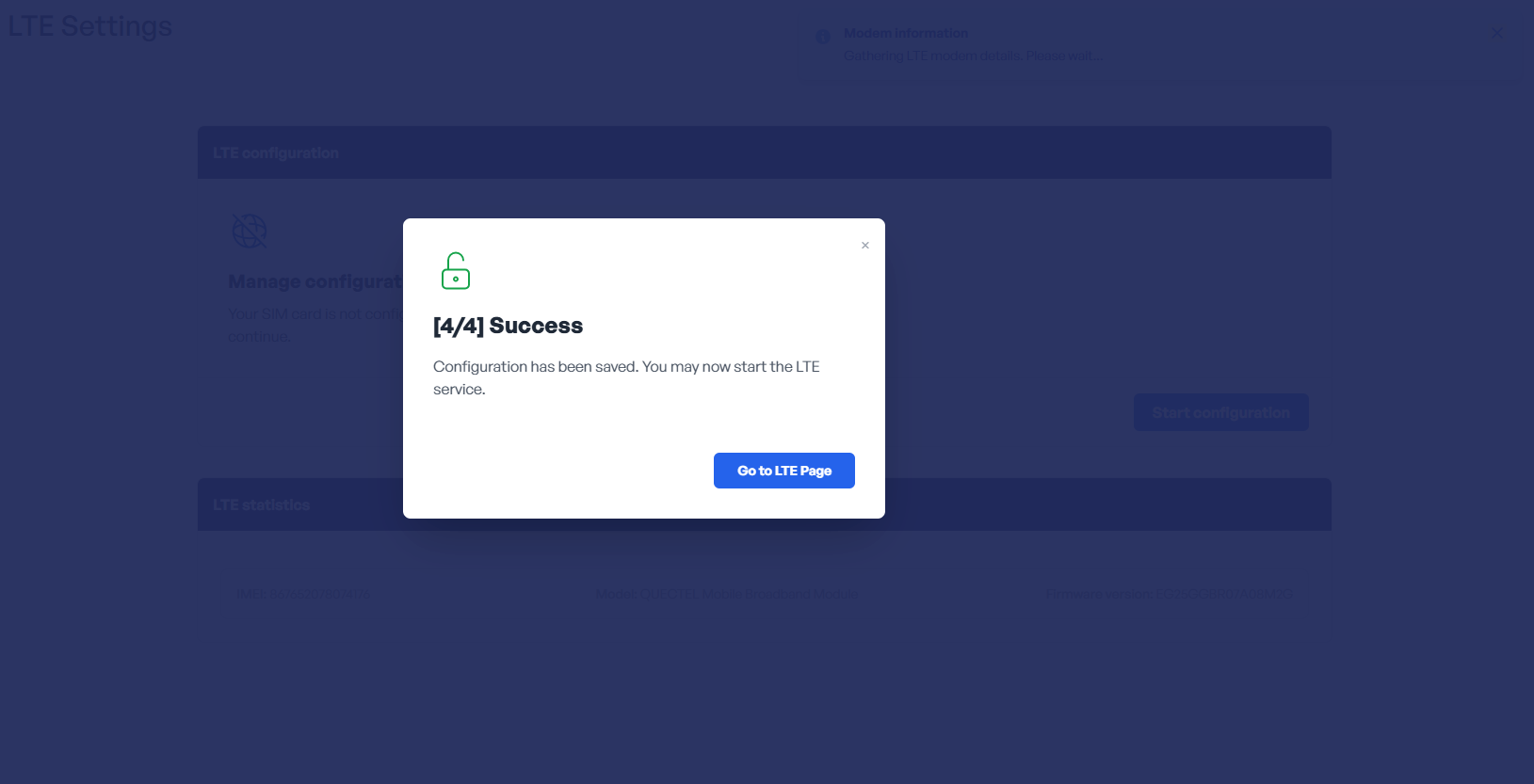
A success notification is displayed upon a correct configuration of the SIM card.
Configuration removal
If required, it is possible to remove the SIM card configuration using the red button:
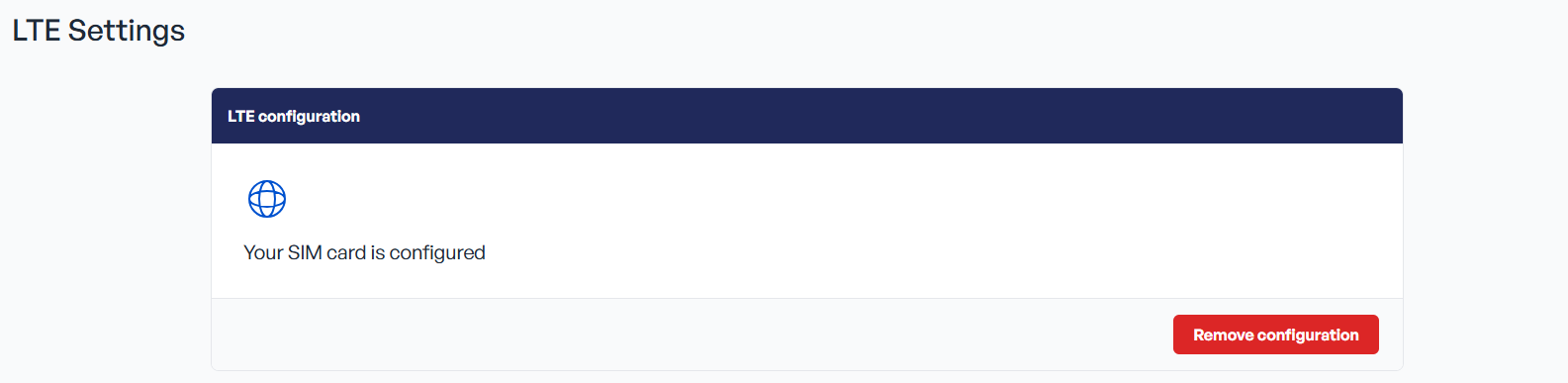
The action will invoke a confirmation prompt. Once confirmed, the SIM card configuration will be deleted.
Reboot
After a first configuration of the SIM card, it is required to reboot the device.
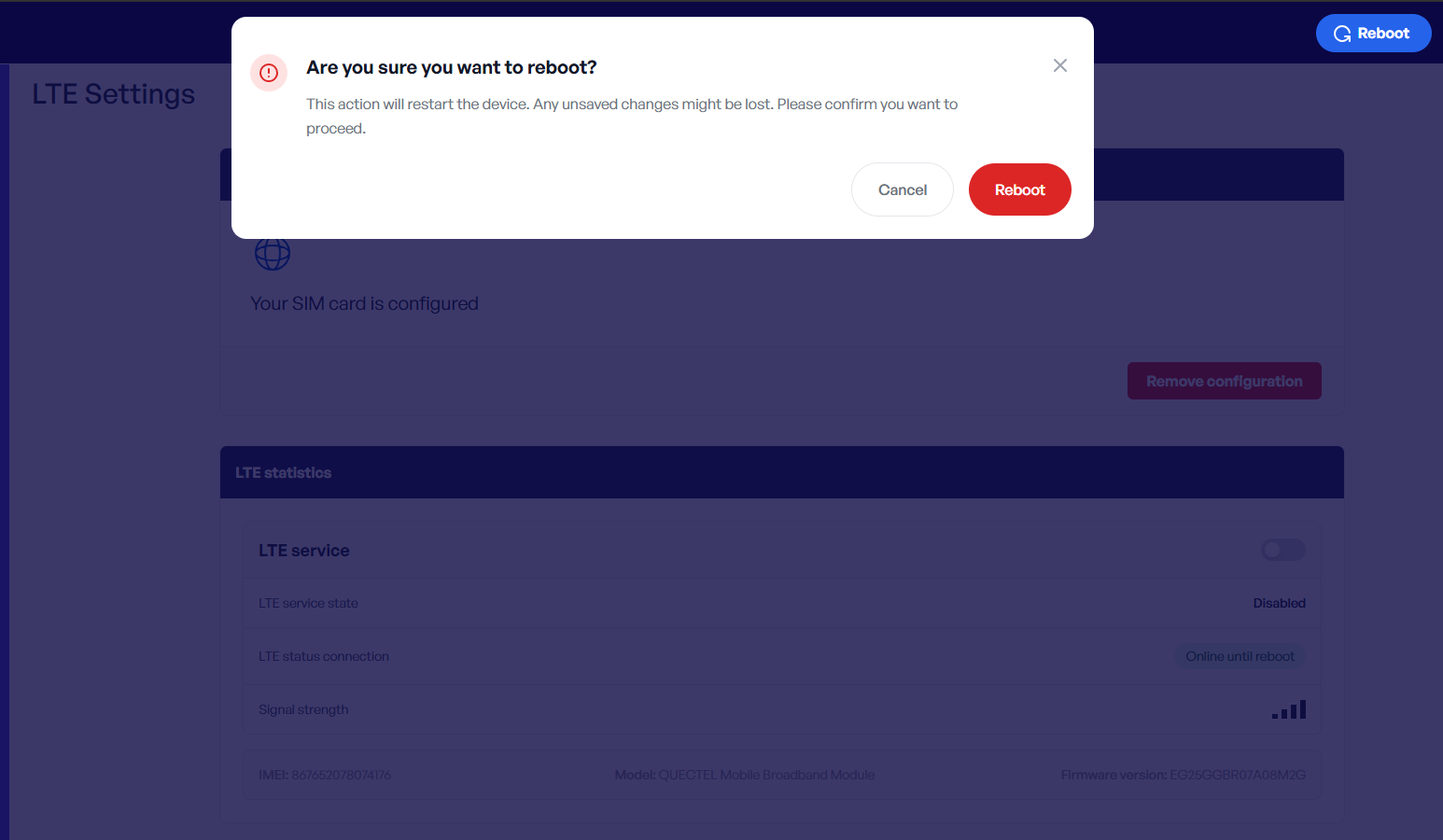
Confirm the reboot notice. After the controller reboots, log again to the Device Management Web Server.
LTE Service
After the first reboot, it is required to enable the LTE service.
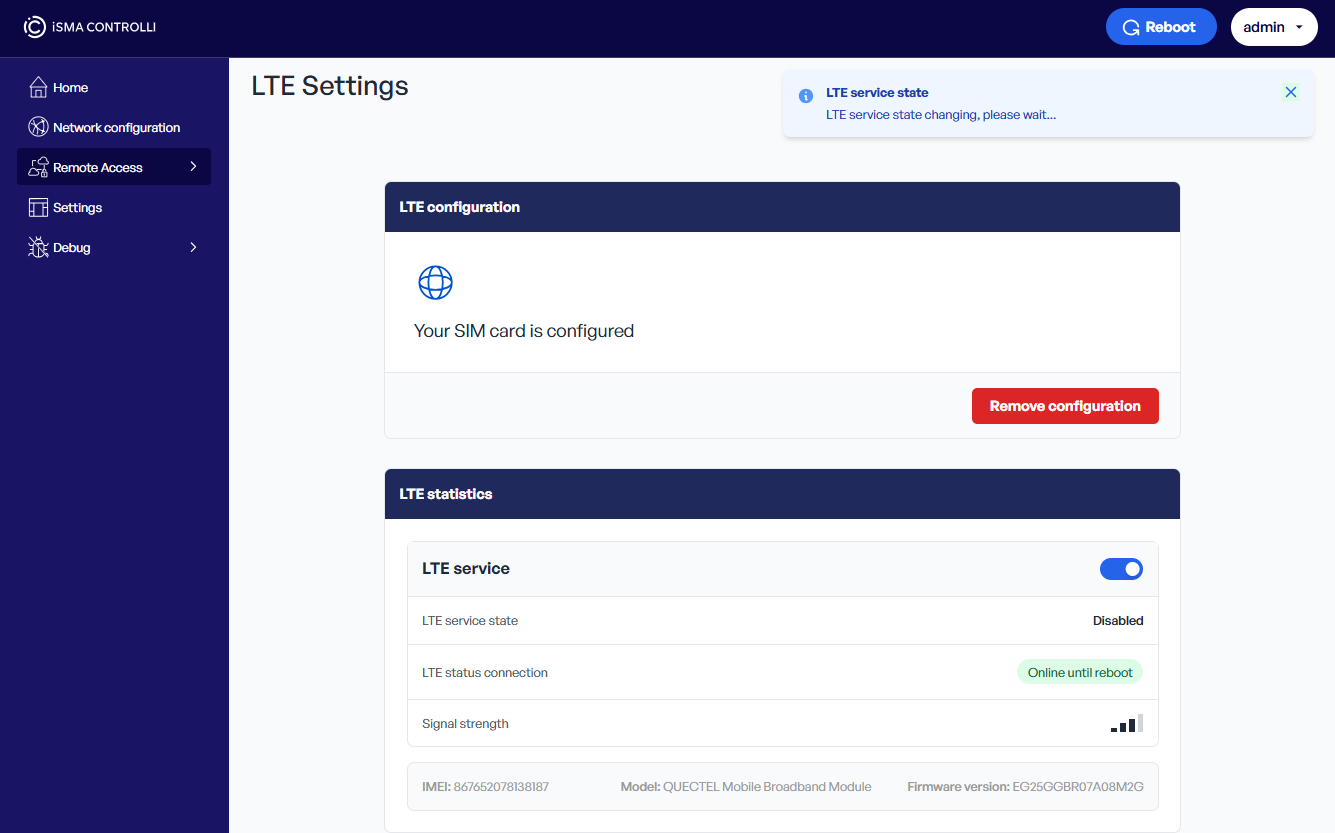
To enable the LTE service, toggle it to an active state. While in progress, the LTE service state notification will appear.
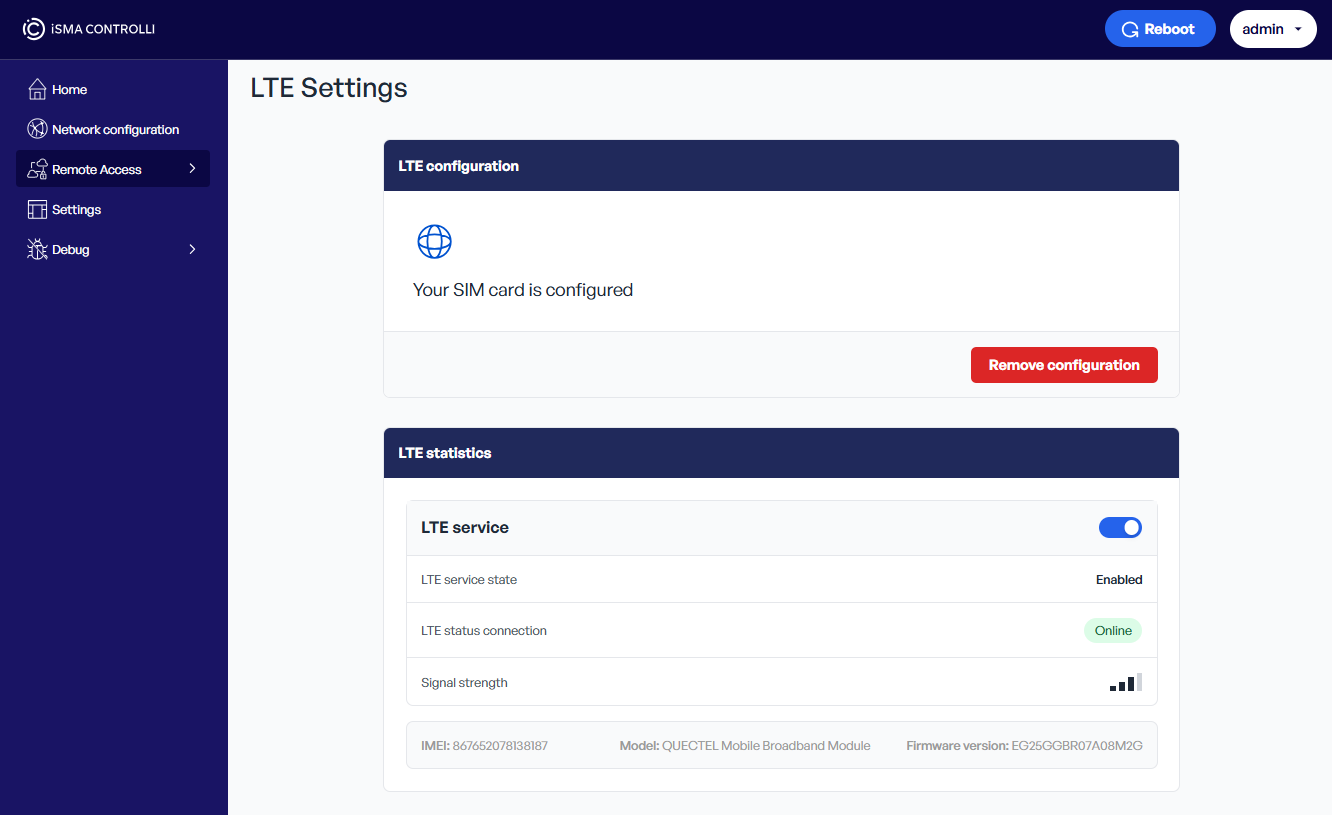
When updated, the following configuration appears:
-
LTE service: toggle is in active state,
-
LTE service state: enabled,
-
LTE status connection: online,
-
Signal strength: indicated.
Error
If, after reboot, the LTE service is enabled but the LTE service state shows an Error, toggle the LTE service again.
LTE Dongle not connected
If for any reason, the LTE dongle is not detected by the controller, a notification shows up:
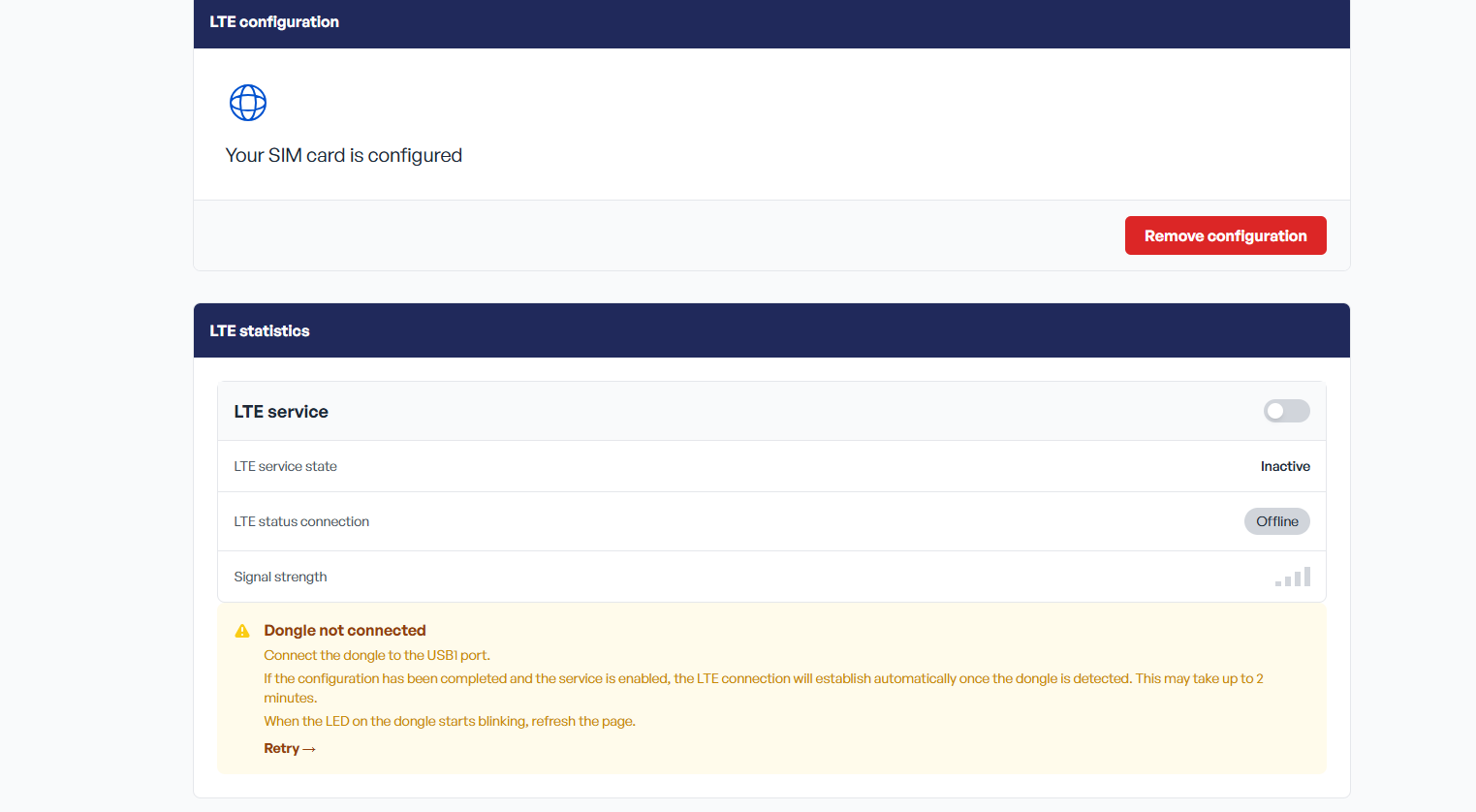
Make sure that the original USB/A-A cable has been used to connect the LTE dongle (directly or via the USB hub) to the controller. Make sure to enable the LTE service.