
The SSH protocol allows for a secure, encrypted connection between two devices over an unsecured network. Such a remote secure connection allows to perform diagnostics and support operations and is a convenient method of a remote assistance.
In the MAC36PRO controller, it is possible to enable the SSH server for a remote access to a Linux console for diagnostic purposes. However, for security reasons, the SSH is by default disabled and has to be enabled when required to establish a secure connection.
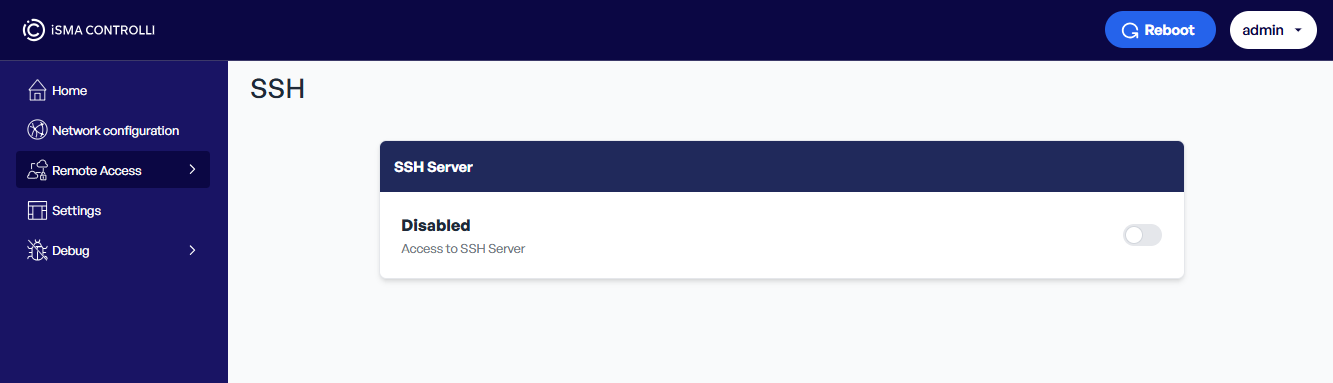
To establish an SSH connection, it is required to use a public/private key pair.
Generating SSH Public-Private Key Pair
From the public/private SSH key pair, a public SSH key is added to the MAC36PRO controller and a private key is used to authenticate a connection.
Cybersecurity
For security reasons, the SSH server is by default disabled in the MAC36PRO controller. Also, it is strongly recommended to keep the private key used for authentication secured from any unauthorized access.
Each new key is associated with a currently logged user in the web server. Each user can be affiliated to a few keys with different names.
Creating an SSH Public-Private Key Pair
There are numerous ways to generate a public-private SSH key pair, most of which are based on running an ssh-keygen command on the host.
For general reference, please visit the SSH Academy by SSH:
https://www.ssh.com/academy/ssh/keygen#creating-an-ssh-key-pair-for-user-authentication
Please see an example of a correct SSH public key:
ssh-ed25519 AAAAC3NzaC1lZDI1NTE5AAAAIBIcDqv8VY+KSHliX5YZDcqz7lwCipOw2PUul5G+hyD9
Adding SSH Key in the Device Management Web Server
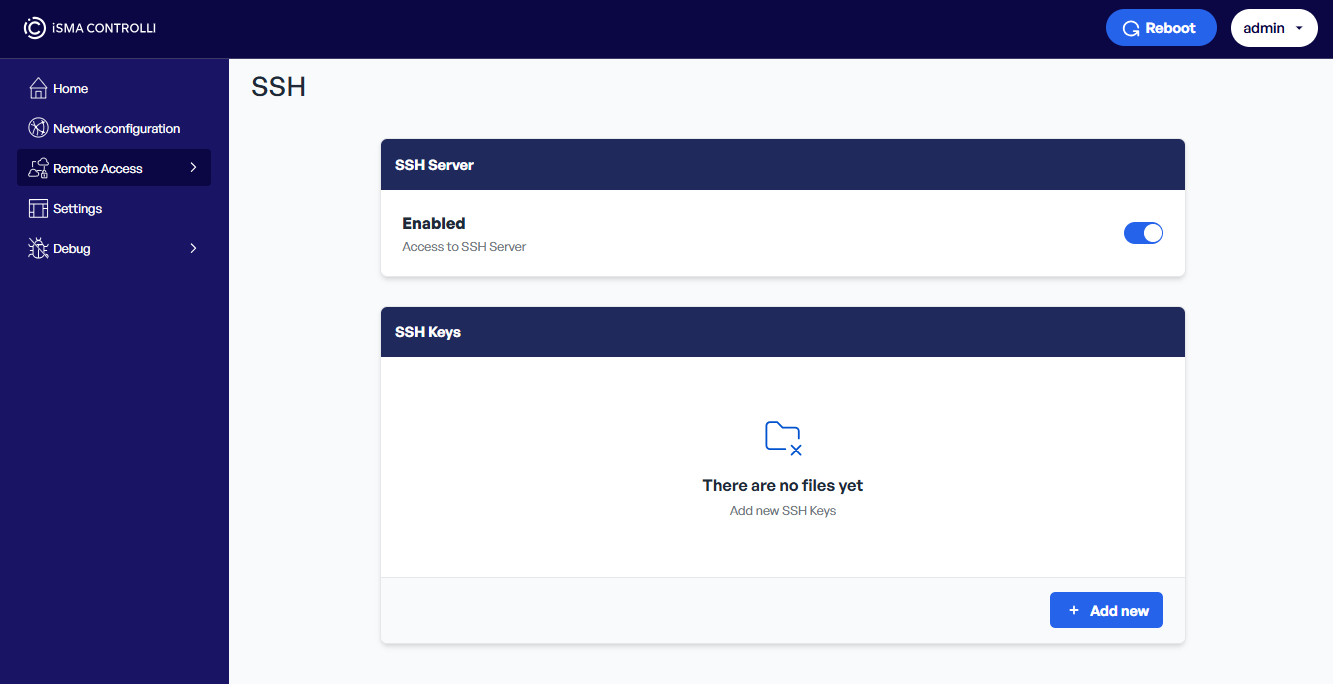
For the SSH connection, it is required to add the SSH public key to the MAC36PRO controller. To this end, go to the Device Management Web Server, then to Remote Access, and select the SSH tab. Once the SSH server is enabled, go to the SSH Key section and use the Add new button to upload the SSH public key file.
Note
Once the public key is added to the MAC36PRO controller, there is no specific way recommended to further establish the SSH connection. Any SSH client program can be used to establish such connection, for example, the PuTTY SSH client program.
SSH Super User Access for iSMA CONTROLLI Support
Warning
Please note that the SSH Super User option is strictly reserved for access by the iSMA CONTROLLI Support Department and must not be enabled without a direct request from the iSMA CONTROLLI technical personnel.
Apart from the standard SSH connection with the MAC36PRO controller, which is based on the SSH public/private key pair, there is also a possibility of enabling the SSH Super User access that is designed only for the iSMA CONTROLLI Support Department and allows for an advanced troubleshooting of a particular controller. The SSH Super User access is based on a root key for connection.
To enable the SSH Super User connection for the iSMA CONTROLLI support, it is required to enable the root key, which can be activated by the platform administrator in the Device Management Web Server in the Debug section, in the SSH Super User tab. Enabling this option activates the root key.
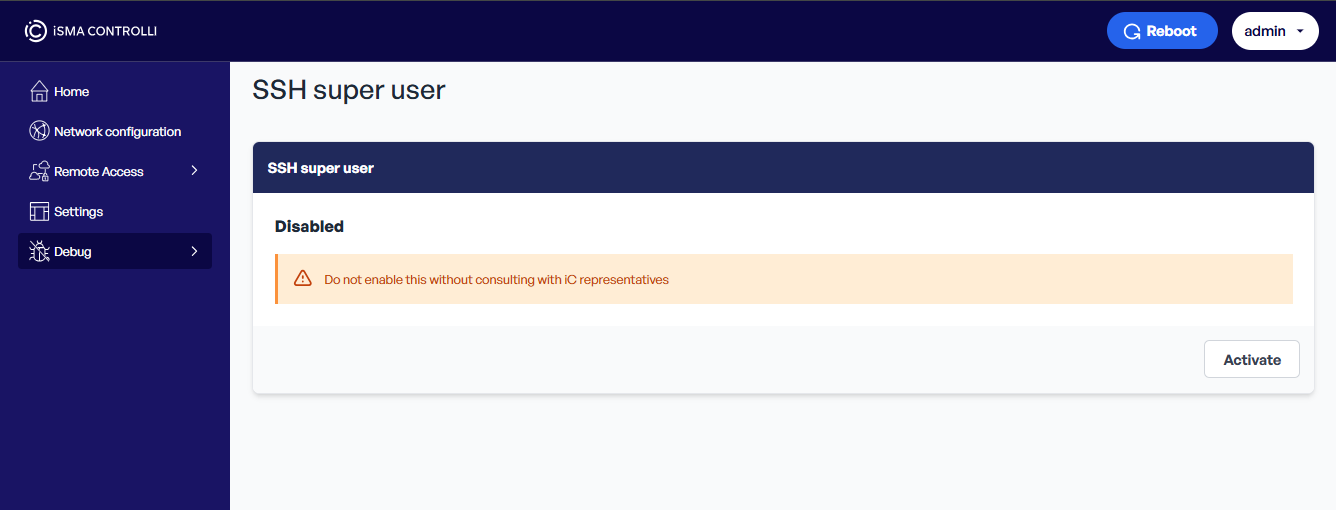
When the root key is activated, the iSMA CONTROLLI team will have a full access to the MAC36PRO controller provided the following conditions:
-
the SSH server is enabled,
-
the controller is available in the network (by Internet or VPN access),
-
the SSH port is not blocked,
-
the IP address of the controller is provided to the iSMA CONTROLLI team.
Such connection will be used only for emergency situations when there is no other way for the Support Department to solve the issue and available logs are not enough to diagnose it.