VPN (Virtual Private Network) allows to extend a private network to other networks with an ability to isolate it. It allows remote users to access the network.
MAC36PRO VPN Client Connection
The MAC36PRO supports a connection to a WireGuard VPN network in a client mode. It enables to secure remote access to the controller through an encrypted tunnel. Once the VPN connection is established, the controller's web server, platform, and station can be accessed using the VPN IP address, providing complete remote control of the MAC36PRO controller.
Note
The MAC36PRO acts as a VPN client only. A separate WireGuard infrastructure is required to establish the WireGuard VPN connection with the controller.
Setting Up VPN Server
To configure a VPN server, basic networking knowledge is required, particularly in server administration, security best practices, and deployment contexts such as cloud or on-premises environments. Below are some best practices commonly applied when configuring a VPN server; however, these should not be treated as guidelines, as the responsibility for correct configuration of the VPN environment lies solely with the VPN server administrator.
Initial requirements:
A Debian/Ubuntu-based server:
-
with a physical access to Internet and an open port,
-
possibly, a virtual machine (e.g., AWS Amazon, Microsoft Azure, Google Cloud),
-
with a public IP address or ability to forward ports to DefGuard server.
Minimal required server parameters (for an instance of up to 20 devices; for bigger instances, the required parameters may be higher:
-
1 core,
-
1 GB RAM,
-
10 GB disk space.
Recommended VPN Servers
There are numerous VPN server solutions available on the market, open-source and subscribed. For the time being, for the MAC36PRO VPN connection, the following VPN servers are recommended:
-
WireGuard VPN standard solution (open-source)
For VPN server setup instructions, please visit: WireGuard installation
-
WireGuard server as a service
In addition to self-hosted deployments, WireGuard VPN servers can also be provided through commercial hosting services. These services typically offer Virtual Private Servers (VPS) with WireGuard pre-installed or available as a ready-to-use configuration, simplifying the deployment process. For example, some VPS providers offer pre-configured WireGuard environments that allow users to quickly deploy a VPN server without performing a full manual installation. One example of such a service is is*hosting: Dedicated Servers and VPS Hosting, which provides VPS instances that can be configured to run WireGuard VPN.
-
DefGuard solution (subscribed)
For VPN server setup instructions, please visit: DefGuard installation
Note
iSMA CONTROLLI is not affiliated with, endorsed by, or associated with DefGuard, is*hosting, or WireGuard®. Any references to these products or services in this documentation are provided for illustrative and example purposes only.
The configuration examples presented were used during internal testing of a WireGuard-based VPN solution and are intended solely to demonstrate possible implementation approaches. The user is fully responsible for the deployment, configuration, maintenance, and security of any VPN server or related infrastructure used in their environment.
“WireGuard” and the WireGuard logo are registered trademarks of Jason A. Donenfeld.
VPN Connecting to MAC36PRO
The MAC36PRO supports a connection to a WireGuard VPN network in a client mode. It enables to secure remote access to the controller through an encrypted tunnel. Once the VPN connection is established, the controller's web server, platform, and station can be accessed using the VPN IP address, providing complete remote control of the MAC36PRO controller.
To establish a VPN connection, a valid WireGuard configuration file (.conf) must be provided by the VPN server administrator. This is a standard file, which defines all necessary parameters including:
-
interface private key,
-
VPN server (peer) public key,
-
client IP,
-
VPN server IP (endpoint address),
-
allowed IP ranges.
MAC36PRO AllowedIPs Limitation
Please note that the MAC36PRO implementation does not support full-tunnel configurations.
Using:
AllowedIPs = 0.0.0.0/0
is not supported and will not be accepted by the device configuration.
Instead, the AllowedIPs parameter must specify the VPN network or subnet that should be reachable through the tunnel. Only traffic destined for the defined VPN network will be routed through the WireGuard connection.
Example:
AllowedIPs = 10.20.40.0/24
This configuration allows the device to communicate only with hosts located within the VPN server network.
For more details, please see: MAC36PRO - VPN - WireGuard Configuration File Structure
To set up the WireGuard VPN Client, follow the three step process:
Step 1: Upload configuration
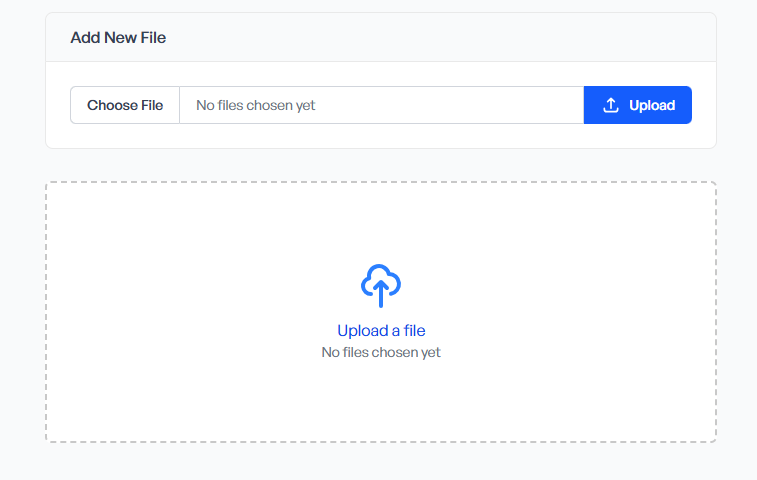
Add the .conf file provided by the VPN server administrator. Use the Choose File button to select the file and Upload button to send it.
Note
The upload window becomes available only if there is no previously uploaded VPN configuration currently on the device. If the configuration file has been uploaded, it must be removed first using the Delete button before uploading a new one.
Step 2: Activate the configuration
After uploading a configuration file, it is required to activate it in order to initiate the VPN connection.
Step 3: Controller reboot
A device restart is required to apply the changes and establish the connection with the WireGuard VPN server. Reboot can be initiated using the button in the top right corner of the web server.
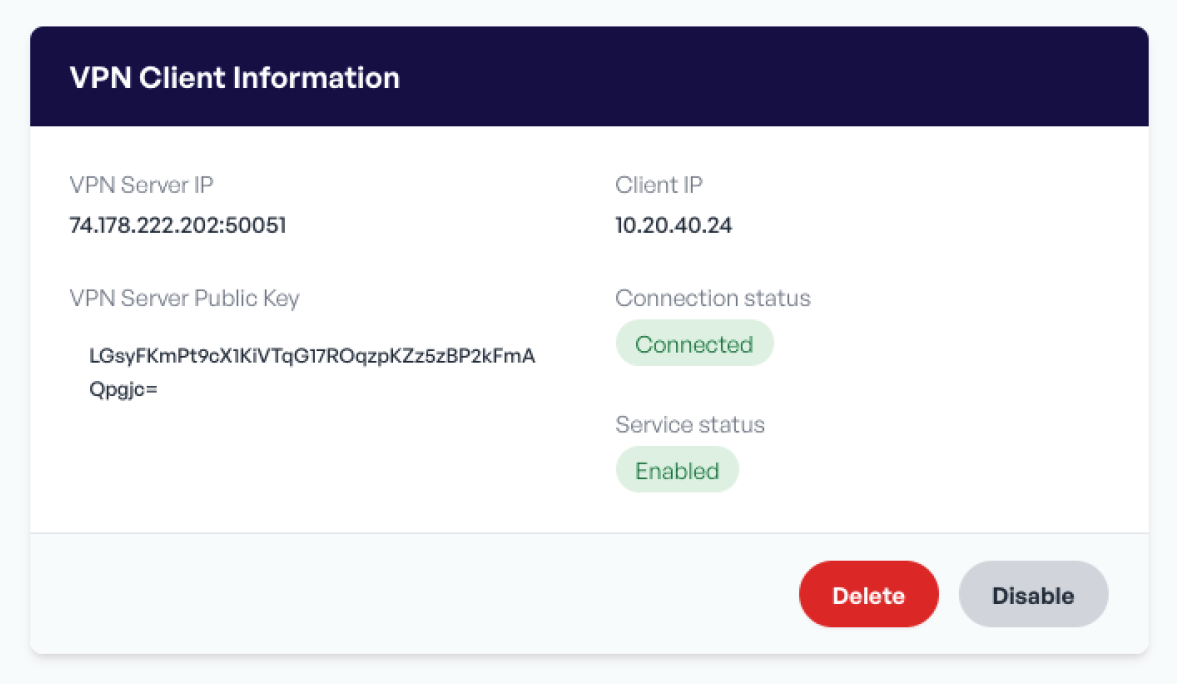
A correctly configured VPN service will display information about the established connection to the WireGuard VPN server.