Applicable to OS V1.9
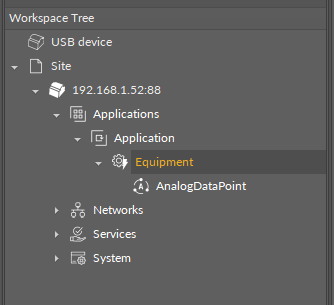
The Equipment component is a grouping folder-type component, which can be used to gather other components, regarding specific equipment included in the Application, to help organize the Workspace Tree. The Equipment can be added to the device structure, however, it cannot be added directly to the container. The Equipment component can be freely renamed to facilitate categorization of components included within.
Equipment is a part of the data modelling based on tags, implemented in the nano EDGE ENGINE with the purpose of a straightforward presentation of Equipment and Data Points in the nanoWebUI™ interface.
The Equipment component has no slots nor actions, however, it supports an important functionality of tagging.
Tags
Tags are labels or key-value pairs that provide metadata to identify, categorize, and organize data from devices and systems like HVAC, lighting, or security. They enable interoperability by providing a standardized way to understand data from different sources, which improves data quality, facilitates automation, simplifies integration, and allows for more efficient data analysis.
Application Structure for Tags
Applying tags in the nano EDGE ENGINE is based on a semantic approach that ensures consistent data structure which is easily usable by the nanoWebUI™ and by third-party systems. Tags are applied at the Equipment and Data Point levels, where Equipment serves as the logical container defining what is being controlled, and Data Points represent the measured or commanded values associated with that equipment. This structured model ensures that tagged data is immediately usable by platforms capable of communicating through standardized tag-based HTTP APIs, e.g., Haystack.
Note: Tags can be only applied to the Equipment components and Data Points. Other component types are not supported.
It is therefore recommended (however, not mandatory) to use the following structure when creating applications:
-
Applications container
-
Application component
-
Equipment component
-
Data Point(s)
-
other components
-
-
Equipment component
-
Data Point(s)
-
other components
-
-
-
A required condition for using tags is that the Tagging library is installed on the device and the Tagging service is available in the Services container. Both are a default part of the nano EDGE ENGINE V1.9 and are not compatible with previous versions.
Tags are available in two formats: auto-tagging and manually added.
Auto-tagging
The auto-tagging purpose is to automatically assign appropriate tags and markers based on various conditions. This mechanism ensures consistency and reduces manual work when creating or modifying applications.
If enabled, the auto-tagging mechanism is executed in the following situations:
-
after all components are loaded during a device’s start-up,
-
when a component is renamed,
-
when a component is redefined (e.g., extensions/tags are added/removed),
-
when a new component is added,
-
when a component is moved within the Workspace tree.
Auto-tagging for the Equipment component are enabled by default and cannot be disabled.
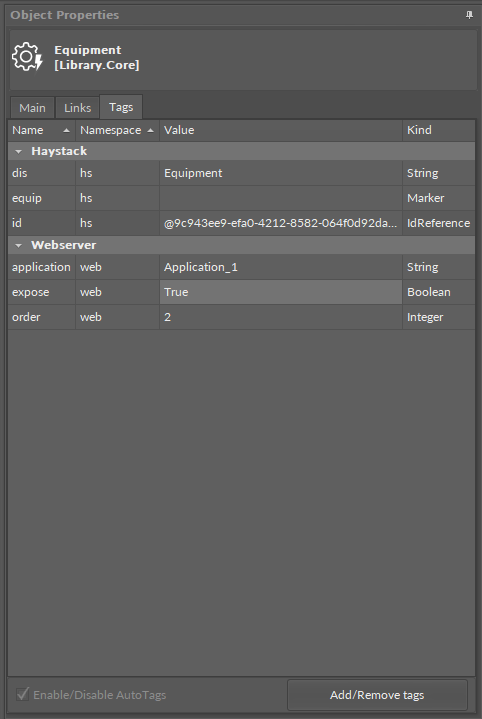
Auto-tags available for the Equipment are the following:
|
Tag |
Description |
|---|---|
|
|
Unique identifier of the Data Point (read-only) |
|
|
Display name of the component |
|
|
Marker |
|
|
Reference to the parent Equipment component (only if located under it) |
|
|
User-editable flag to show on the web UI |
|
|
Widget type for UI |
Manual Adding Tags
Outside of the auto-tagging mechanism, it is also possible to manually add tags.
The list of available tags is comprised of two tags dictionaries available: Haystack and Webserver.
Haystack Tags Exceptions
The list of tags in the Haystack tag dictionary corresponds with the Haystack standard: Tags in Project Haystack; however, there are some differences. The dictionary does not include the following tags:
list, dict, grid, scalar, xstr, choice, symbol, is, na, remove, of, quantities, quantityOf, tagOn, tags, containedBy, contains, def, defx, inputs, outputs, reciprocalOf, relationship, span, mlIdentificationPeriod as well as tags of types: feature, filetype, lib, op, list, dict, grid.
These tags are not relevant for the data modelling based on Data Points and the Equipment component (in the application structure).
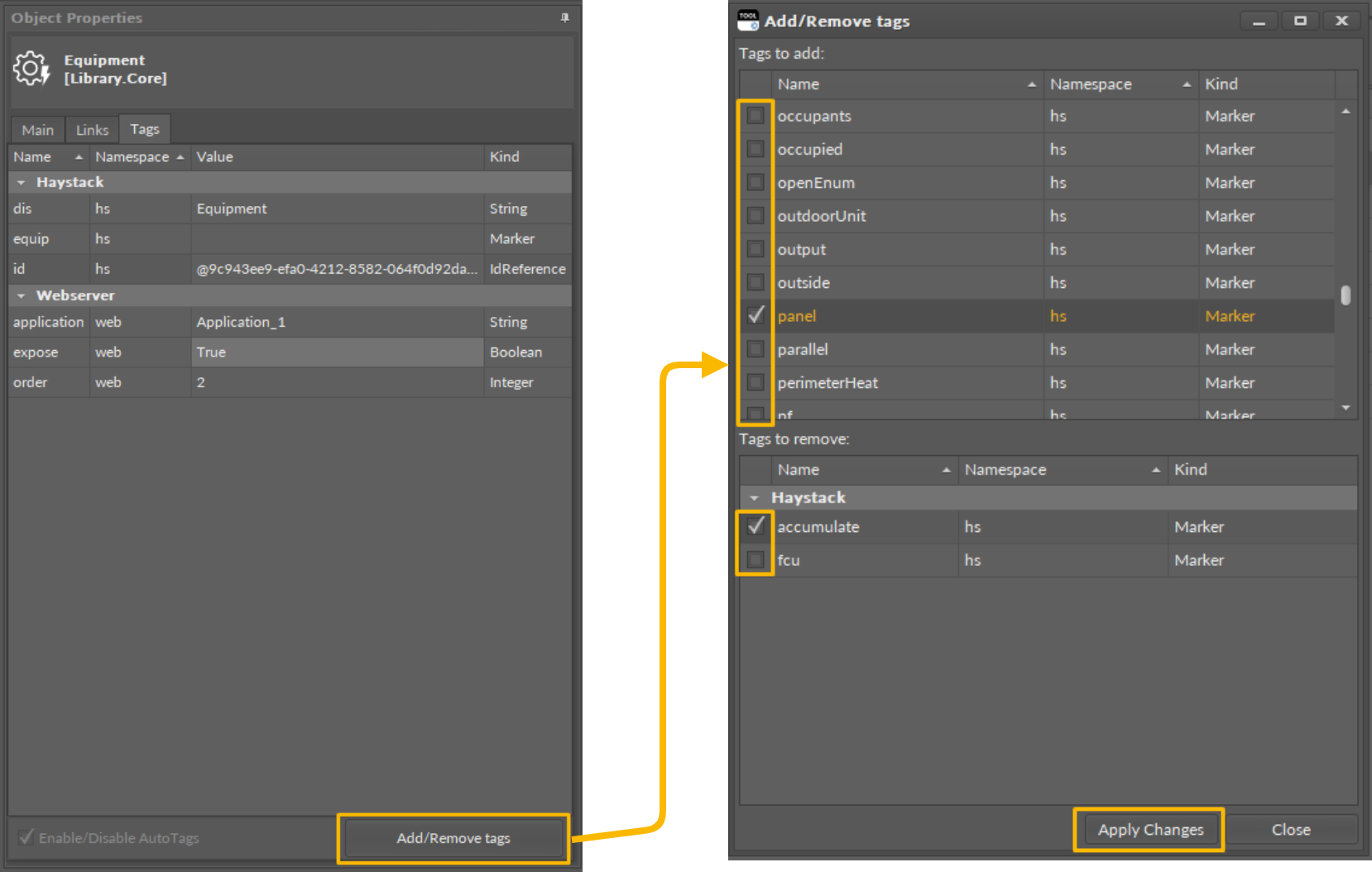
Adding and editing tags are possible in the Tags tab of the Data Point’s Object Properties window.
Tip
To access the Tags tab:
-
go directly to the Object Properties of the component,
-
go to the Tag Manager and click on the component,
-
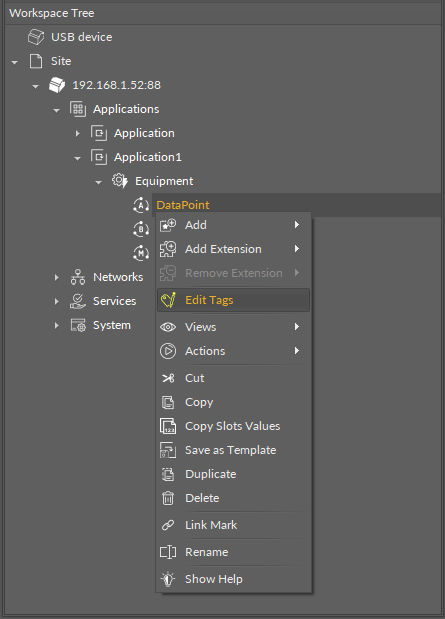
or use the Edit Tags option of the component’s context menu:
In the Tags tab, use the Add/Remove Tags button to open a dialog window, where it is possible to select new tags to add or to remove using check boxes. Confirm changes with the Apply Changes button. Tags currently added to the component are listed in the Tags tab.