
The Special Events view is designed to set irregular events for the AnalogSchedule and BinarySchedule components. The view is automatically opened upon double-clicking of the component.
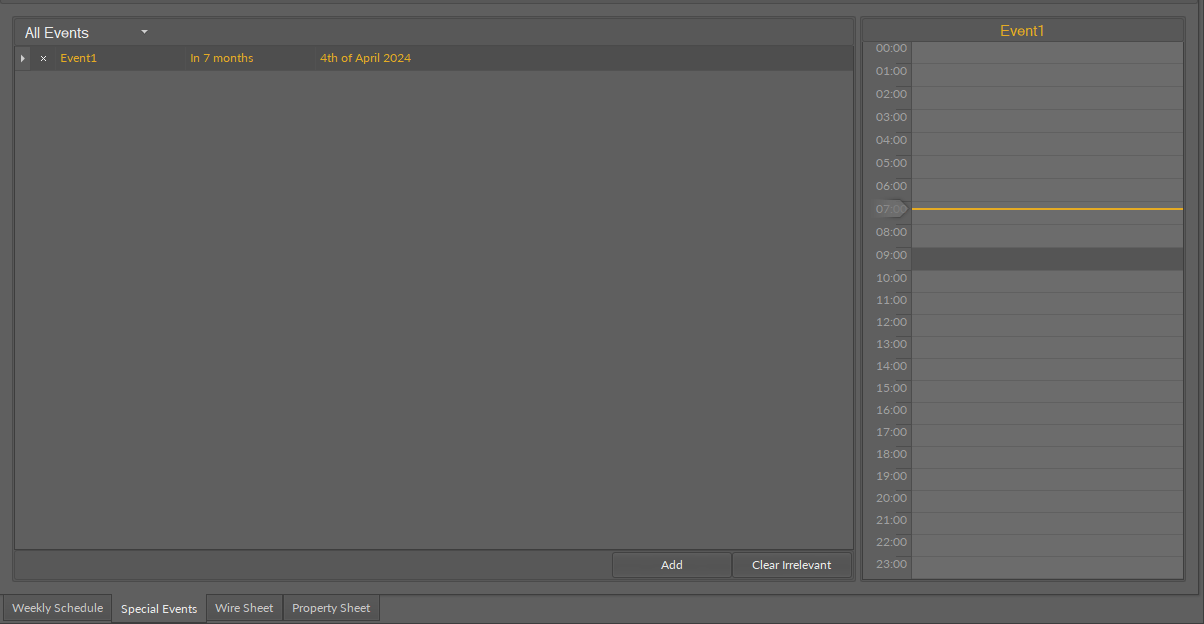
To add a special event, use the Add button in the bottom right corner of the view; the pop-up window appears.
In the Add event dialog window, it is possible to set the following parameters:
-
BACnet priority: from 1 to 16;
-
Type: type of the event;
-
Available options: Date Pattern, Date Range, Week and Day, Calendar;
-
-
Name: allows to set a name of the event, specific to the user's requirements.
The type of event defines the data entered for each type.
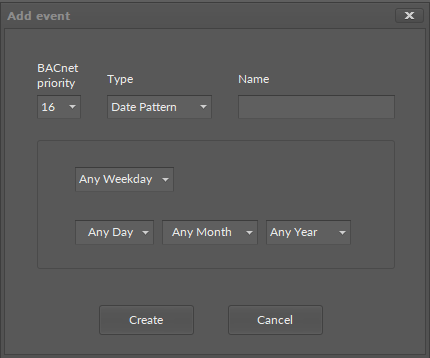
For Date Pattern:
-
weekday;
-
specific day of a month;
-
specific month of a year;
-
specific year.
Each of these parameters may be left to any (Any Day, Any Month, etc.).
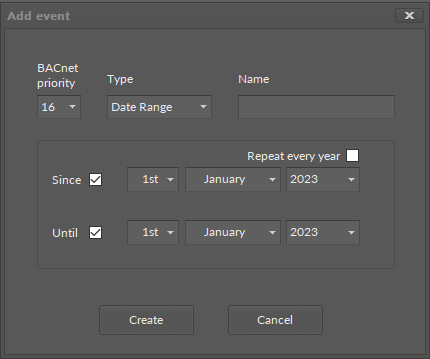
For Date Range:
-
Since/Until: allows to specify a beginning or end day of the event (unchecked sets the "future" value);
-
specific day, month, and year of a calendar date;
-
Repeat every year: if checked, disables the year field.
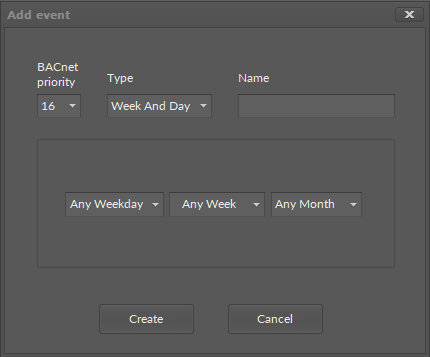
For Week and Day:
-
specific weekday, week, and month of the event.
For Calendar:
-
source Calendar component.
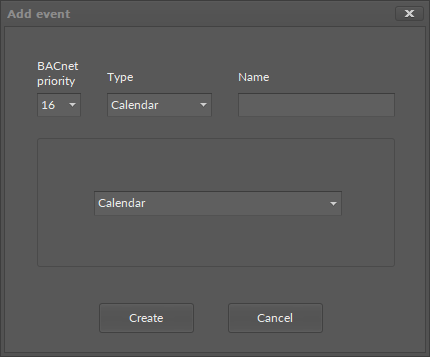
Note: It is possible to set 24 exception event for 1 Calendar source component.
The Clear Irrelevant button removes all events that already took place.
Setting Values for Special Events
To set a value for special events created in the schedule, double click in the right column of the view to open the Event dialog window.
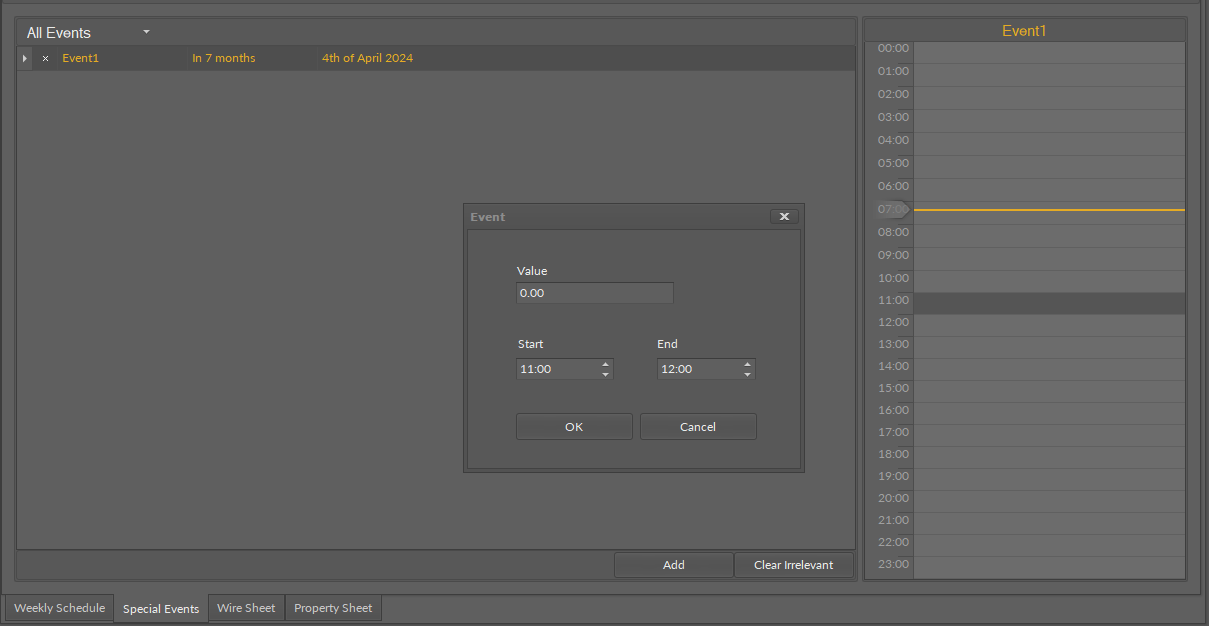
In the Event dialog window, set the value, start and end time of the event.