
The MAC36PRO supports a DHCP server functionality, enabling an automatic assignment of IP addresses and network parameters to devices within the local network, e.g., Multiprotocol I/O modules or Niagara-enabled controllers.
Note: This feature is available only in MAC36PRO controllers secondary Ethernet port, configurable in Niagara version 4.14 and up.
The DHCP server can be configured directly in the device Platform via the Niagara TCP/IP Configuration View or in the station, using PlatformServices>TcpIpService.
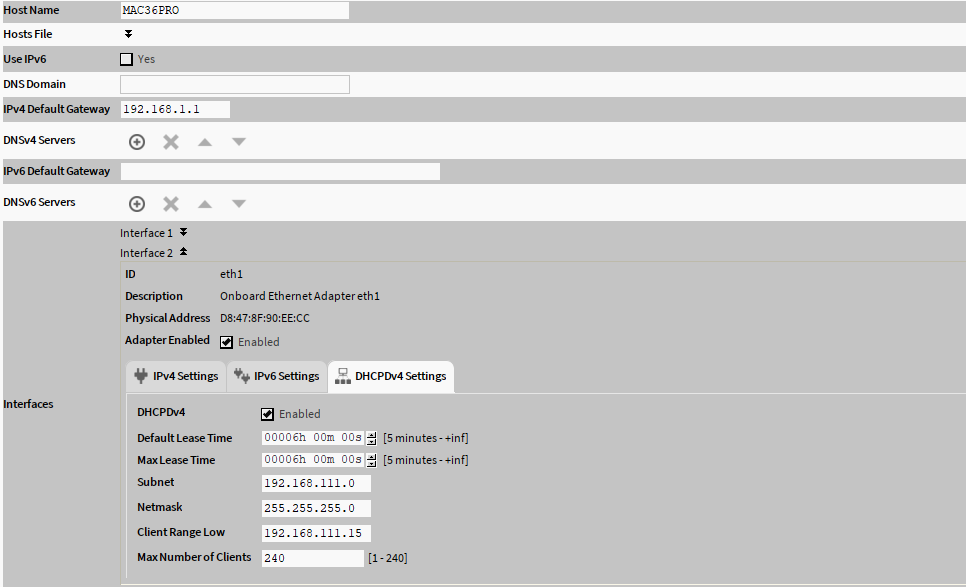
To set up the secondary interface as a DHCP server:
-
Go to the Interface2 section and make sure that the Adapter Enabled and DHCPDv4 checkboxes are selected.
-
Go to the DHCPDv4 Settings tab. Configure the properties:
-
Default Lease Time: allows to set a DHCP IP address lease; before this parameter expires, the lease must be renewed;
-
Max Lease Time: allows to set a maximum DHCP IP maximum address lease;
-
Subnet: allows to define a subnet of IP addresses assigned by the DHCP server; this parameter is required to assign addresses on a different subnet that the one used in other LAN or access point configurations; if the subnet is not configured, the ports will not function correctly;
-
Netmask: allows to define the IP addresses assigned by the DHCP server;
-
Client Range Low: allows to define the lowest IP address in the range; the order of assigning IP address from the access point is undetermined;
-
Max Number of Clients: allows to define a maximum number of clients that can connect.
-
Note
The adapter’s IP address should be in the same subnet, but not in the range of addresses defined by the Client Range Low parameter.
-
Go to the IPv4 Settings tab and enter the IPv4 address and subnet mask.
Note
Make sure that the secondary Ethernet port’s (Interface 2) IP address is outside the DHCP server’s client IP pool.
Confirm configuration with the Save button.