The Software Manager is a tool allowing the management of the device operating system and its libraries. The Software Manager allows installing, uninstalling, and changing versions of the OS and libraries.
The Software Manager lists all elements (OS, libraries) that are available locally in the iC Tool to be installed on the device. The list of elements, visible in the Software Manager table, corresponds with a physical content of the nano EDGE ENGINE folder in the main iC Tool's location: \home\nanoEdgeEngine. Proper placing of the user’s own libraries in this location allows to add them to the Software Manager.
Warning!
Every time the OS or libraries are edited in the device, it requires a restart of the device.
Opening the Software Manager
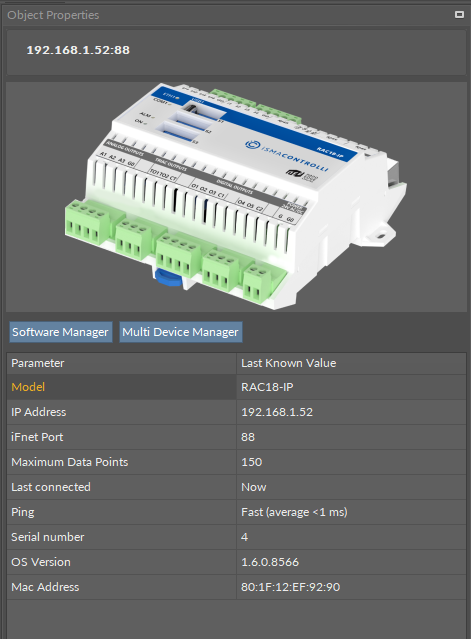
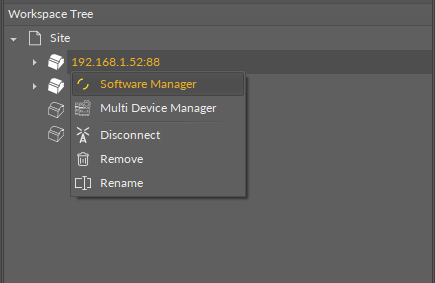
Once the iC Tool connects to the device, the Software Manager view is available from the Objects Properties window (blue button) or from the context menu of the device.
Using the Software Manager
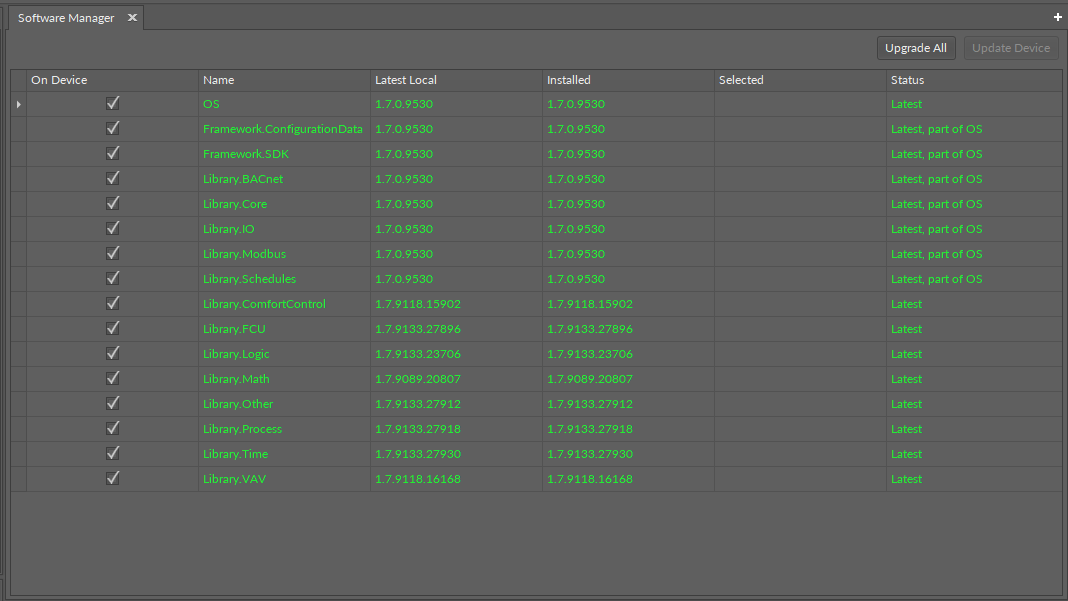
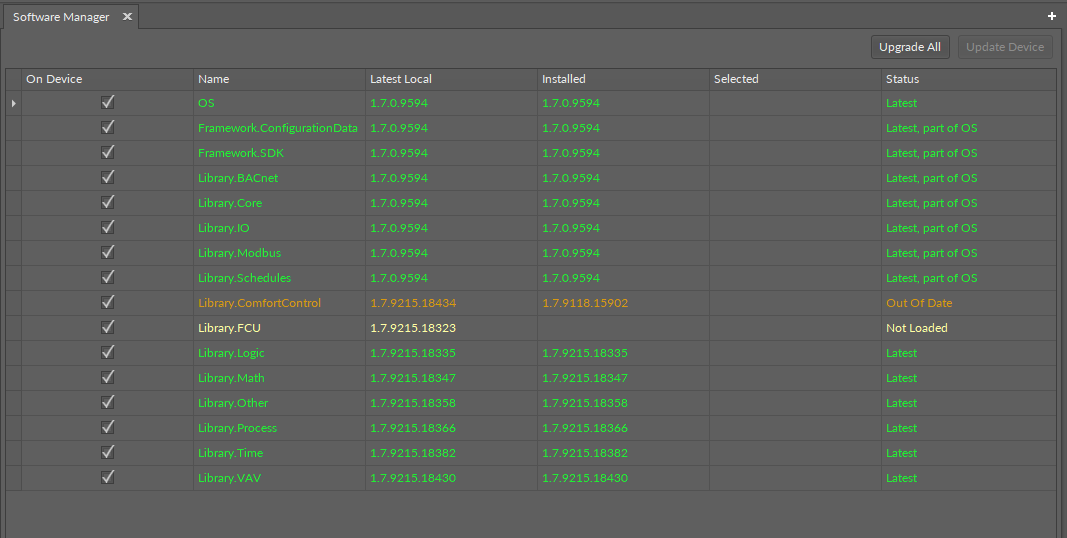
The Software Manager view lists the OS and libraries available locally. The view highlights each row (OS or libraries) according to its status:
-
green: the element is up to date, and requires no action;
-
orange: the element is out of date, and can be updated;
-
blue: the action is about to be taken on the element.
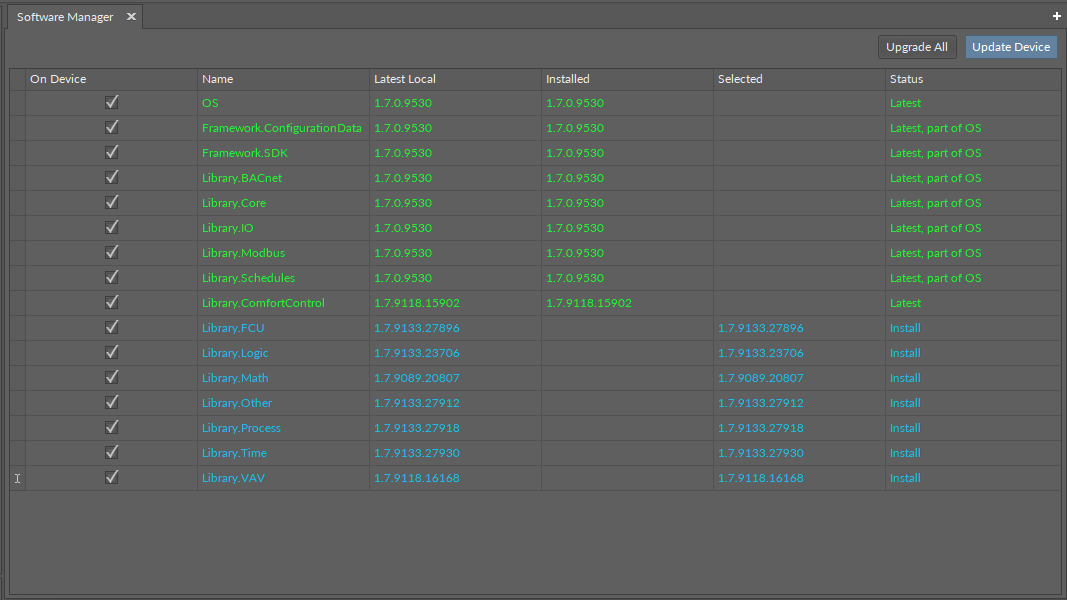
The Software Manager table contains the following columns:
-
On Device: indicates, whether a given element is already installed on the device.
-
Name: shows the name of the element.
-
Latest Local: shows the latest version available locally to be installed on the device.
-
Installed: shows the version of the element installed on the device.
-
Selected: opens a dropdown list with all versions available locally for a selected element.
-
Status: indicates, which action is to be performed on the element, once a specific version has been selected in the Action column.
-
Available information: Latest, Out of Date, Upgrade, Downgrade, Install, Uninstall, none (the selected version is the same as the one installed on the device).
-
In order to upgrade or downgrade the selected element, choose the desired version of the element in the Selected column, and press the Update Device option (highlighted in blue in the right upper corner of the Software Manager). This option executes all actions indicated in the Status column.
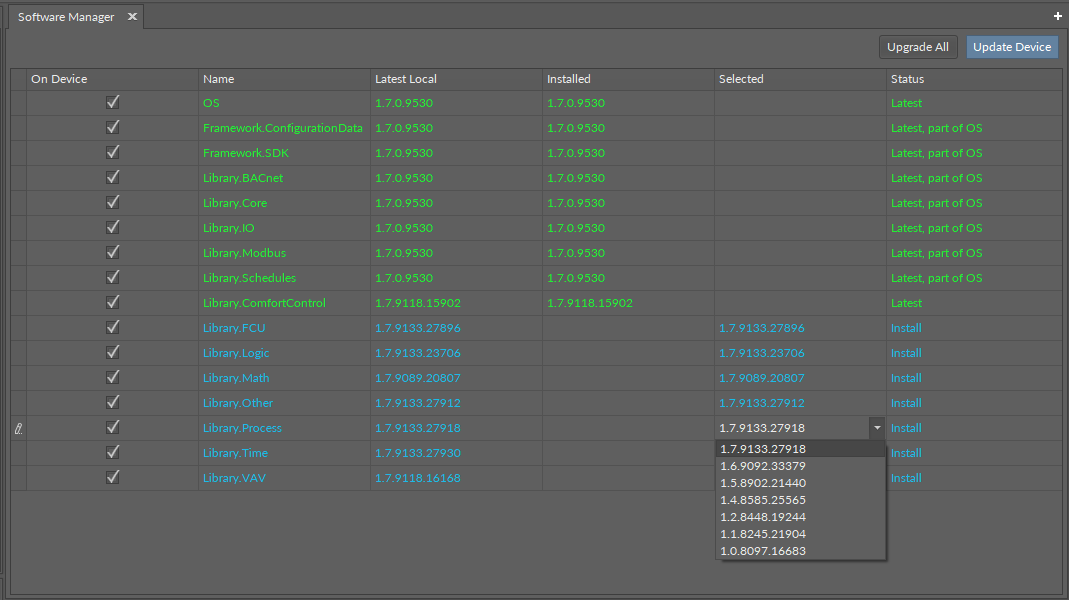
Unless the user intends to manually select the versions to be installed, there is also the option to automatically select all newest versions for all out of date elements using the Upgrade All button.
Note:
Depending if the version indicated in the Selected column is higher or lower than the version already installed on the device, the Status column shows either the Upgrade or Downgrade option.
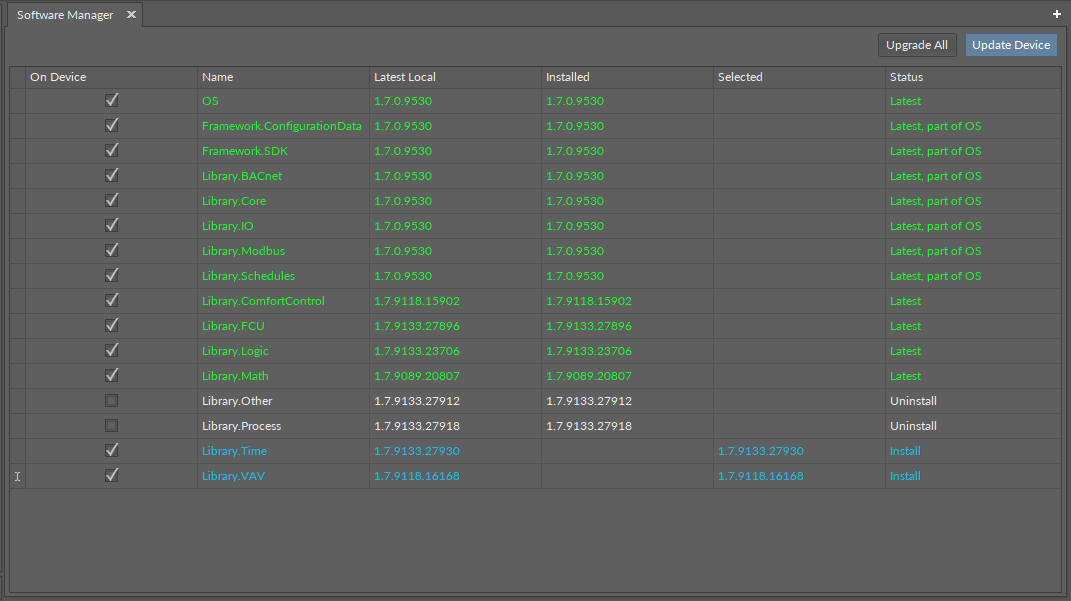
Regardless of the fact whether the user intends to add or remove the library available in the Software Manager, each operation requires performing three steps:
-
check the box in the On Device column to install the library, or uncheck it to uninstall the library;
-
provided the library is to be installed on the device, check its preferred version in the Selected column–by default, the newest version available locally is indicated to be installed;
-
once selection of all libraries to be installed or uninstalled on the device is complete, hit the Update Device command.
Warning!
The OS cannot be removed from the device; it is preinstalled on the device's SD card, and the only operations, which can be performed on this element, are upgrading or downgrading it.
Warning!
If the OS is upgraded from the 1.0/1.1 versions to 1.2 version, the Applications libraries (FCU, Logic, Math, Process, Time, and Other) are not loaded. It is required to install them manually.
Library Not Loaded
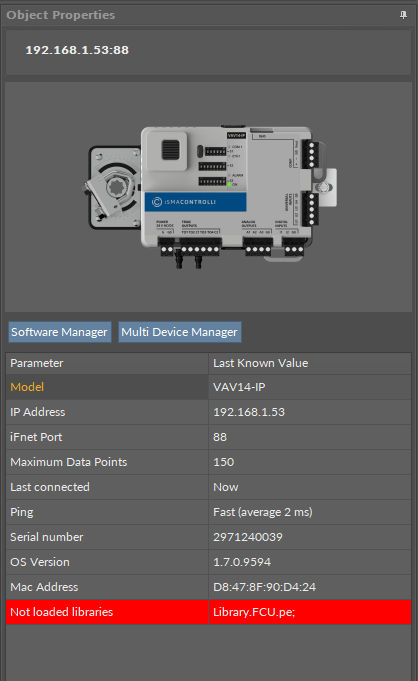
The Software Manager has a mechanism informing the user about the libraries compatibility. For a proper operation, libraries versions have to be supported by the OS. If the library installed on the device has a version, which is not supported by the OS, Software Manager displays an error prompt and marks the library as ‘not loaded’. In such case, it is required to upgrade the library.
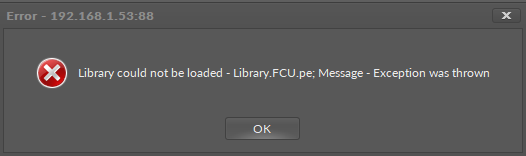
This information is also displayed in the Object Properties window for a device: