
The DALI Groups and Scenes view allows to manage DALI-2 groups and light intensity scenes, including scenes for CCT and RGBW devices.
Saving changes
Please note that all changes made in the DALI Groups and Scenes view require a confirmation with the Save button.
Groups Tab
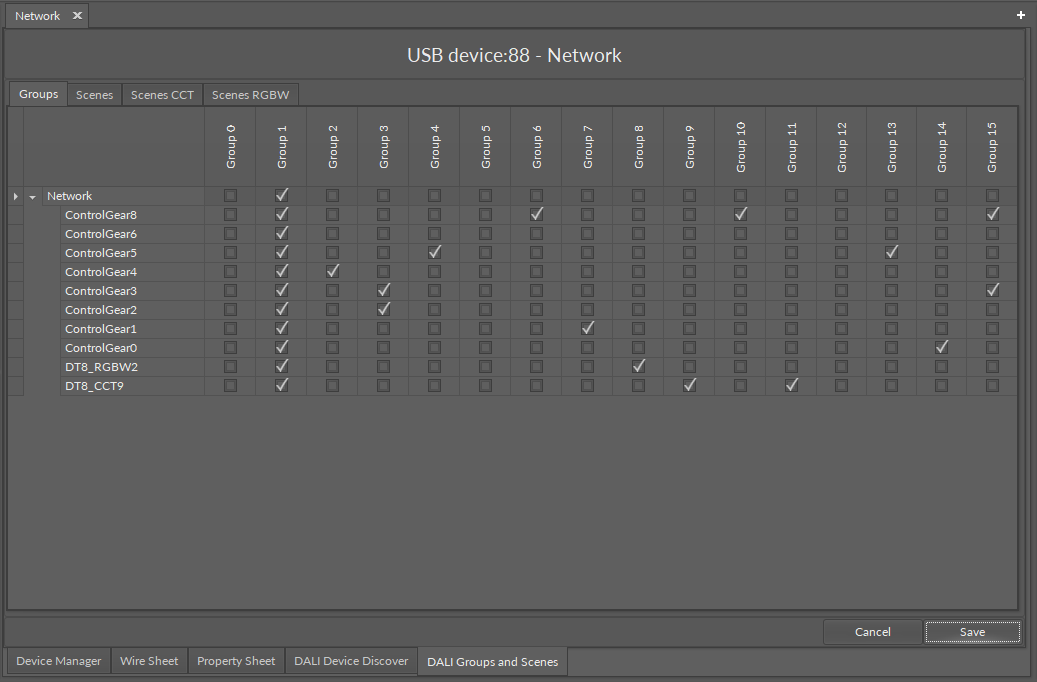
The Groups tab shows all ControlGear devices added to the DALI network and allows to assign them to a specific group (or groups), which can represent a location, type of device, role, etc. Groups allow for a collective management of assigned devices by sending commands to grouped devices.
All listed devices can be assigned to any of the 16 groups.
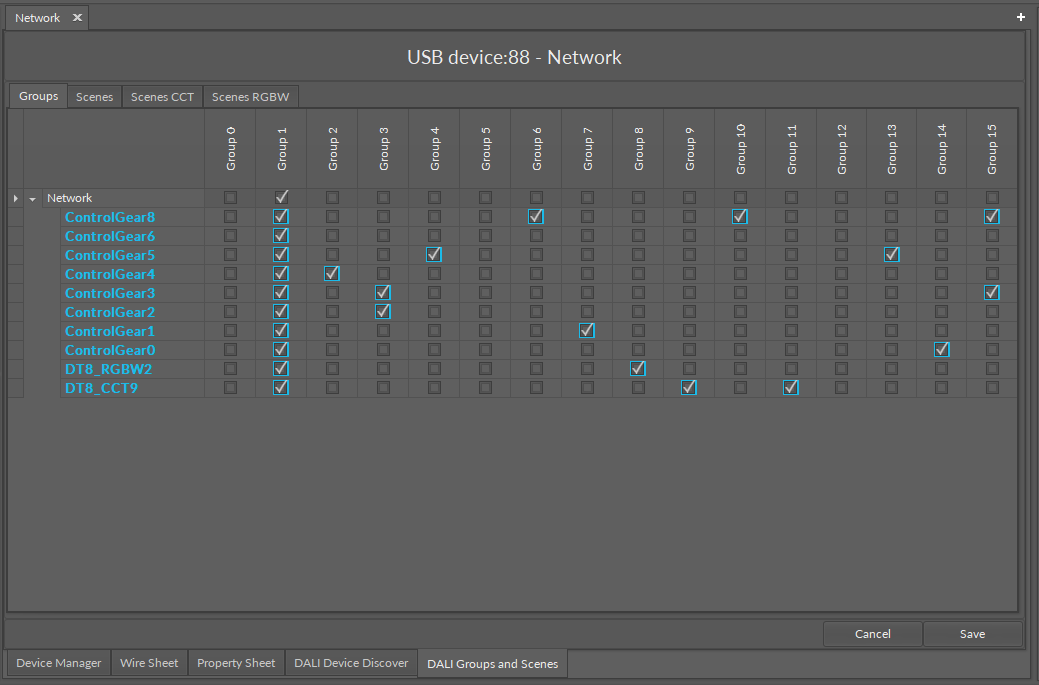
Devices are assigned by checking a group checkbox for the relevant device. To assign all devices to a group at once, use the top checkbox (e.g., group 1).
Changes are marked in blue. Confirm the settings, using the Save button.
Scenes Tab
The Scenes tab allows to set the light intensity to control gear devices.
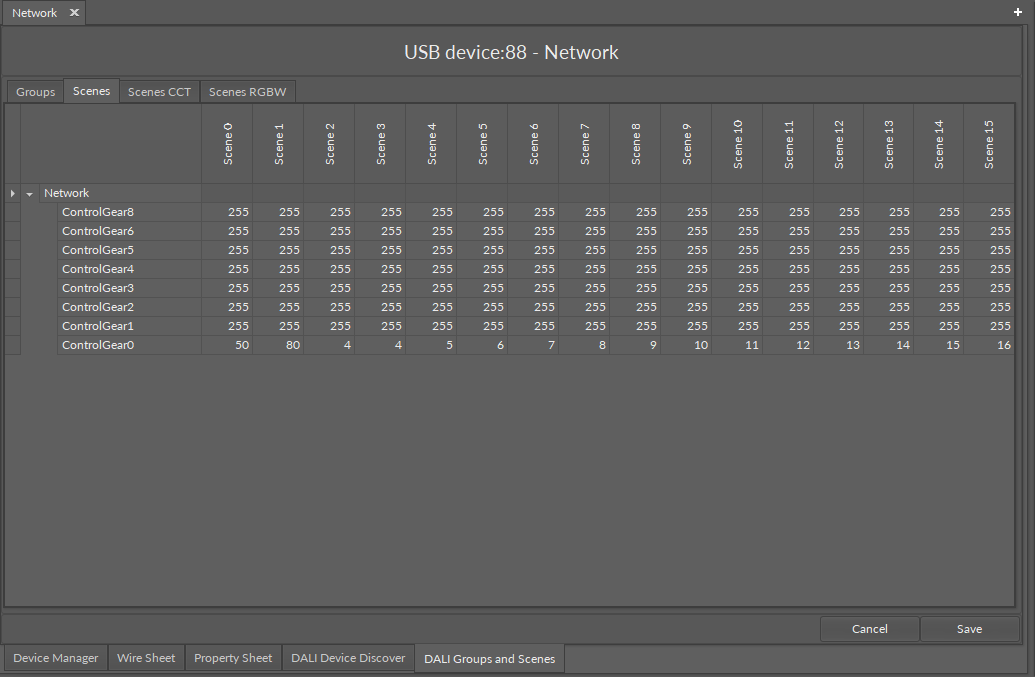
Note: Values 0-254 represent actual lighting levels and a 255 value means that when a specific scene is recalled, a device should not change its lighting level (MASK value).
Each scene value is editable by double-click on values fields.
Changes are marked in blue. Confirm the settings, using the Save button.
Scenes CCT Tab
The Scenes CCT tab allows to set the light intensity and color temperature for DALI DT8 (Color Control) devices.
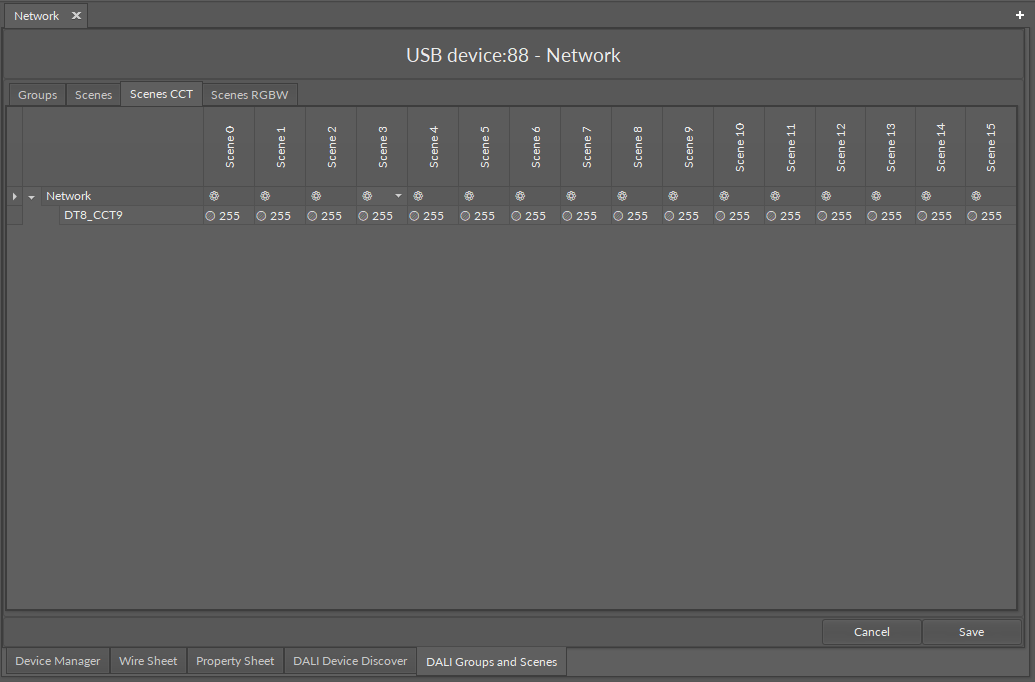
Note: Values 0-254 represent actual lighting levels and a 255 value means that when a specific scene is recalled, a device should not change its lighting level (MASK value).
Each scene value is editable by double-click on values fields or on an icon on a top bar.
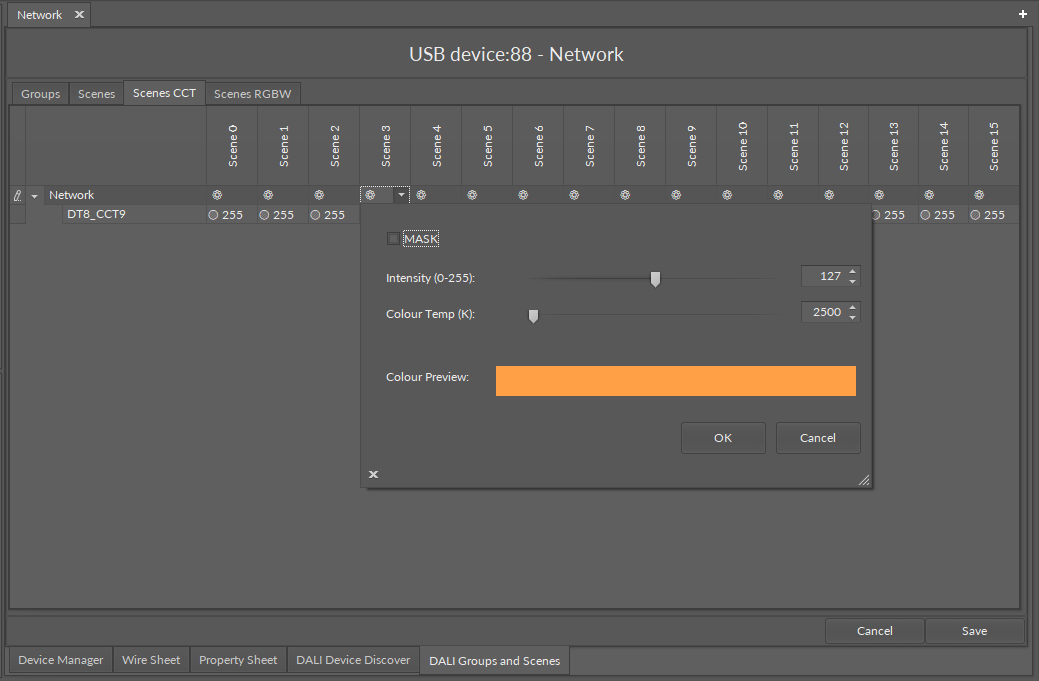
Once the editing window is opened, it is required to uncheck the MASK checkbox to edit the light intensity and color temperature values. The values can be adjusted by typing or by moving a slider. The color preview bar shows a visual effect of given settings, however, it is merely a UI-only visualization; actual output depends on the luminaire’s capabilities and spectrum.
Changes are marked in blue. Confirm the settings, using the Save button.
Scenes RGBW Tab
The Scenes RGBW tab allows to set the light intensity and red/green/blue/white color channels for DALI DT8 (Colour Control RGBW) devices.
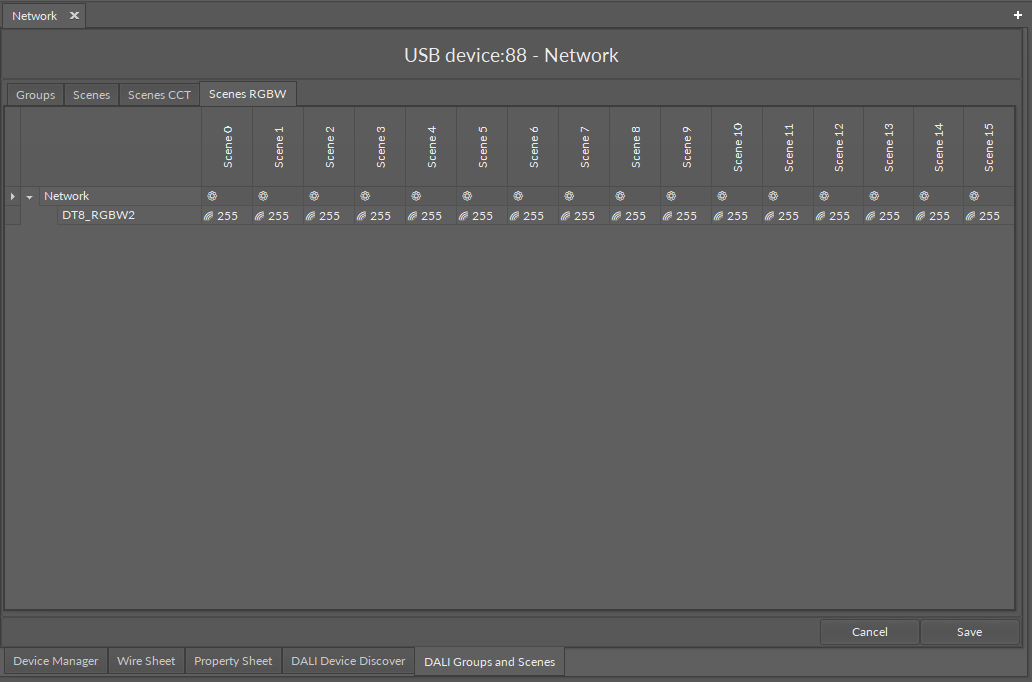
Note: Values 0-254 represent actual lighting levels and a 255 value means that when a specific scene is recalled, a device should not change its lighting level (MASK value).
Each scene value is editable by double-click on values fields or on an icon on a top bar.
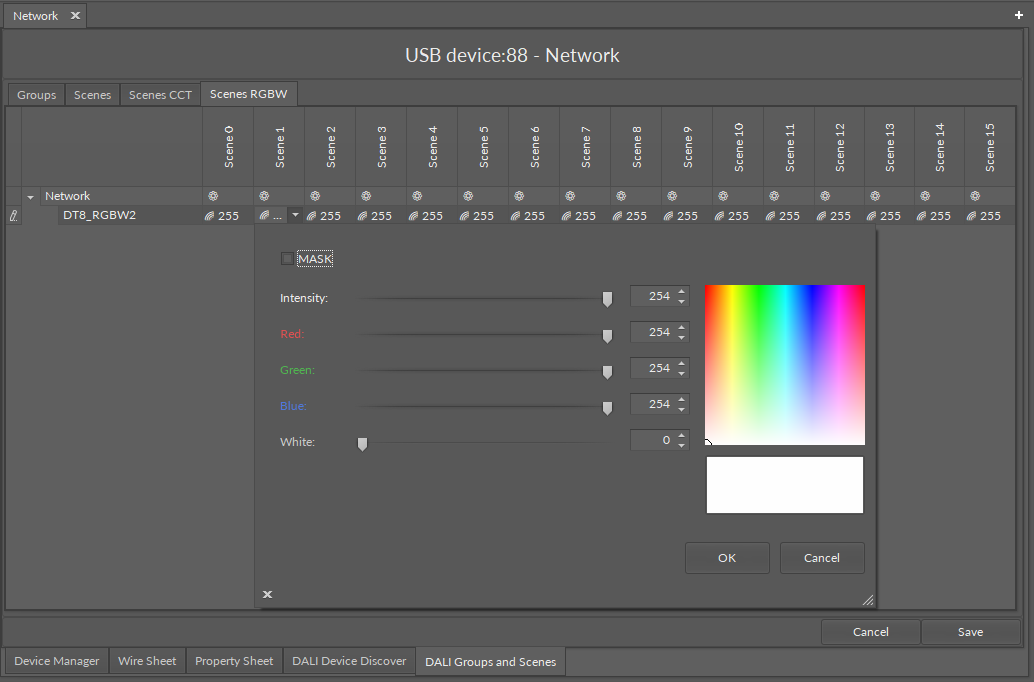
Once the editing window is opened, it is required to uncheck the MASK checkbox to edit the light intensity and color channels values. The values can be adjusted by typing, moving a slider, or using a color picker. The color preview bar shows a visual effect of given settings, however, it is merely a UI-only visualization; actual output depends on the luminaire’s capabilities and spectrum.
Changes are marked in blue. Confirm the settings, using the Save button.