
The TpOneControlLogic component provides a pre-configured control logic for the Touch Point ONE 2.0 panel. The component processes information from the generic buttons' states to control the temperature setpoint, fan speed, up to 4 lighting circuits, and up to 4 blinds. The component correlates a functioning of generic buttons on the panel with the logic in the controller:
-
when the generic button with the temperature icon is pressed, the temperature setpoint current value is displayed and it enters into editing mode (editing with up and down arrows),
-
when the generic button with the fan icon is pressed, the current fan mode is displayed and it enters into editing mode (editing with up and down arrows),
-
when the generic button with the light icon is pressed, the first available light circuit enters into editing mode (switching on/off the light with the up and down arrows); each next press of the light button switches to the next available light circuit in the editing mode,
-
when the generic button with the blinds icon is pressed, the first available blind enters into editing mode (opening/closing the blind with the up and down arrows); each next press of the blind button switches to the next available blind in the editing mode.
Note: Editing mode on the display is signalized with blinking.
Temperature setpoint
The temperature setpoint is calculated based on the number of presses of the up/down arrows when displaying the temperature setpoint screen on the panel. Each press of the up/down arrow equals the value of the setpoint step (Setpoint Step slot). The limit values of the temperature setpoint are set in the Setpoint Low Limit and Setpoint High Limit slots.
Fan modes
Fan mode in the editing mode on the panel’s screen is selected from available modes based on the type of fan defined in the Fan Type slot. Available fan types and modes:
-
1-speed (fan modes: speed 1, auto),
-
2-speed (fan modes: speed 1, speed 2, auto),
-
3-speed (fan modes: speed 1, speed 2, speed 3, auto),
-
1-speed, no auto (fan mode: speed 1),
-
2-speed, no auto (fan modes: speed 1, speed 2),
-
3-speed, no auto (fan modes: speed 1, speed 2, speed 3).
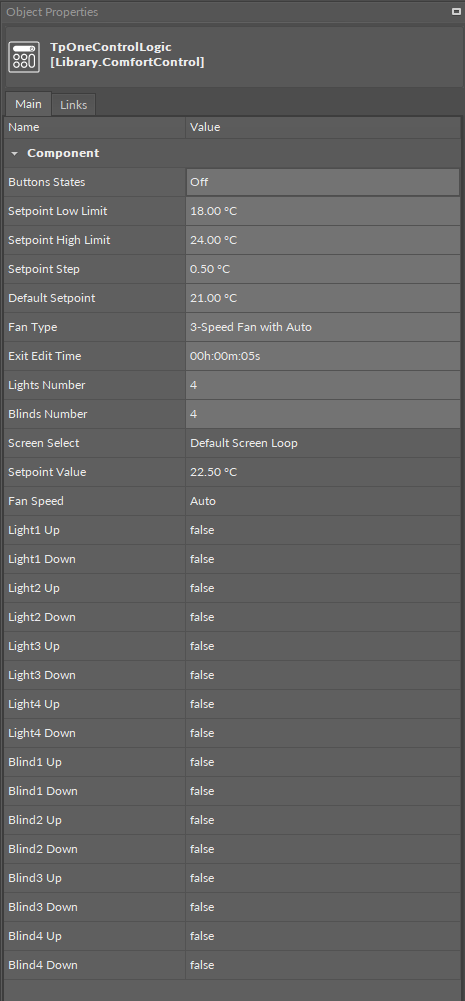
The TpOneControlLogic component has the following slots:
-
Button States: receives states of generic buttons on the panel (active when pressed; otherwise inactive) from the GENERIC_BUTTON_STATES variable of the Touch Point ONE 2.0 panel,
-
Available information: Off or states indicated while the corresponding button is pressed: Setpoint, Light, Up, Fan, Blind, Down;
-
-
Setpoint Low Limit: allows to set a low limit value for a temperature setpoint.
-
Setpoint High Limit: allows to set a high limit value for a temperature setpoint,
-
Setpoint Step: allows to set a temperature's setpoint step value,
-
Default Setpoint: allows to set a default temperature setpoint value,
-
Fan Type: allows to set a fan type used in the system,
-
Exit Edit Time: allows to set the time after which the parameter editing mode is finished,
-
Lights Number: allows to set a number of light circuits to control,
-
Blinds Number: allows to set a number of blinds to control,
-
Screen Select: controls the display of screens on the Touch Point ONE 2.0 panel based on the generic buttons states,
-
Available information: default screen loop, fan 0, fan 1, fan 2, fan 3, fan Auto, light 1, light 2, light 3, light 4, blind 1, blind 2, blind 3, blind 4, setpoint screen;
-
-
Setpoint Value: controls the temperature setpoint based on the generic buttons input (temperature setpoint editing mode enabled and the up/down arrows pressed),
-
Fan Speed: controls the fan mode based on the generic buttons input (fan mode editing mode enabled and the up/down arrows pressed),
-
Light1-4 Up: controls the light on the 1-4 light circuit based on the generic buttons input (light editing mode enabled and the up arrow pressed),
-
Light1-4 Down: controls the light on the 1-4 light circuit based on the generic buttons input (light editing mode enabled and the down arrow pressed),
-
Blind1-4 Up: controls the light on the 1-4 light circuit based on the generic buttons input (blind editing mode enabled and the up arrow pressed),
-
Blind1-4 Down: controls the light on the 1-4 light circuit based on the generic buttons input (blind editing mode enabled and the down arrow pressed).
ActionTrigger Extension
The ActionTrigger extension is designed to invoke any action that is available for the component. The extension triggers an action selected in the Action Name on the rising edge of the Action Trigger slot. If the action has parameters to set, the parameter is taken from a relevant slot automatically added to the extension (Analog Value/Binary Value/String Value).
It is possible to add more than one ActionTrigger extension to the component (for example, one for each action in the component).
The extension is added from the context menu of the component.
The ActionTrigger extension has the following slots:
-
Action Name: allows to select an action to invoke;
-
Action Trigger: triggers an action selected in the Action Name slot;
-
Action Analog Value/Action Binary Value/Action String Value: a slot added automatically to the extension if an action selected in the Action Name slot has any specific parameters to set (depending on the type of action and its parameters, the relevant type of value is matched).