The Web service enables the display of a web-based interface, nanoWebUI™, designed for the management of Data Points in applications. From the nano EDGE ENGINE V1.9 implementation of Haystack service and tagging, it allows to display tagged Data Points and Equipment components in the nanoWebUI™.
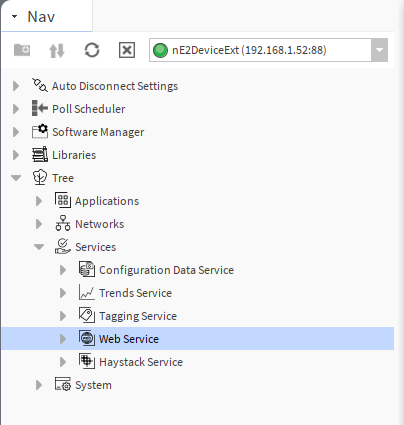
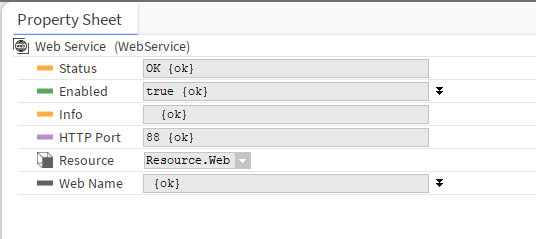
The Web service has the following slots:
-
Status: indicates the current status of the component. If the component works properly, its status is OK; however, it changes accordingly when values in other slots are adjusted.
-
Available information: disabled (the Enabled slot is set to false), OK;
-
-
Enabled: change of the slot's value enables or disables the component;
-
Info: informs about a non-OK status of the component;
-
Available information:
-
Couldn’t start file server (status Error): occurs when the file server cannot not be started due to a memory shortage or other exception,
-
No resource manager (status Error): occurs when the resource file manager cannot be opened due to a memory shortage or other exception,
-
No resource (status Error): occurs when the resource file is not loaded,
-
The port change will take effect after the device restart (status OK): occurs when the HTTP port number has been changed with the Set HTTP port action;
-
-
|
Numerical value |
Displayed information |
|---|---|
|
0 |
No information displayed in the Info slot |
|
1 |
Couldn’t start file server |
|
2 |
No resource manager |
|
3 |
No resource |
|
4 |
The port change will take effect after the device restart |
-
HTTP Port: shows the set communication port number;
-
Resource: allows to select a resource pack for displaying the web interface;
Note
The default resource pack for the display of the nanoWebUI™ interface is the Resource.Web file, delivered with the nano EDGE ENGINE OS V1.9.
-
Web Name: allows to set an individual name for the web server, displayed in the left panel.
The Web service has the following action:
-
Set HTTP Port: allows to change the HTTP communication port.
Note
The Set HTTP Port action is available also in the iFnet component and Haystack service.
Warning!
Changing the HTTP port affects the iFnet communication port number and will disable connecting with the controller using the current iFnet port number.
The HTTP port number can be changed by the user using the Set HTTP Port action. Changing the HTTP port number affects the communication port used to connect to the device, Haystack service, and connection to the nanoWebUI™ interface. The following notification is displayed before changing the port number:

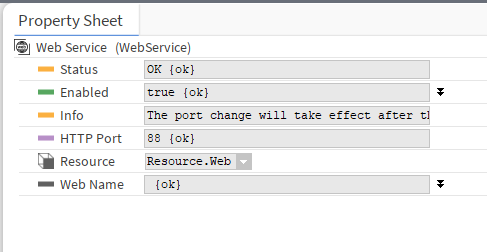
Once the change is introduced, it requires saving and restarting the device. Before saving, the component displays a notice in the Info slot:
Web Tags Manager
The Web Tags Manager is a simple view containing the list of all Equipment components and Data Points presenting values of tags related to the nanoWebUI™ display of the point.
Note
The Application components is displayed in the Web Tags Manager view only for identification reasons as the component cannot be subject to auto-tagging or adding tags at all.
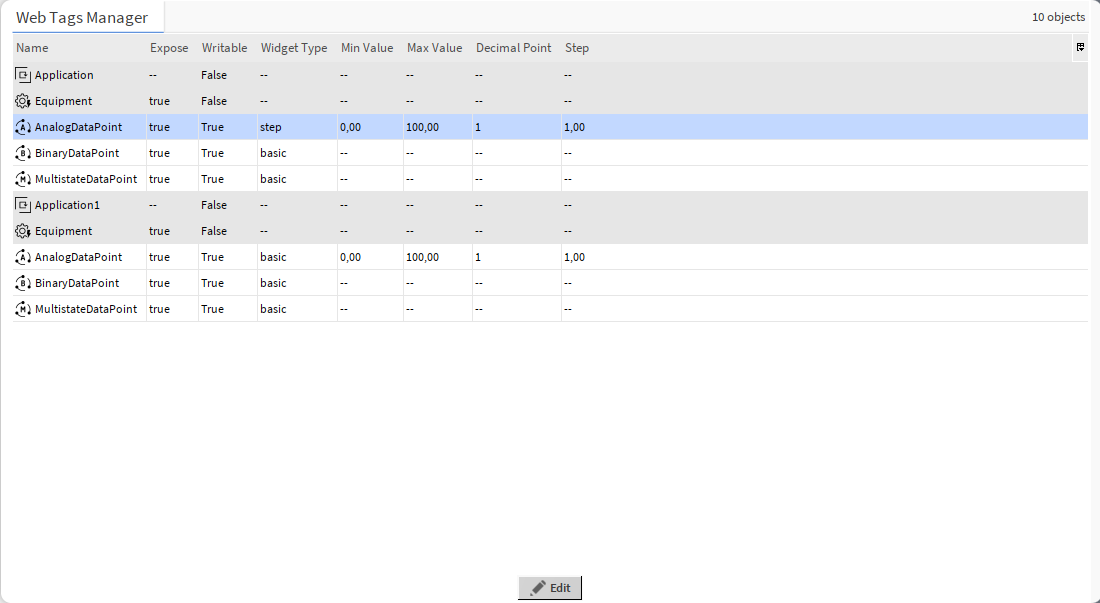
If Data Points are located under the Equipment component, it is required to double-click the relevant Equipment component to display its Data Points:
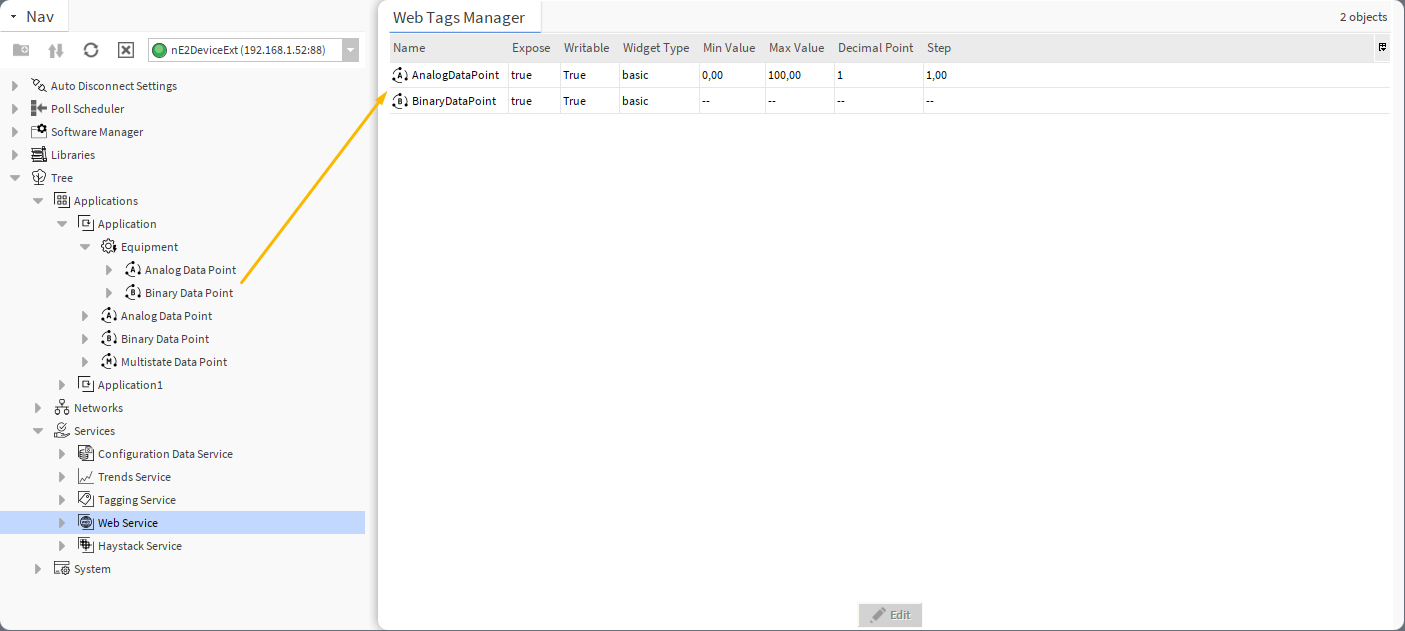
The Web Tags Manager view has the following columns:
-
Name: shows the name of the Application, Equipment component or Data Point added to the device; the Application/Equipment/Data Point hierarchy is maintained in this view;
-
Expose: informs if the
web:exposetag is active for the given Equipment component or Data Point; -
Writable: informs if the
hs:writabletag is active for the given Data Point; -
Widget Type: informs which widget type is set in the
web:widgetTypetag for the given Data Point; -
Min Value: informs what minimum value is set in the
hs:minValtag for the given Data Point; -
Max Value: informs what maximum value is set in the
hs:maxValtag for the given Data Point; -
Decimal Point: informs which decimal point is set in the
web:decimalPointtag for the given Data Point; -
Step: informs what step value is set in the
web:steptag for the given Data Point.
Actions
Editing
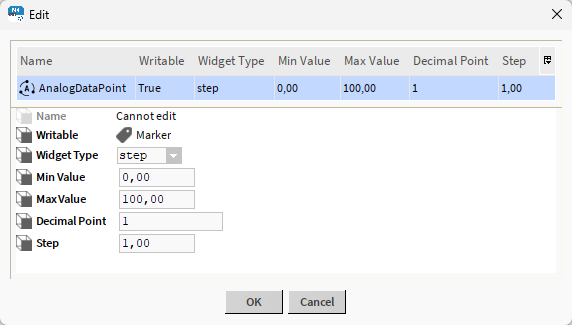
Editing of web tags parameters is available in the Edit dialog window under the Edit button:
-
Edit: allows to edit fields listed in the Web Tags Manager (widget type, min. value, max. value, decimal point, and step—if applicable).
Web Order
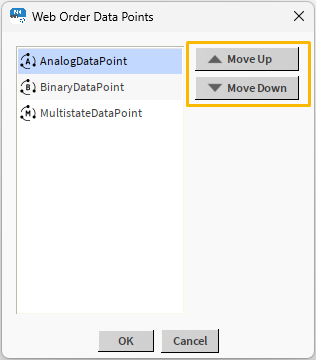
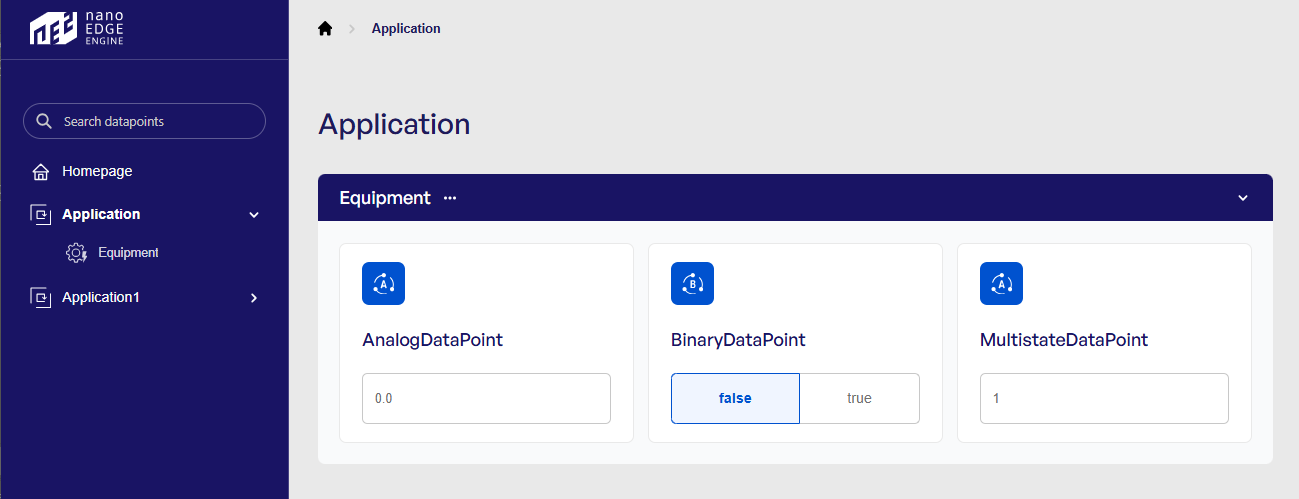
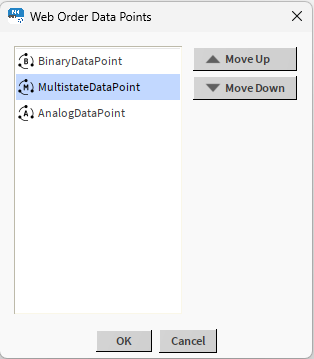
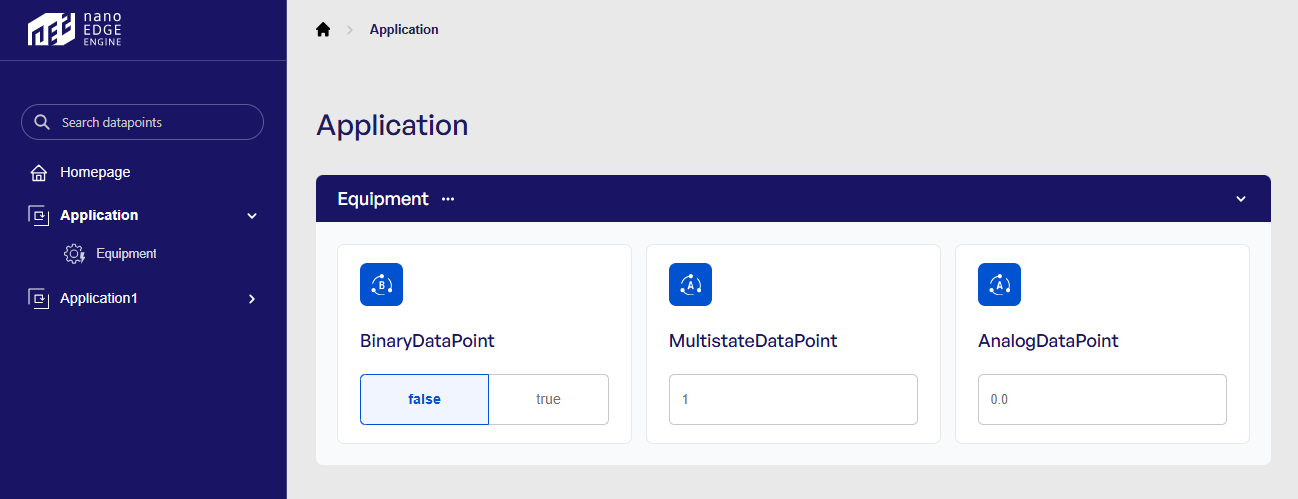
For the nanoWebUI™ display clarity and accuracy of representation of the user’s requirements, in the Web tags view, it is possible to edit a web order of Data Points displayed in the nanoWebUI™.
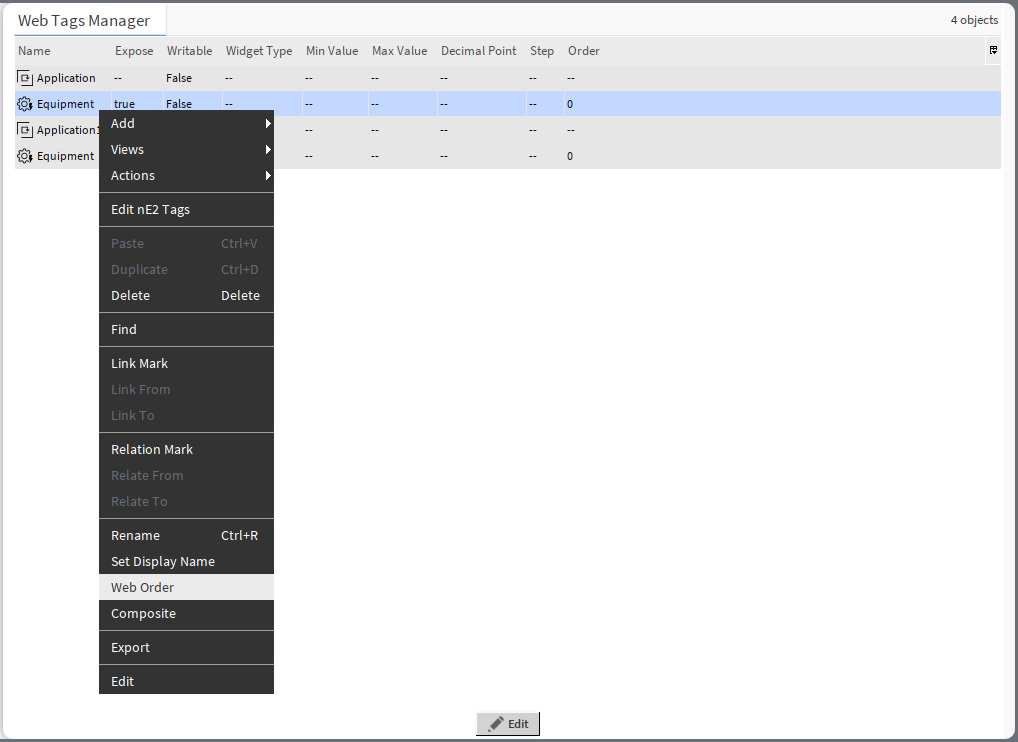
The Web Order option is available in the context menu of the Application or Equipment components. It opens a dialog window with a list of Data Points.
Use the Move Up/Move Down buttons to determine the display order. Confirm with OK.