
Managing nano EDGE ENGINE devices added as BACnet device extensions or connected with USB is most convenient from the main view of the Ne2LinkService. The view lists all nEE devices added in the station making it easy to locate them and manage TCP/IP and USB connections. It offers management of one device at a time or multiple selected devices. To select multiple devices, use the Shift button with a left-click:
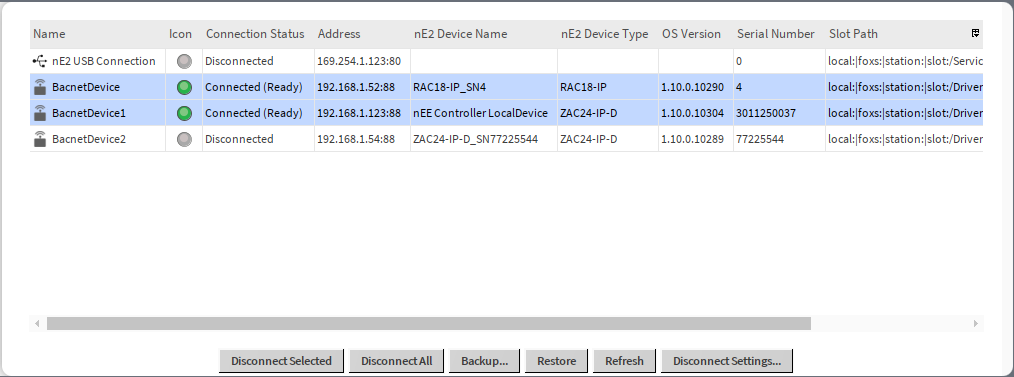
The Ne2LinkService dedicated view is opened on double-click on the service in the tree. The view shows the following data about the devices:
-
name,
-
status icon,
-
communication status,
-
IP address,
-
nE2 device name (with a serial number),
-
nE2 device type,
-
OS version on the device,
-
serial number,
-
slot path.
Each device can be managed either by action buttons on the bottom of the view or individually from the context menu.
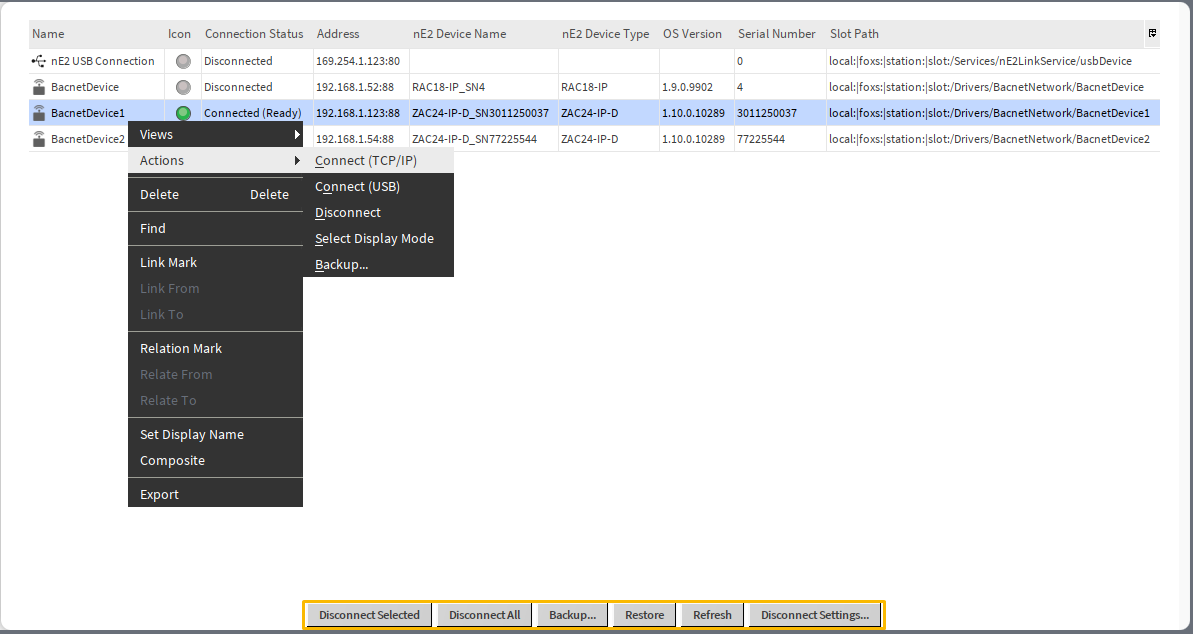
From the context menu, it is possible to connect or disconnect the device. It is also possible to Select Display Mode (developer/standard) and to perform backup of the device.
The Ne2LinkService has six action buttons which allow to perform the following:
-
Disconnect Selected: disconnects selected device(s),
-
Disconnect All: disconnects all connected devices,
-
Backup: performs a backup of selected device(s),
-
Restore: restores a backup to selected device(s),
-
Refresh: refreshes the view (devices added/removed while the view has been displayed will appear/disappear from the list),
-
Disconnect Settings: shows setting for an automatic disconnect mechanism (applies to all connected devices).
For user convenience, it is recommended to disconnect devices after commissioning or programming. The devices can be disconnected manually or by the auto-disconnect function, which helps unnecessary consumption of the resources, while the service also manages inactive connections (they are not lost after disconnecting).
Auto-disconnect
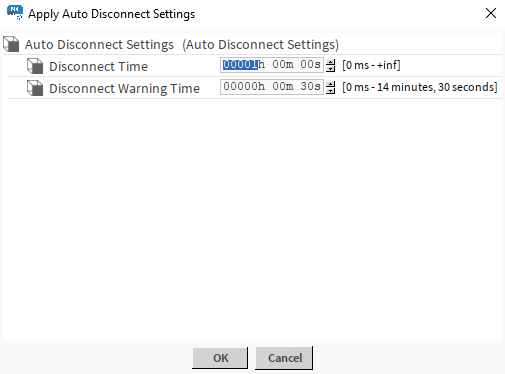
Auto-disconnect function disconnects the device automatically after the set time runs off. Auto-disconnect settings can be set in the pop-up dialog window invoked by the Disconnect Settings button:
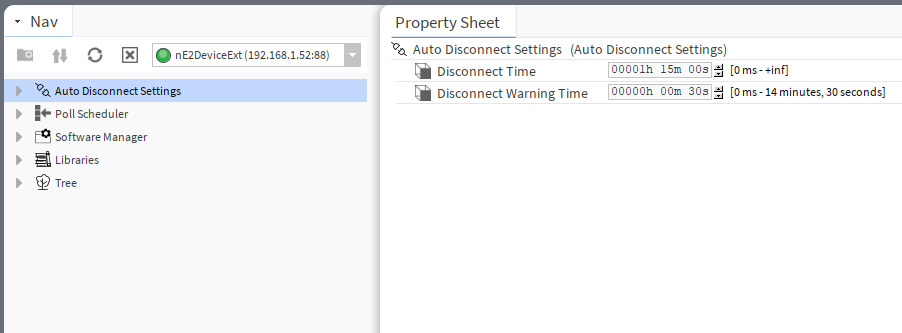
The same settings are available under double-click on the Auto Disconnect Settings option in the nE2DeviceExt tree:
Once the disconnect time passes, the auto log off notice is displayed:

It is also possible to set the auto-disconnect warning displayed before the devices get disconnect in time set in the Disconnect Warning Time slot. To disable the auto-disconnect function, set the disconnect time to 0 s.
Backup and Restore
The Ne2LinkService allows to perform and restore a backup of on one or multiple devices connected with the nE2 Link module (select multiple devices with a Shift and left-click).
The backup performed from the Ne2LinkService includes:
-
Applications, Networks, Services, and System containers;
-
configuration settings:
-
iFnet port,
-
IP address,
-
mask,
-
default gateway,
-
DHCP enabled,
-
device name,
-
DNS1,
-
DNS2,
-
BACnet LocalDevice ID;
-
-
configuration settings of Data Points.
Backup
To perform a backup, first, select device(s) to make a backup from. The Ne2LinkService allows to perform backups on one or multiple devices at a time. To mark devices for performing a backup, use a Shift button and a left-click.
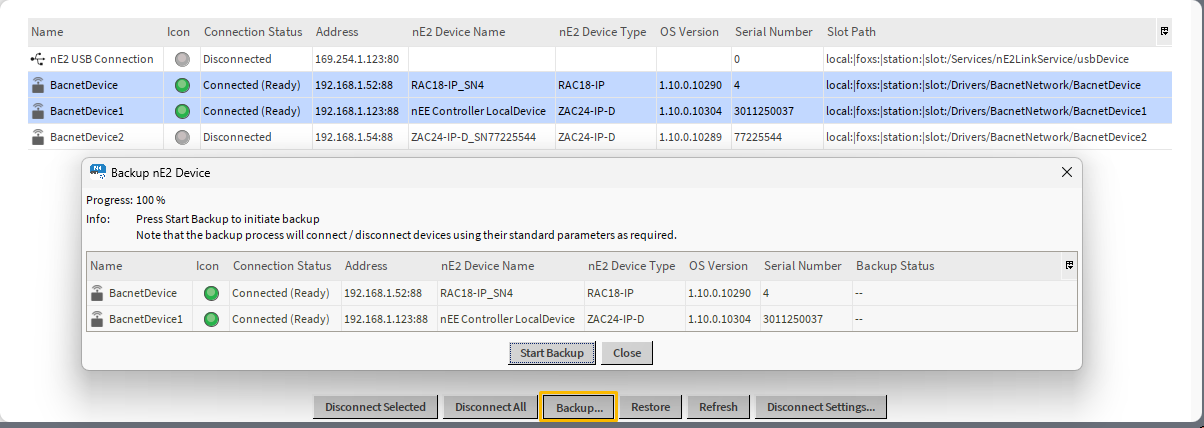
To open a backup dialog window for selected devices, press the Backup button.
The backup dialog window contains basic information about the device (name, status icon, connection info, address, nE2 device name and type, OS version, serial number, and backup status).
To start a backup process, press the Start Backup button. The progress bar will show the level of process advancement and the Backup Status column will inform about a current stage of backup.
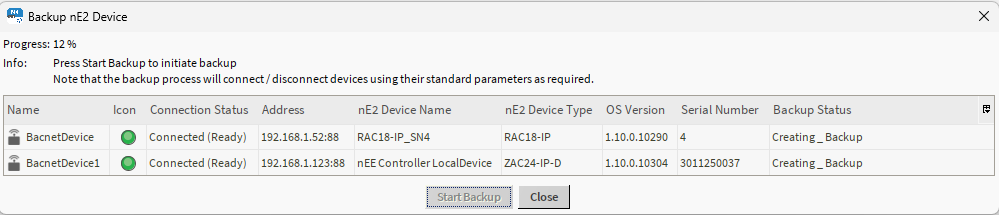
The backup is saved in the station’s folder nanoEdgeEngine/backup and it is automatically named according to the pattern: device name/serial number/IP address/date/hour.
Restore
To restore a backup, first, select device(s) to restore the backup to. The Ne2LinkService allows to restore a backup on one or multiple devices at a time. To mark devices for restoring a backup, use a Shift button and a left-click.
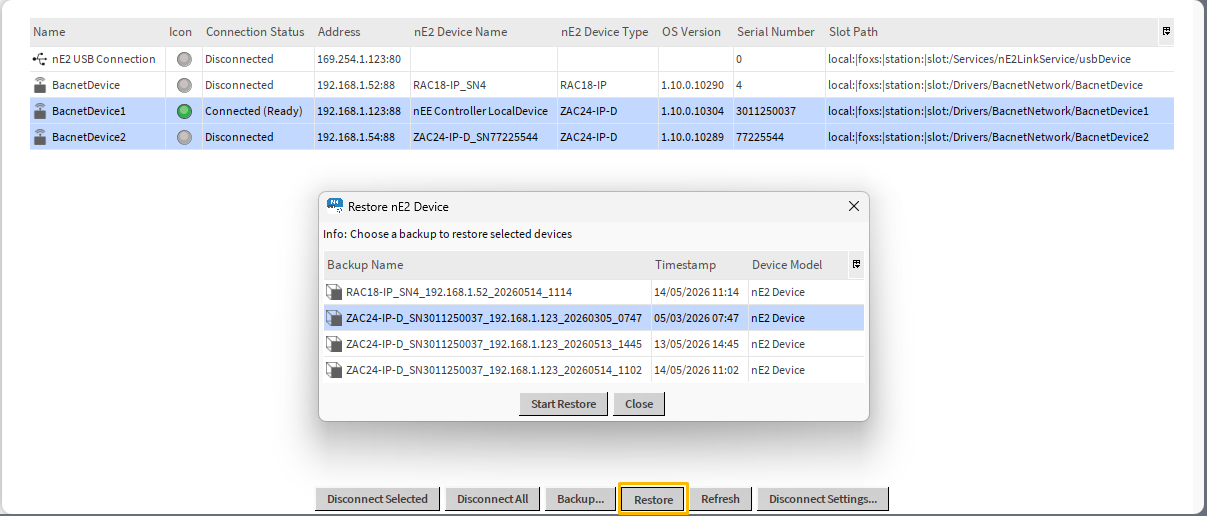
Note
Please note that it is possible to restore only one and the same backup to multiple devices. If more than one backup files are selected to restore, only the first one from the list will be uploaded to the selected device(s).
Next, press the Restore button in the main Ne2LinkService window. The restore dialog window pops up. Here, select the backup to restore to the selected device(s). To start a restore process, press the Start Restore button.
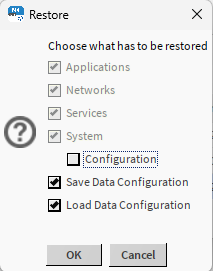
Before restoring the backup, it is required to define a scope to restore. The Applications/Networks/Services/System contents are restored by default and it is not possible to change it. The selectable elements are:
-
Configuration: including configuration settings:
-
iFnet port,
-
IP address,
-
mask,
-
default gateway,
-
DHCP enabled,
-
device name,
-
DNS1,
-
DNS2,
-
BACnet LocalDevice ID;
-
Warning!
Selecting to restore the Configuration option overwrites all network configuration listed above (including IP address, BACnet ID, etc.). It is not recommended to check the Configuration option while restoring backup on multiple devices.
-
Save/Load Configuration: including configuration settings of Data Points and Analog/BinaryConstant components.
Note
The Save/Load Configuration options refer to the scope of data saved withing the ConfigurationData service, which saves values from the following slots of components:
-
Data Points' slots: In16, In1-In15 (if the Analog/Binary/MultistatePriorities extension has been added),
-
AnalogConstant/BinaryConstant’s slot: Out.
Checking only the Save Configuration option saves the Data Points/AnalogConstant/BinaryConstant slots but does not load it automatically during backup. It is possible to restore it manually from the ConfigurationData service.
Checking only the Load Configuration option restores the Data Points/AnalogConstant/BinaryConstant slots, which has been previously saved to the ConfigurationData service. If no configuration has been saved, checking only the Load Configuration option during backup will have no effect.
After confirming the scope of restore, the restore process dialog window opens up.
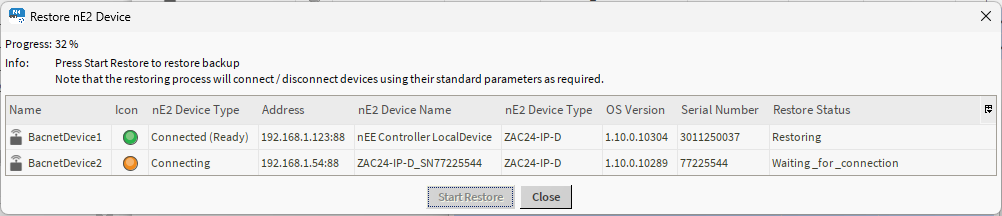
Note
Please note that during the restoring process the device will be connected (if disconnected at the start of the process), disconnected, and reconnected, so the IP address, username, and password have to be saved in the nE2 Link extension.
Progress Statuses
|
Status |
Backup/restore |
Explanation |
|---|---|---|
|
-- |
Both |
Before starting |
|
Idle |
Both |
Process has not been started yet, but it is scheduled |
|
Waiting_for_connection |
Both |
Process requires connecting to device |
|
Connecting |
Both |
Process is connecting to the device |
|
Finished_Successfully |
Both |
Process finished successfully |
|
Failed_Authenticating |
Both |
Connection failed due to authentication reasons, e.g., invalid password |
|
Failed_Connecting |
Both |
Connection failed due to other reasons, e.g., no response from the device |
|
Creating_Backup |
Backup |
Backup is being created |
|
Downloading_Backup |
Backup |
Backup is being downloaded |
|
Saving_Configuration |
Restore |
Configuration is being saved |
|
Restoring |
Restore |
Restore process is undergoing |
|
Loading_Configuration |
Restore |
Configuration is being loaded |
|
Failed_Minimum_OS |
Restore |
Could not restore the selected backup because its OS version is lower than allowed on this device, e.g., OS V1.5 on VAV14-IP |
|
Failed_Not_Allowed |
Restore |
Could not restore because of an incompatible version. Try with selected “Configuration” in the restore scope dialog window. |
|
Failed_OS_Update |
Restore |
Preparation of the restore failed |
|
Failed_File_Transfer |
Restore |
Transferring files into device failed |
|
Failed_Remove_Configuration |
Restore |
Removing configuration files failed |
|
Failed |
Both |
Failed because of other reason |