
This document describes how to download the application to your device using the “Application Manager” in iSMA Tool. Adding the iSMA-B-AAC20 device to iSMA Tool is described here.
-
Connect to iSMA-B-AAC20 controller.
-
Click on the device name, the default is its IP address. From the "Object Properties" window, go to "Application Manager" by clicking the button with the same name.
-
To download the application from the controller, click "Get App" in the "Commands" column.

Picture 1. "Application Manager" - "Get App".
4. iSMA Tool will start to download the application from the device, you can watch the process on the console. After completing the download, the message "*** SUCCESS! ***” will appear and in “Application Manager” there will be a new file with the SAX extension.
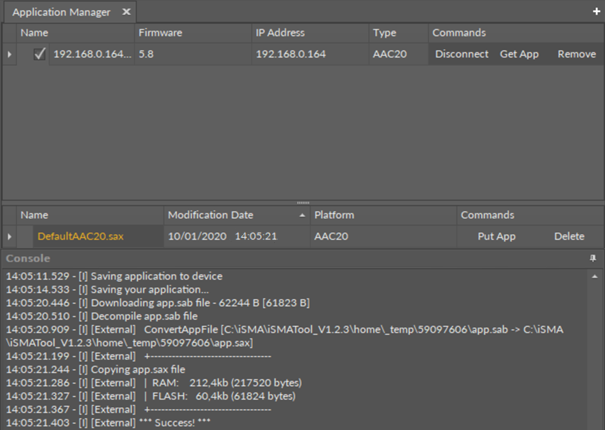
Picture 2. "Application Manager" after downloading the application from iSMA-B-AAC20.
5. The newly created file is placed in the "Applications" folder under the path "iSMATool_Version\home\Applications".

Picture 3. Location of the newly created "SAX" file.