
This article describes how to use Sedona Updater to upload the application and set of kits to iSMA-B-AAC20.
NOTE: Sedona Updater is available from iSMA CONTROLLI Download Center in "Software Bundle" folder.
-
Start Sedona Updater. In "IP Address", enter the address of the device with which the user would like to connect.
-
After clicking "Select File" a pop-up window will appear in which, the file to be uploaded to the controller needs to be selected.
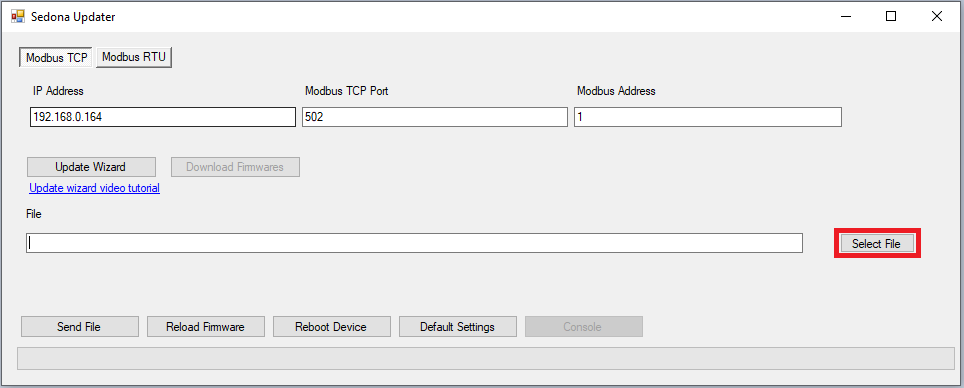
Picture 1. Sedona Updater window - “Select File” button.
3. First, the set of kits (file "kits.scode") needs to be uploaded. The file is being sent by clicking the "Send File" button.
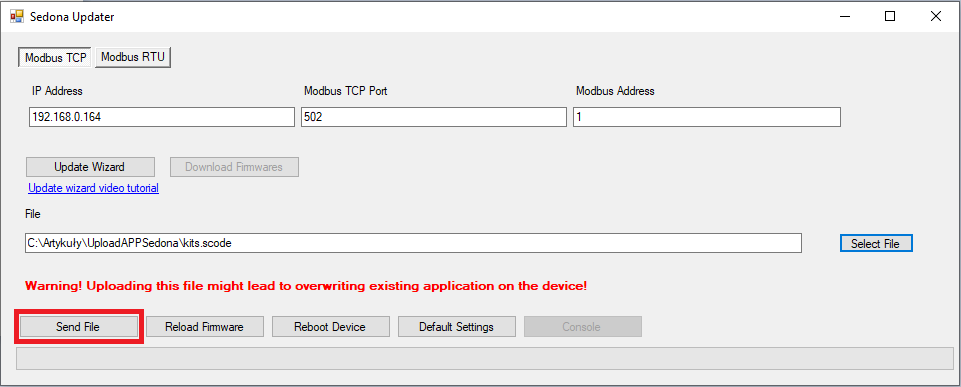
Picture 2. Sedona Updater window - "Send File" button.
4. After successfully uploading the files, a pop-up window will appear. Confirm this message by clicking "OK".
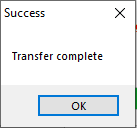
Picture 3. Pop-up window confirming successful upload of the file to the controller.
5. Steps 2 and 3 should be repeated for the application that will be saved in the controller.
6. After loading the application and kits to the device, you need to reboot the driver. To do this, click the "Reboot Device" button.