
Applicable only to nano EDGE ENGINE devices
Available as a tab in the Device Libraries window, the Template Groups window allows to view and reuse saved parts of the device’s application and networks.
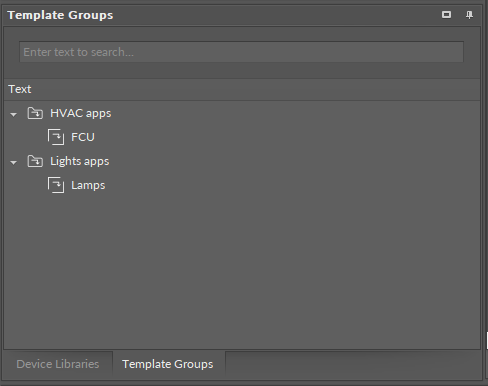
Saving Template
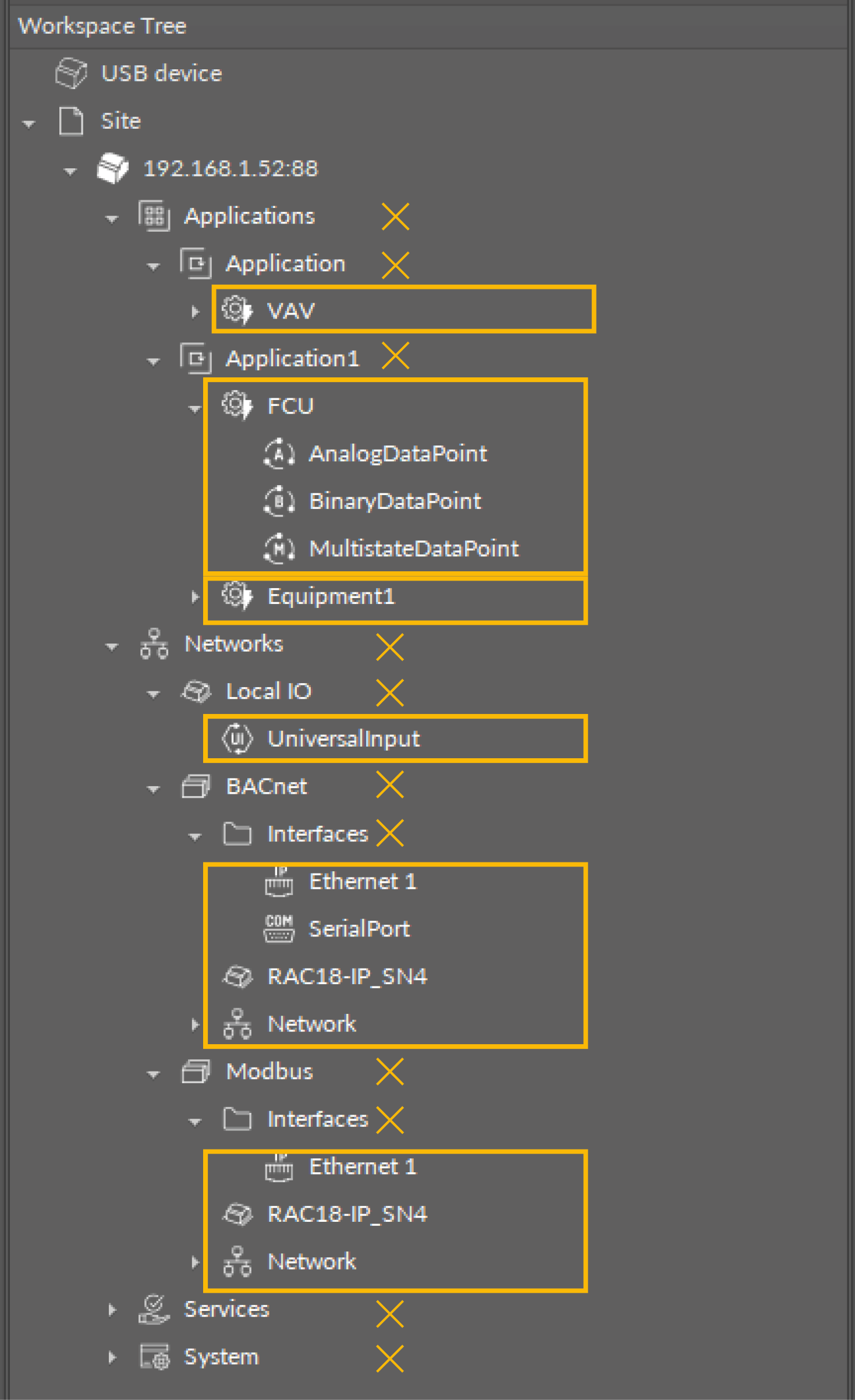
Saving templates is possible only for components included in the Applications and Networks containers.
In Applications, it is possible to save components placed under the Application component. The template can be saved with the Equipment component (if used) or only with components located under it or directly under the Application component. A simple Folder component can also be used for grouping purposes and saved in the template.
In Networks, it is possible to save components placed under the LocalIO, BACnet, or Modbus components.
Elements possible to save as templates
Warning
Components in the Services or System container cannot be saved as a template.
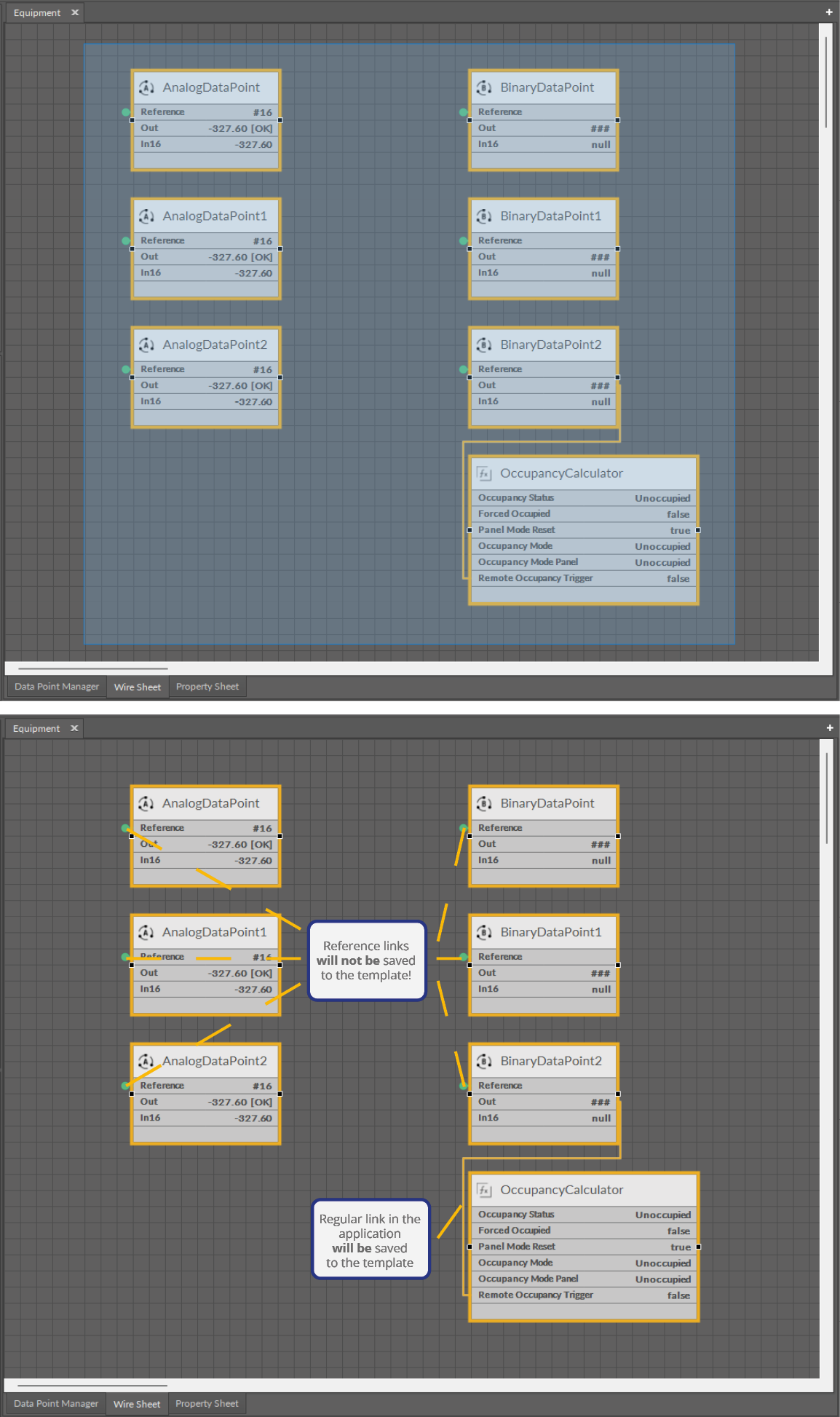
This also regards links between components in different containers or other external links. The Reference links between Data Points and network points (for example, local I/O components) will be lost in the template.
The saved template contains the following data:
-
extensions added to components,
-
slots values (not applicable to read-only slots),
-
exceptions: BACnet ID, Modbus address, events data in schedules components.
-
To mark components for saving, select (one or many) components on the Workspace Tree or select components for saving in Wire Sheet view (using window or crossing selection).
Note
In the Workspace Tree, it is possible to select more than one components to save as a template, however, they have to be same-level components. To save components from different levels (for example, the Equipment components and components located under it), it is enough to mark only the superior component.
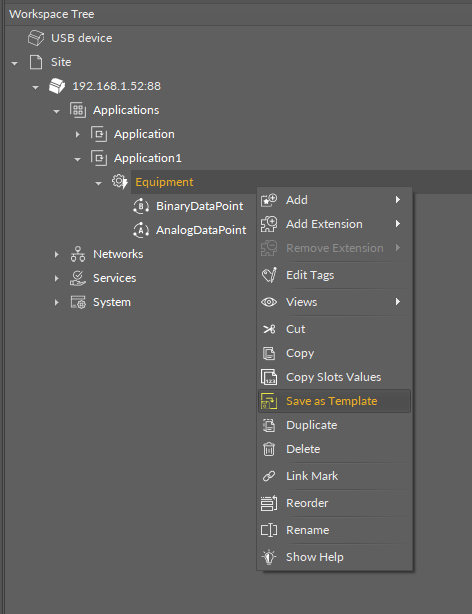
After selecting the Save as Template option, a dialog window pops up:
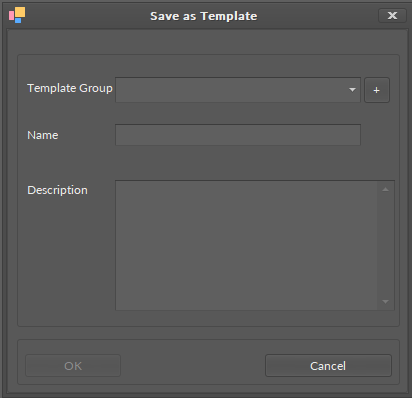
In the dialog window, there are three fields:
-
Template Group: allows to select or add a templates' group to save a particular template to;
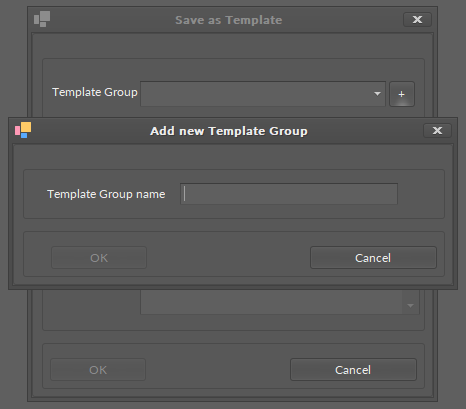
-
Name: allows to fill in a name for the template;
-
Description: allows to fill in an additional description to the template.
Using Templates
Saved templates are available in the Template Groups tab in the Device Libraries window.
To use the template, drag and drop it to the wire sheet of the destination Application component
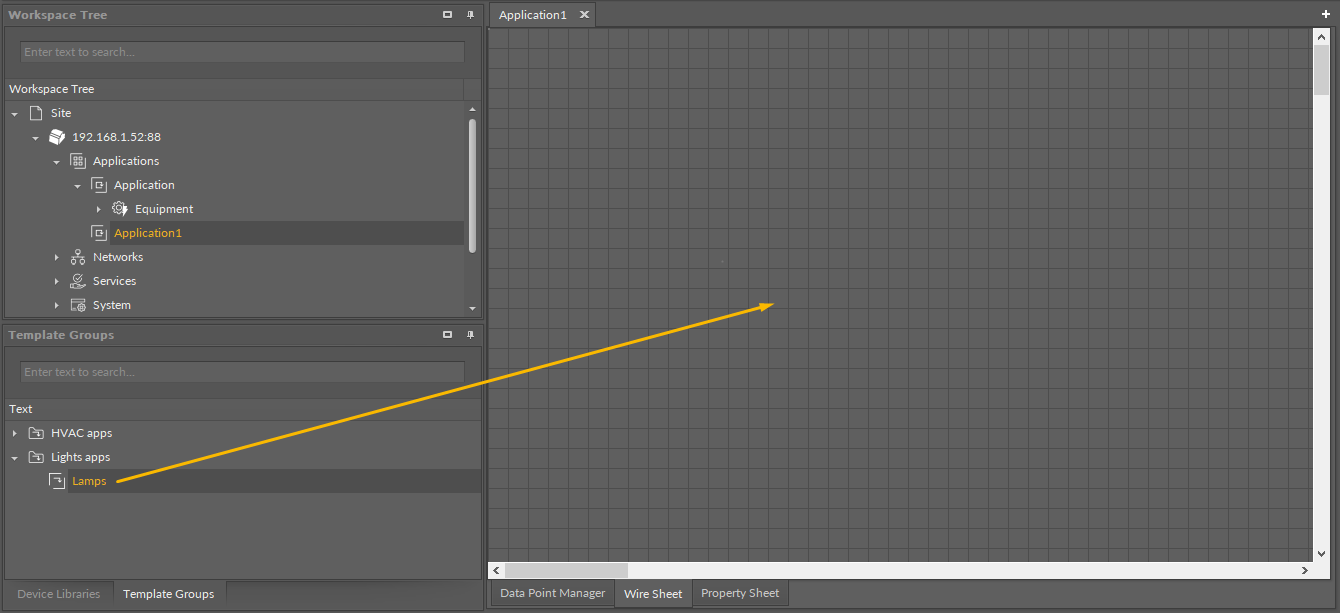
Note
If the Equipment component has been added to the template, it is sufficient to add add the template directly to the wire sheet of the Application component. However, if the template contains only components of the application itself (no Equipment component), it is advised to first add the Equipment component to the Application component and then add the template to the wire sheet of the Equipment component. For more information, please see Equipment.