
From Device Libraries/Kits
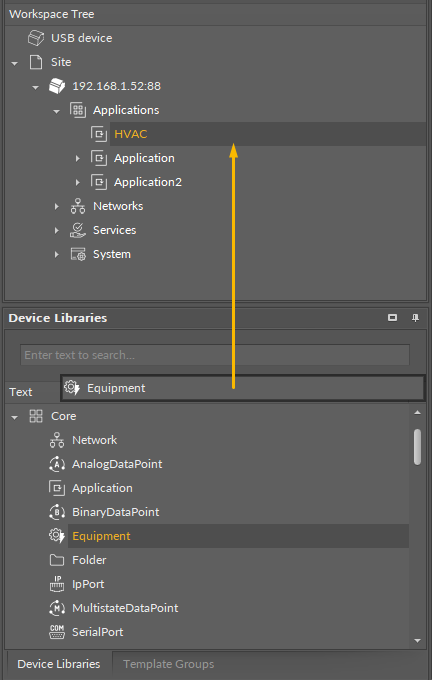
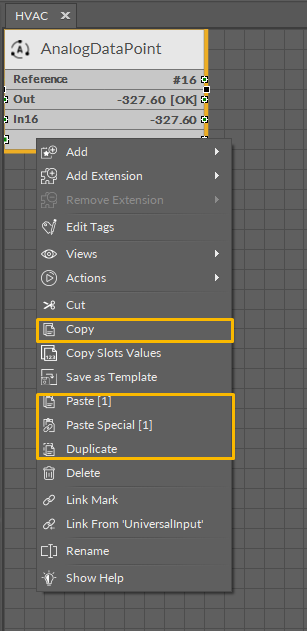
New components can be added in three windows: the Workspace Tree, Wire Sheet, and Property Sheet. New component is created by:
-
dragging a new component directly from the Device Libraries/Kits window;
-
duplicating the existing component (using Copy or Duplicate function).
The name of the new component is given automatically; however, it can be changed manually by the user. It is possible to bulk add components of the same type by indicating a number of components to add along with a naming pattern in the dialog box (see more in Renaming Components). If several components of different types are added at the same time, the iC Tool will generate unique names to all the components added automatically.
From Context Menu (Applicable to nano EDGE ENGINE Devices)
The Workspace Tree window, the Wire Sheet and Property Sheet views offer an option of adding components in the Applications and Network containers simply from the context menu.
The Add option is available in the context menu of elements contained in Applications and Networks. The Add option allows to select from available components and add them in the location, where the context menu has been opened.
The Add option incorporates a filtering mechanism, which adjusts the list of components available to add by the location (Applications/Networks container).
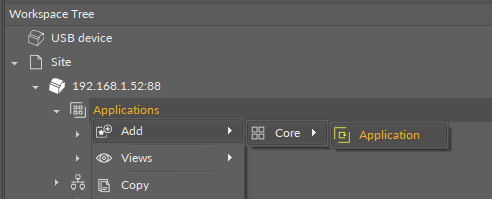
Add Option for ApplicationsIn the Applications container, the Add option displays quick-access components and a list of libraries available for applications.Quick-access components include:AnalogDataPoint/BinaryDataPoint/MultistateDataPoint,Equipment/Folder.The components are followed by a list of libraries, from which each of available components can be added to the application. 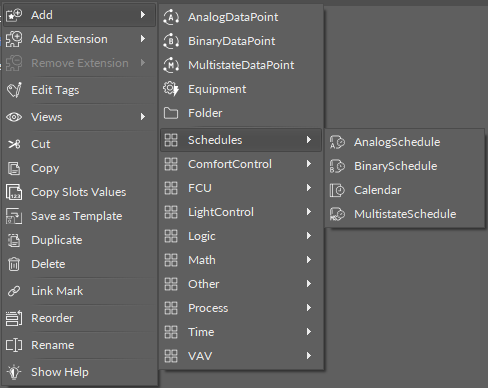 Due to the filtering mechanism, the list of libraries does not include, for example, the BACnet or Modbus library, which are exclusive to the Network container. If opened on the Applications container itself, the filtering mechanism will show the only possible option to add, the Application component:
Add Option for NetworksIn the Networks container, the Add option displays a list of libraries available for networks communication:BACnet,Core,IO,Modbus. 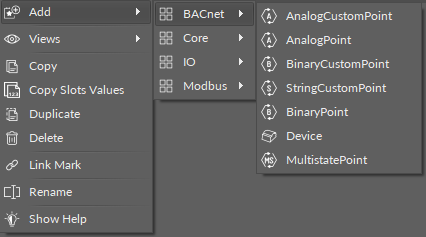 The Add option is not active for the Networks container component itself, because all network components for the device’s communication (LocalIO, BACnet, Modbus) are added by default.
In order to add components this way, right-click on a relevant element of the Workspace Tree or in an empty space of the Wire Sheet grid or Property Sheet and choose the Add option from the context menu. On the Wire Sheet or Property Sheet, the filtering mechanism will adjust the list of available components based on the element, which is currently opened in either of these views.