
Adding Components
In order to add a new component to the Property Sheet view, drag it from the Device Libraries/Kits window straight to the Property Sheet tab. As the Property Sheet tab can only be opened for a selected component (displaying a plain Property Sheet tab is not possible), the dragged component will always be added as an inferior of the selected component. If the dragged component is dropped in an unoccupied field in the Property Sheet view, it will be added to the main component of this view.
Adding Components from the Context Menu in nano EDGE ENGINE Devices
The Workspace Tree window, the Wire Sheet and Property Sheet views offer an option of adding components in the Applications and Network containers simply from the context menu.
The Add option is available in the context menu of elements contained in Applications and Networks. The Add option allows to select from available components and add them in the location, where the context menu has been opened.
The Add option incorporates a filtering mechanism, which adjusts the list of components available to add by the location (Applications/Networks container).
Add Option for Applications
In the Applications container, the Add option displays quick-access components and a list of libraries available for applications.
Quick-access components include:
-
AnalogDataPoint/BinaryDataPoint/MultistateDataPoint,
-
Equipment/Folder.
The components are followed by a list of libraries, from which each of available components can be added to the application.
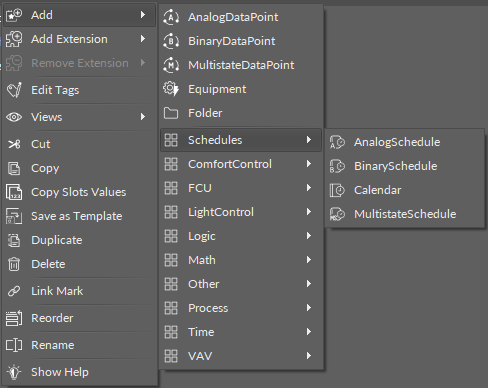
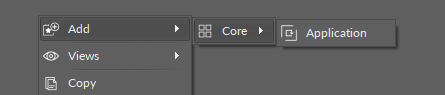
Due to the filtering mechanism, the list of libraries does not include, for example, the BACnet or Modbus library, which are exclusive to the Network container. If opened on the Applications container itself, the filtering mechanism will show the only possible option to add, the Application component:
Add Option for Networks
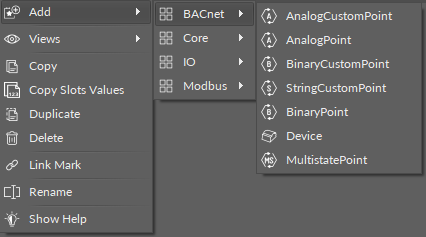
In the Networks container, the Add option displays a list of libraries available for networks communication:
-
BACnet,
-
Core,
-
IO,
-
Modbus.
The Add option is not active for the Networks container component itself, because all network components for the device’s communication (LocalIO, BACnet, Modbus) are added by default.
Removing Components
A component selected in the Property Sheet tab can be deleted with a Delete key or a Delete option in the context menu.