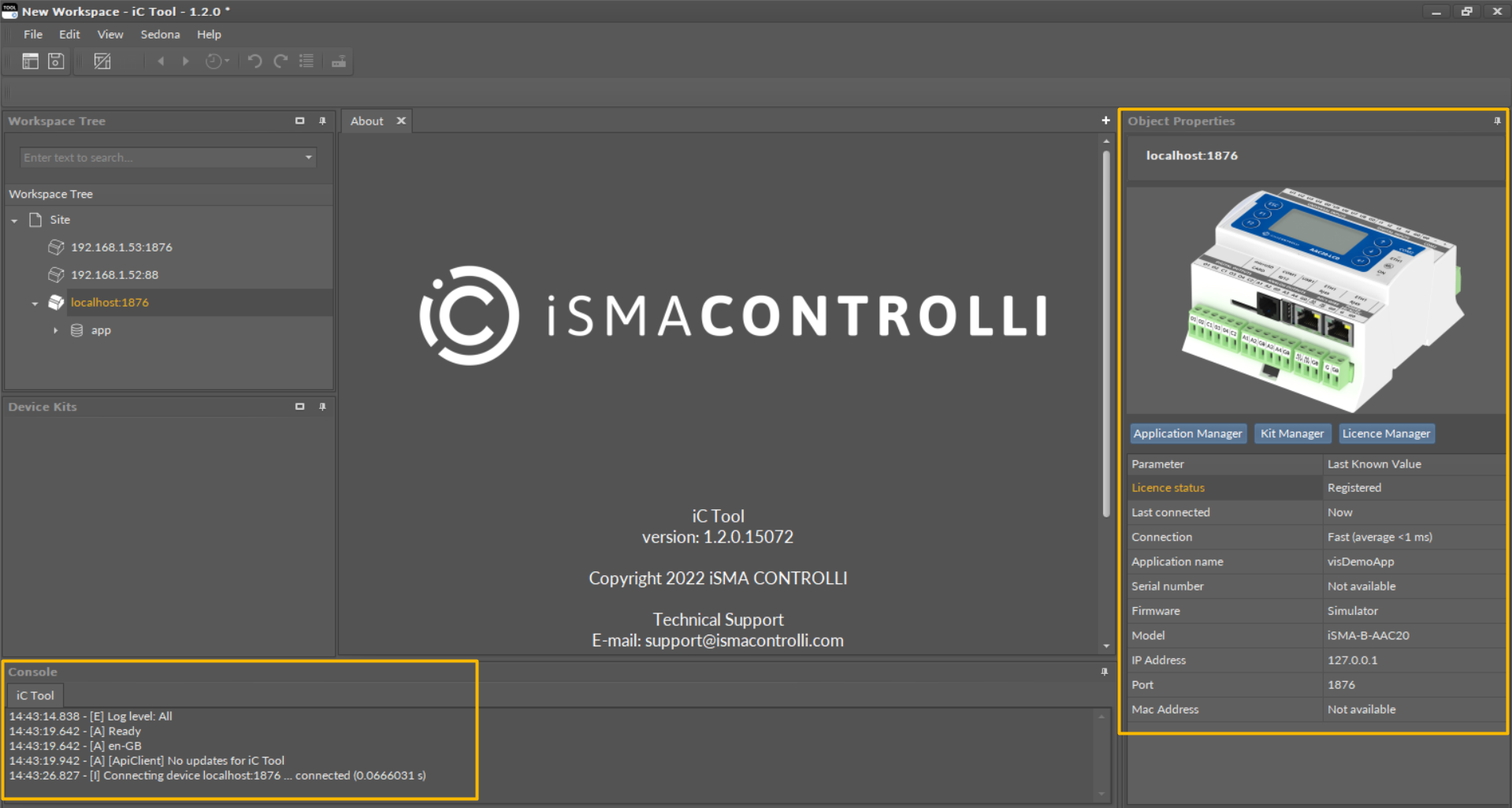
The Sedona Device Simulator tool lets to run a Sedona app on the iC Tool as a simulated device using the Sedona device vendor-supplied simulator, SVM (Sedona Virtual Machine).
This procedure describes how to run an app in the Sedona Device Simulator.
Start
-
Run a "run" bat file from a Simulator folder to launch the simulator program:
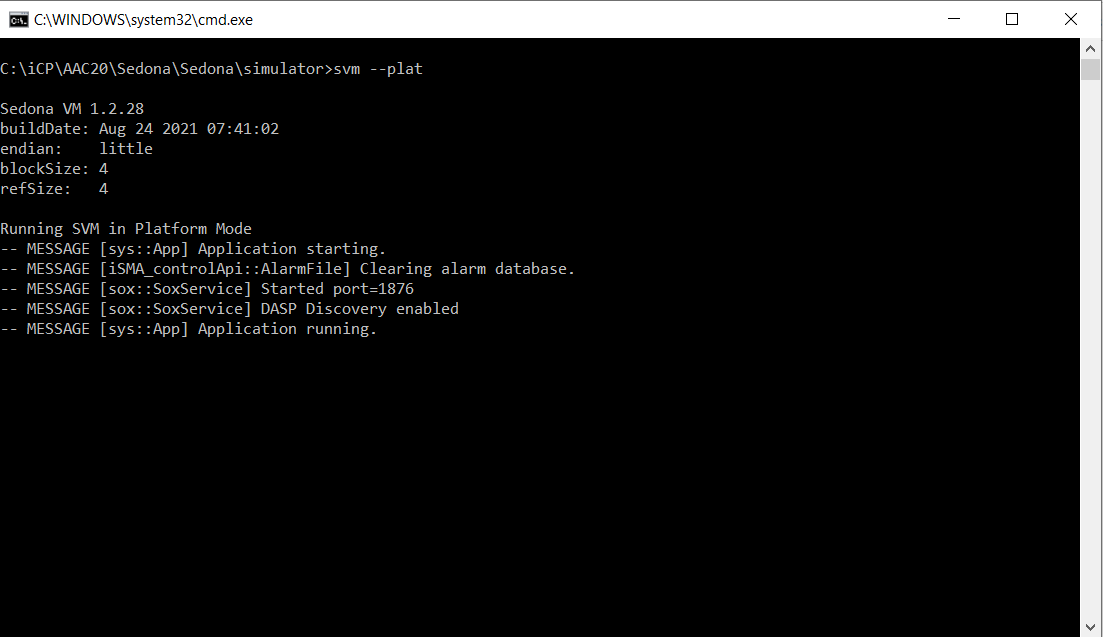
-
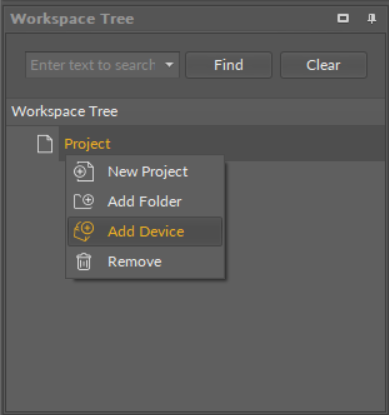
Open a direct Sox connection using a localhost in the iC Tool. Select Add Device.
-
In the Connect dialog box, for Host IP, enter: localhost. In the Authentication window, in the Username and Password fields, enter the credentials used in the new app file that has been created, and click Finish.
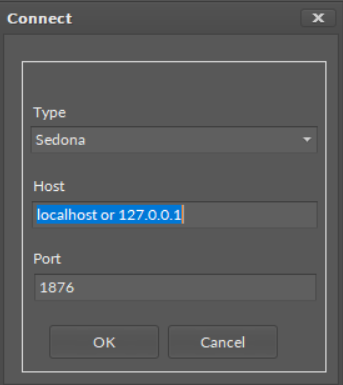
If the sample app is used on the sample simulator, the default credentials should be entered: Username: admin, Password: <blank>.
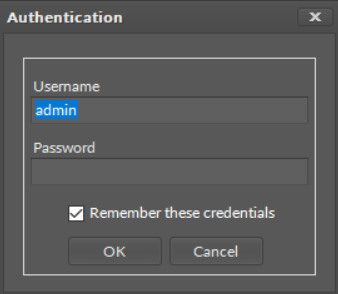
-
Once connected, a direct Sox session is established with a connection to the app running in the simulated device: