
The first time the user logs in to the device in the iC Tool, the software requires to change the default password.
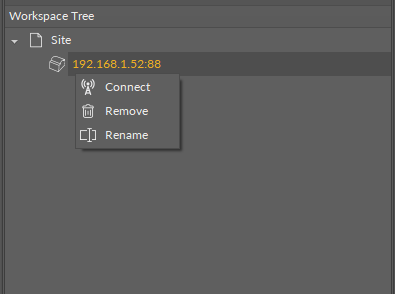
Once the user initiates connecting the device, the iC Tool displays the authentication window:
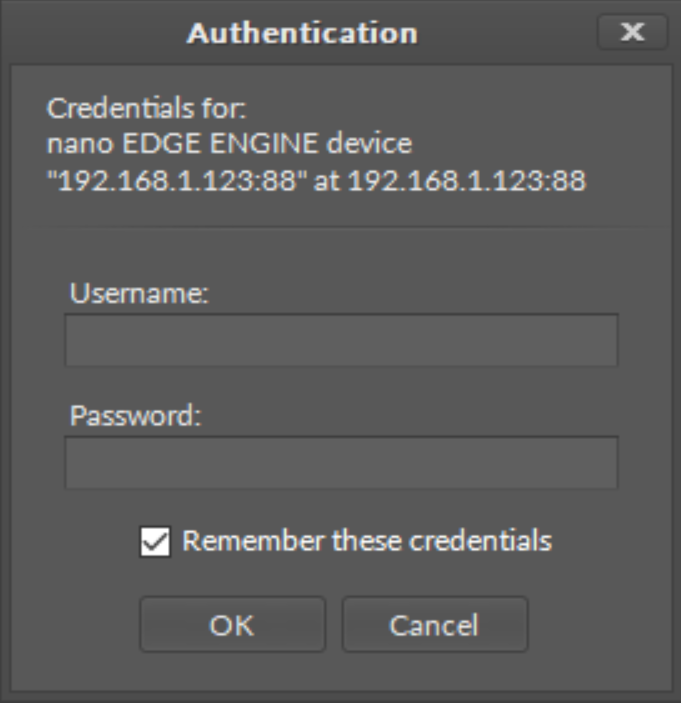
Enter default credentials:
-
username: admin
-
password: admin
Confirm with OK and proceed to the next authentication step, which is setting an individual user’s password. After pressing OK, the following dialog window appears, leading the user to change the password:

Confirm the dialog window with OK, and proceed to a Change Password dialog window:
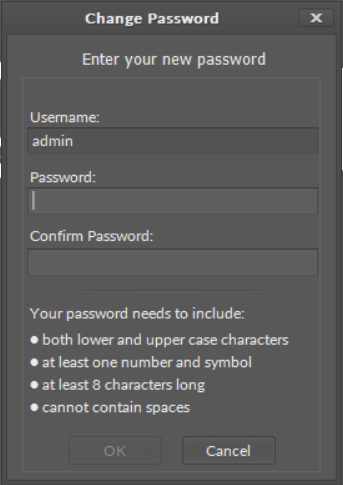
For the first logging in, the user is required to enter:
-
Username: admin
-
Password: new password set by the user, at least 8 characters long, at least one digit, at least one capital letter.
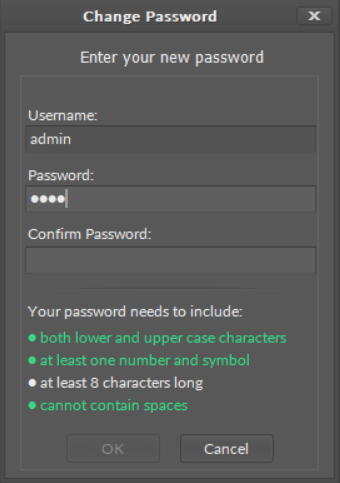
While typing a new password, the dialog window verifies if the password is compliant with requirements (fulfilled requirement is marked in green):
Note: If a wrong username or password is inserted in the authentication window, the following notice pops up:
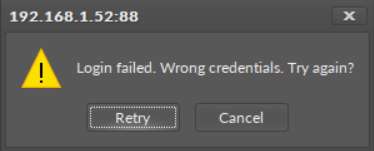
Click retry and enter correct credentials.