
Logs
The Logs component runs an adjustable register of all events happening in the connected device. Such register becomes crucial when troubleshooting; it enables checking records, comparing recent ones with historical feeds, and, if needed, sharing them with the iSMA CONTROLLI Support Team for further diagnostics.
The records in the Logs register are grouped by their genre; they are categorized depending on the area they originated–firmware, core, BACnet, app, etc. Each group may have its individual log level defining priorities of data to be recorded, according to the users needs. These priorities are differentiated from Debug (each event happening is registered) to Critical (only few events that result in the system error are registered).
The Logs register is written to a file and saved on the SD card in the device. If needed, it may be copied from the SD card and shared with the iSMA CONTROLLI Support Team for troubleshooting.
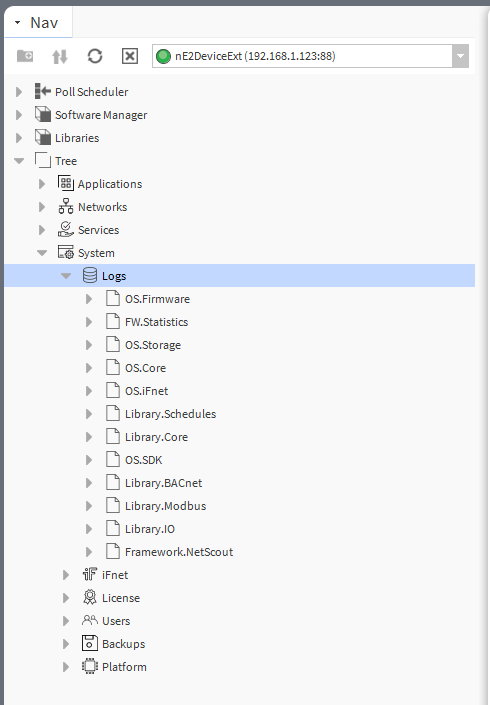
Logs
The Logs component has one slot:
Default Log Level: assigns the importance of logs to be registered. Log levels are listed by level of details (Debug - most detailed, Critical - least detailed). If the default log level is set, for example, to Important, saved logs will include records from the Important level and the less detailed levels, in this case, the Error and Critical levels;
Available settings:
Debug: logs used for debugging purposes (e.g., information about sent iFNet requests or elements saved to storage),
Normal: logs informing about typical actions in the device, which are characteristic for a device’s normal operation (e.g., information about free managed memory, added BACnet objects, steps of creating or restoring backup, etc.),
Warning: logs informing about a wrong configuration or issued action not working as expected (e.g., issuing the action while the parent service is disabled or initializing the component more than once) – keep in mind that in a properly configured and properly working application these logs may not appear at all,
Important: logs containing information crucial for device identification (e.g., iFnet IP address and port, firmware version, hardware version, core version), device readiness (e.g., system started, loaded services, BACnet/Modbus ports, loaded libraries, etc.), and important actions (e.g., detected DIP switch reset, factory reset, successful restore, etc.),
Error: logs informing about errors in applications (i.e., bad link, wrongly configured IO, unable to delete folder, errors in creating or restoring backup, etc.),
Critical: logs informing about issues that were not handled properly and need to be fixed as soon as possible, (e.g., entering the emergency mode, occurrence of hard fault of the device, stack overflow, or watchdog reset, etc.).
Note
The default log level is Critical.
Please note that logs have a built-in automatic mechanism, which switches the log level back to the Critical level after 24 hours for any change.
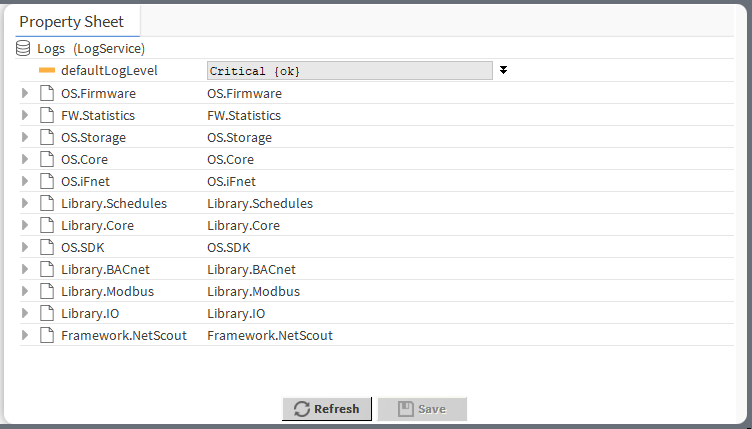
Logs' slot defaultLogLevel
Note
Logs register information about network configuration (IP address, default gateway, mask) providing a convenient way to retrieve such data if lost.
Extensions
The Logs component has also available the component's extensions for each of groups defined for register:
OS.Firmware,
FW.Statistics,
OS.Storage,
OS.Core (system elements),
OS.iFnet,
Library.Schedules,
Library.Core (library including Data Points, folders, etc.),
OS.SDK,
Library.BACnet,
Library.Modbus,
Library.io,
Framework.NetScout.
Each of the above has a logLevel slot, which allows to individually set the importance of logs to be registered.
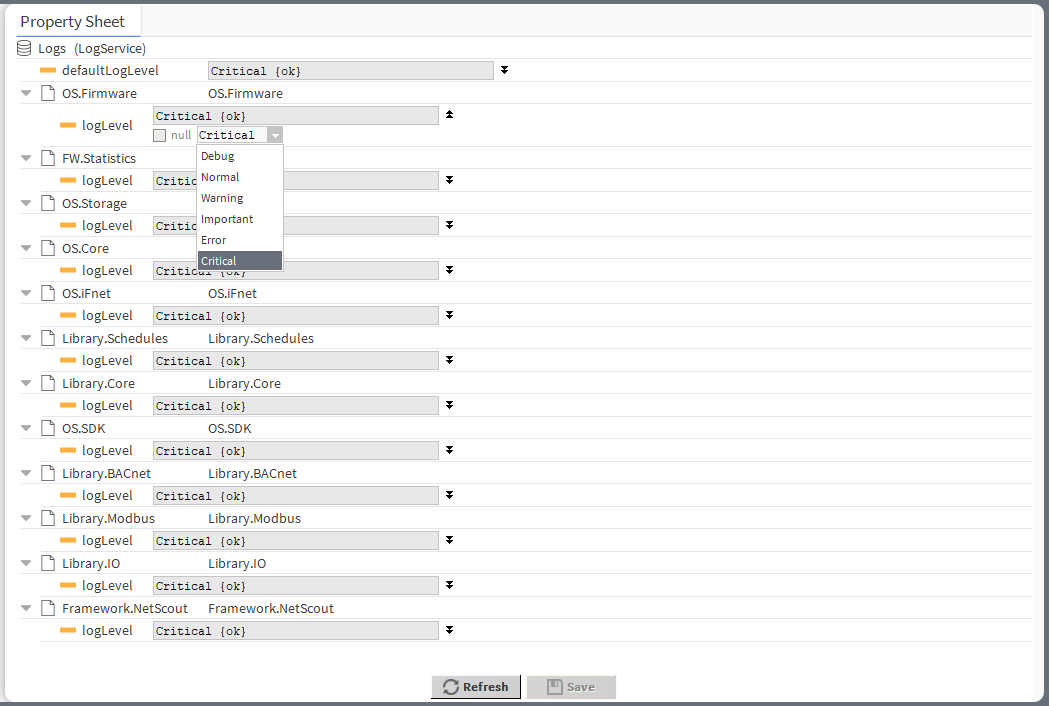
logLevel slots
Accessing Logs
Logs are accessible from the Nav Tree under the System → Logs.
To save logs, right-click on Logs and select Actions → Dump Log from the context menu.
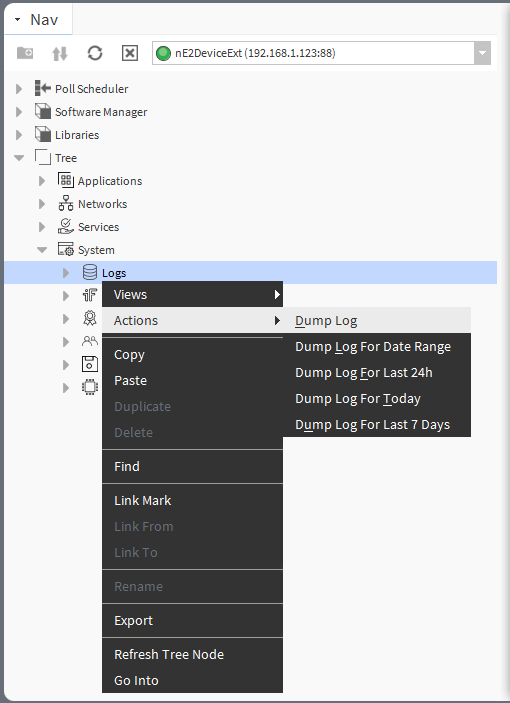
The following actions are available:
Dump Log: saves all registered logs to a .txt file,
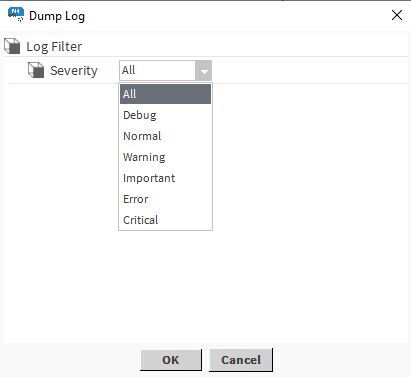
Dump Log action
Dump Log for Date Range: saves logs from a selected date range to a .txt file,
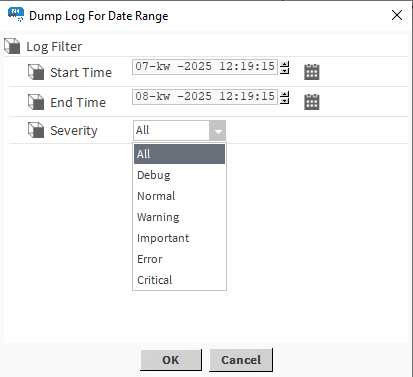
Dump Log for Date Range action
Dump Log for Last 24 Hours: saves logs from lat 24 hours to a .txt file,
Dump Log for Today: saves logs from today to a .txt file,
Dump Log for Last 7 Days: saves logs from last 7 days to a .txt file.
After selecting an action, a Dump Log window pop-up, where it is possible to specify the level of log filtering.
In the final step, a confirmation window is displayed with the status of the task and indication of the location of the saved log file.
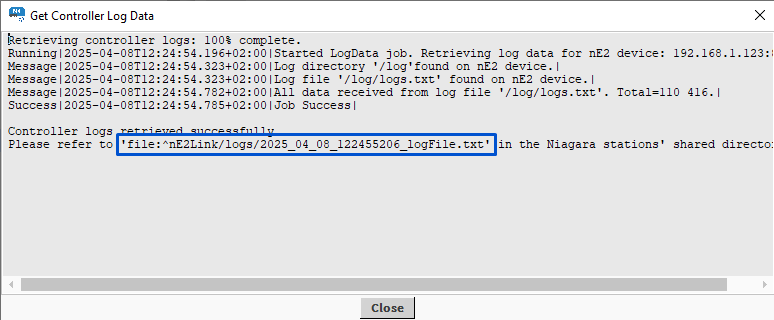
Saving logs confirmation pop-up
The file can then be accessed in the tree under Files:
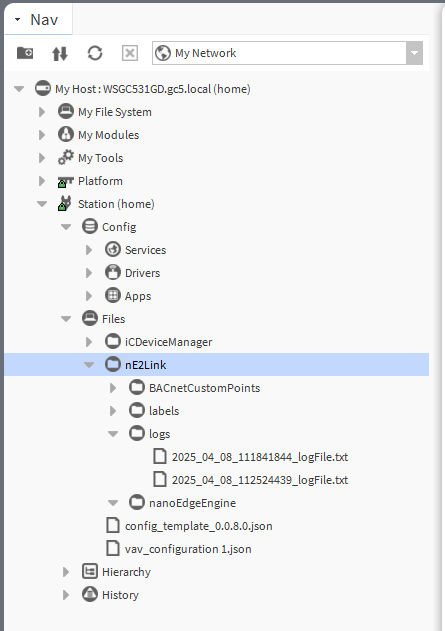
Logs file location
To access the logs, either double-click on the .txt file in the tree or copy the file’s path from the confirmation pop-up and paste it to the editable path in Workbench.

The Workbench bar with files' path becomes editable upon clicking
The file will be opened in the Workbench text editor view.
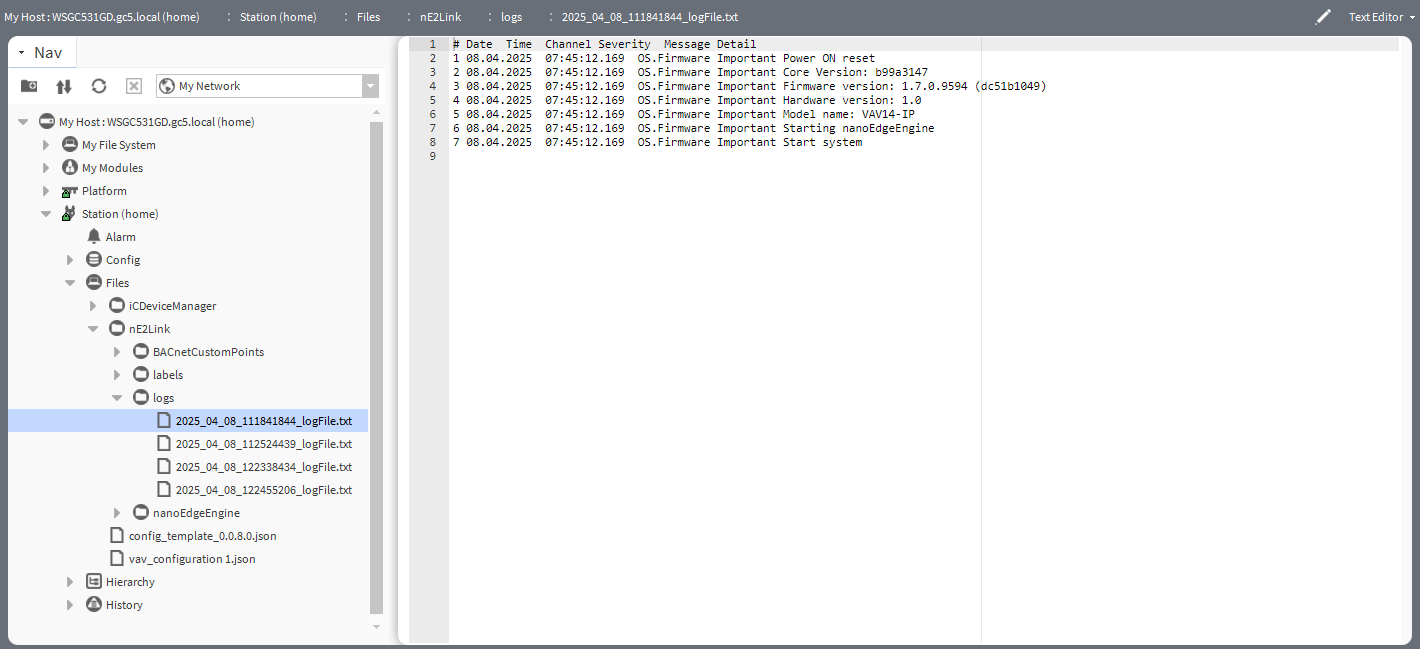
Logs presented in text editor