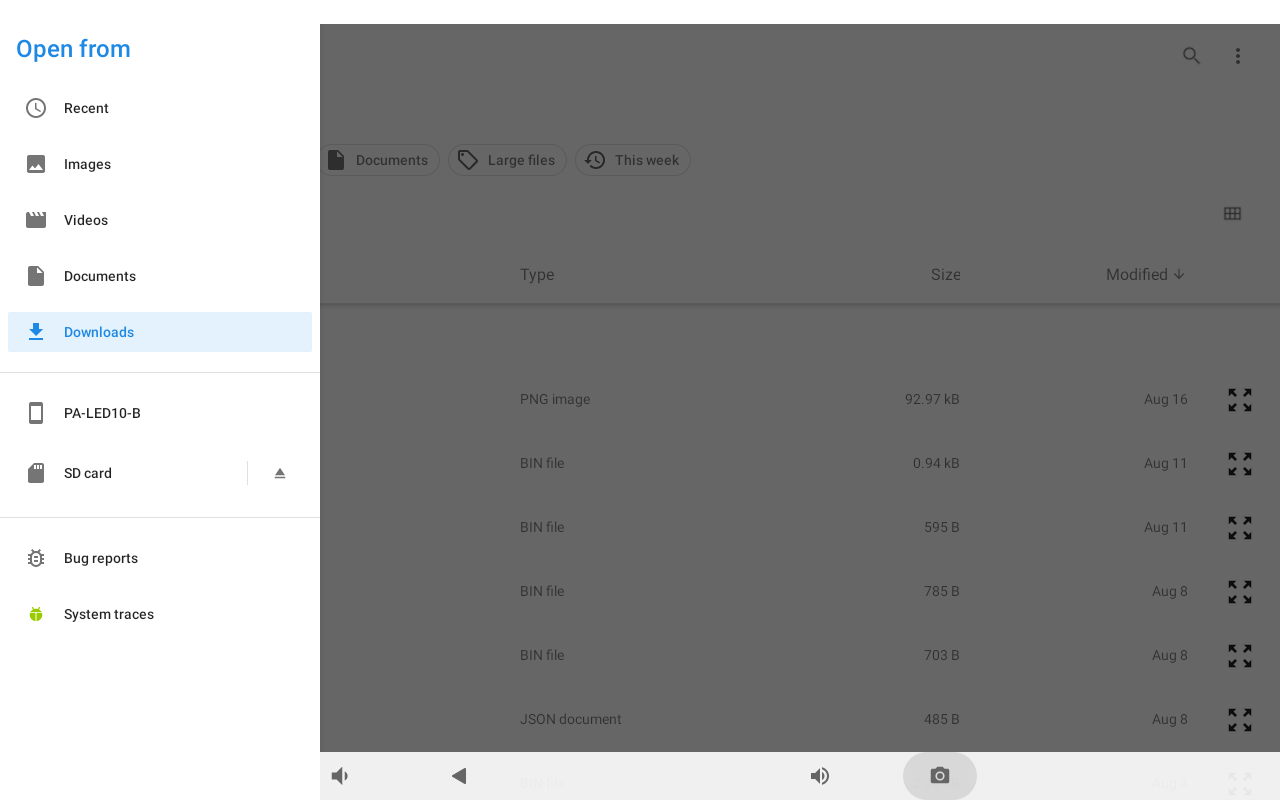
Click on the below link to see the video showing how to export and import settings and views:
Export of Settings
The Export option allows to export application settings or settings and views to a .json file.

To export application settings, follow the below steps:
Step 1: Select the Export settings or Export setting with views (exports settings along with connection data).
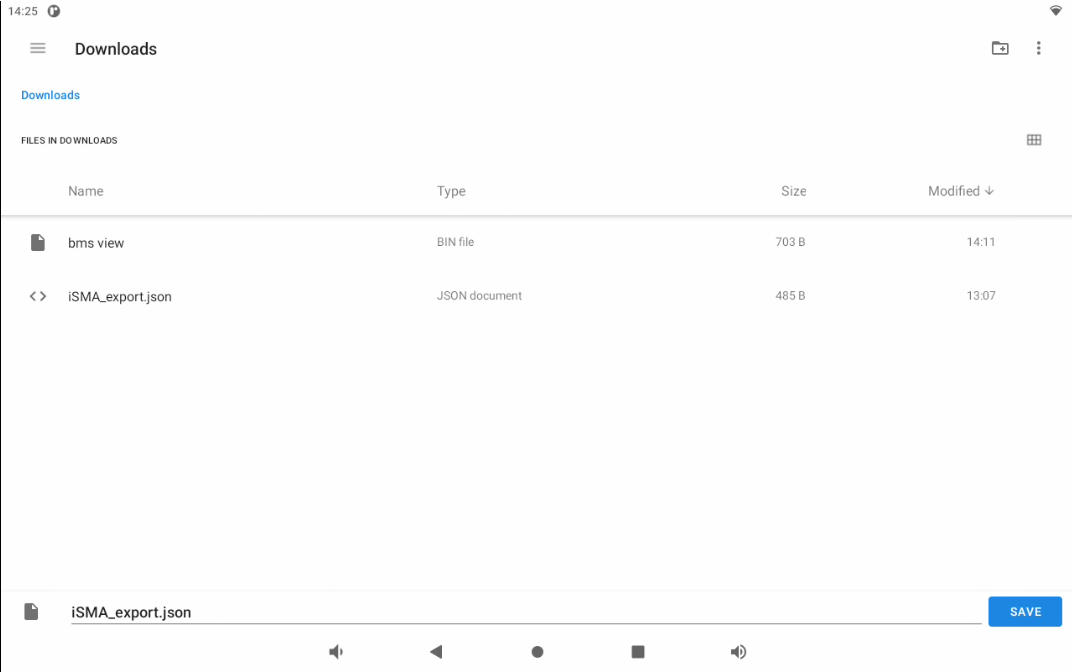
Step 2: New window shows up. A default name of the file is ’iSMA_export.json‘ but it is freely editable; also at this point the user has to pick the location of the file (touch the three dashes icon in the left top corner of the screen).
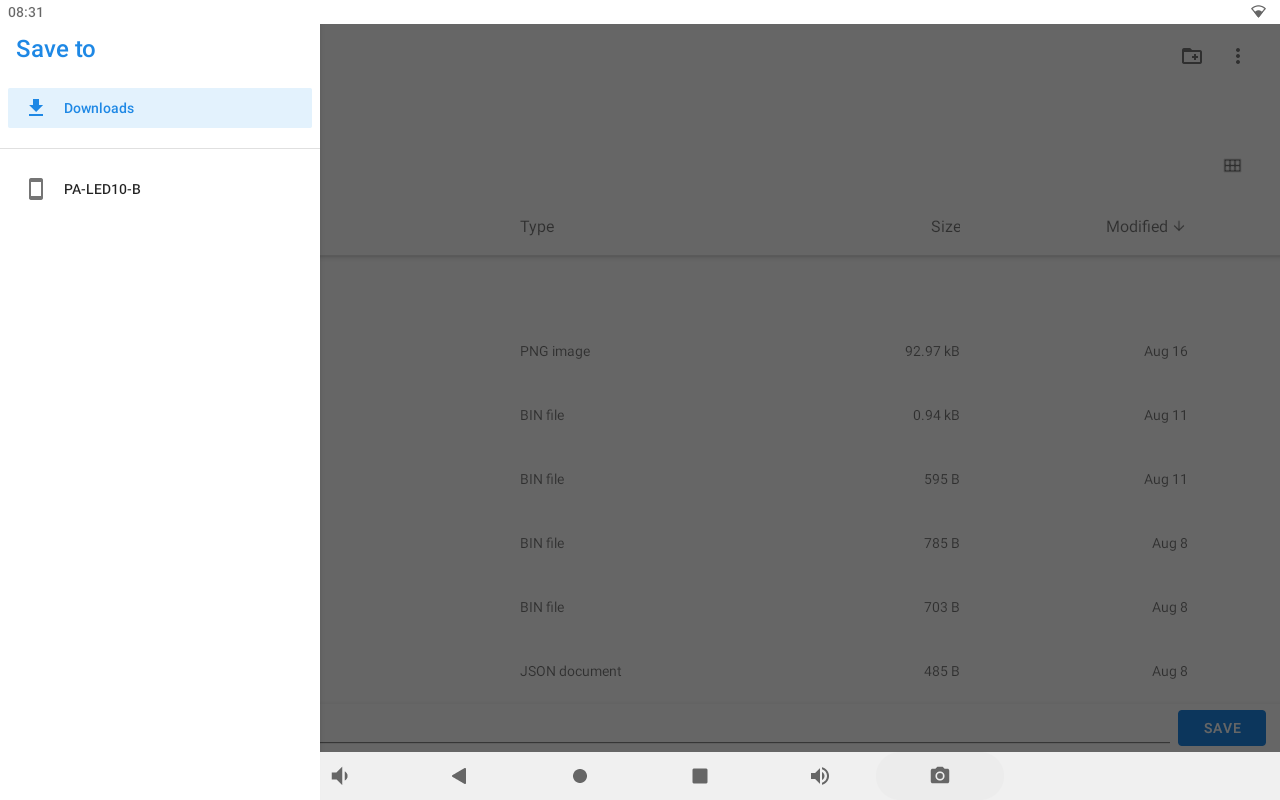
Import of Settings
The Import option allows to import application settings or settings and views from a .json file.
To import application settings, follow the below steps:
Step 1: Select the Import settings.
Note: Importing settings overwrites current settings, including added connections.
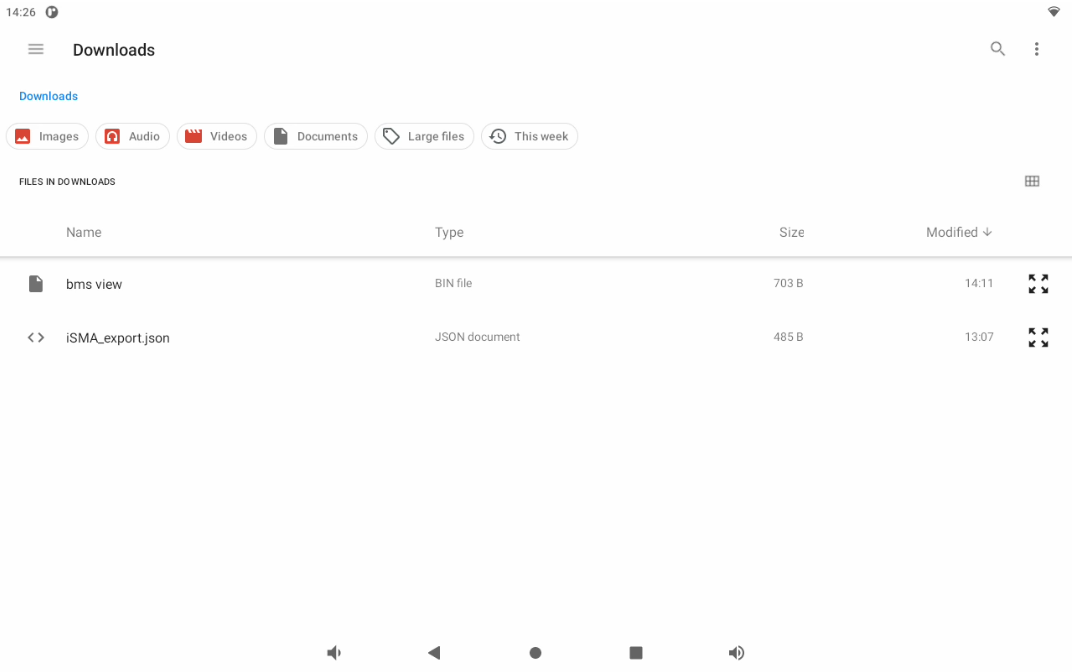
Step 2: Choose a file to import (touch the three dashes icon in the left top corner of the screen); it can be downloaded from the panel or any other storage source connected to the panel.