
Introduction
This manual contains information about LCD display in the iSMA-B-AAC20 controller.
Revision History
|
Rev. |
Date |
Description |
|---|---|---|
|
1.5 |
19 Jun 2024 |
Updated BoolLine component description |
|
1.4 |
21 Apr 2022 |
|
|
1.3 |
27 Jan 2020 |
Replaced environment of programming from Workplace to iSMA Tool |
|
1.2 |
20 Apr 2017 |
|
|
1.1 |
28 Aug 2015 |
First edition |
Revision history
Sedona LCD Display
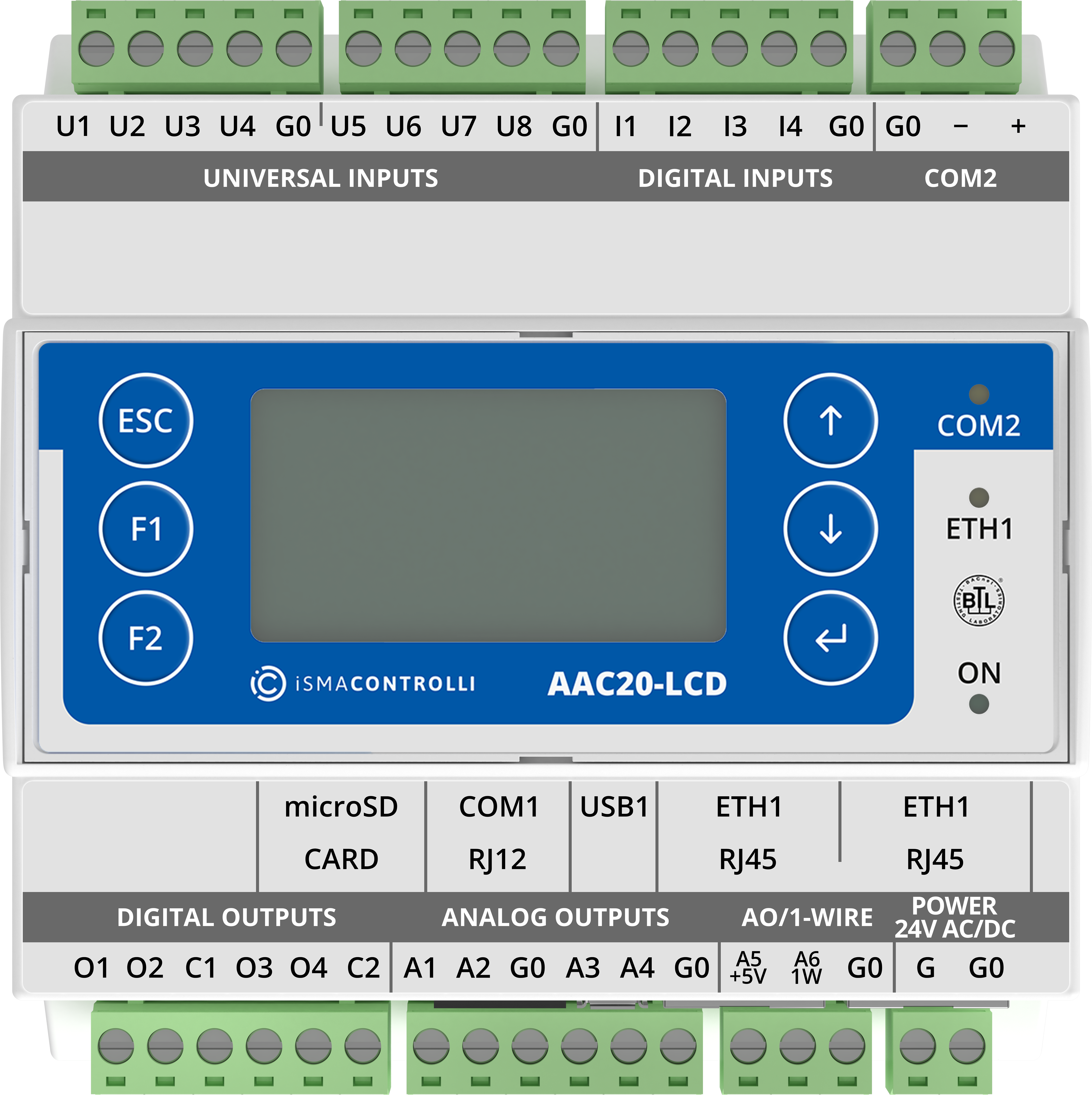
The display can be used as an operating panel to display and manage the algorithm of the iSMA-B-AAC20 controller or to view and manage system settings.
The built-in display is a monochrome display with backlighting. It can display up to 20 characters per line and up to 7 rows on one screen. Up to 16 lines can be displayed in a single screen, and scrolling is available with up/down arrows (one line at a time) or with the keys F1/F2 (scrolling entire screens).
Note: The display supports only the basic ASCII characters.
There are 6 dedicated keys to operate the display:
-
Esc: exit key;
-
Enter: select, move the cursor to the right;
-
Arrow up: add/subtract, menu navigation;
-
Arrow down: add/subtract, menu navigation;
-
F1: function key;
-
F2: function key.
LCD System Menu
The iSMA-B-AAC20 controller with the display has an option to log in to the system menu without a necessity to add any additional components to the Sedona environment.
Log in/log out system menu process:
-
Press and hold the F1 key (displays "Enter Password");
-
Use the arrow keys (the change of the digital value by 1) and move through the coming fields (using the Enter key), enter the password to the system (a 4 digit number, 1000 is a default value);
-
Approve the input password by pressing and holding the Enter key;
-
Cancelling the login process and exiting from the system menu – press and hold the Esc key.
The system menu consists of the following components:
-
Info: provides information about your device and hardware resources;
-
Local I/O: contains information about the current values of inputs/outputs of the physical devices and their configuration options;
-
Network Config: changes the IP address of the device and the port and address of the Modbus TCP/IP protocol;
-
Change password: changes the password to log in to the system menu and to the website (editing the Device Password slot in the Plat component);
-
Reboot: restarts the device (required when you change the IP address).